Library staff can delete a patron if they have no outstanding checkouts, holds, or charges owed. If there are outstanding checkouts and charges, the checked out items must be returned via Circulation Desk and the charges “paid” (or waived) before the record can be deleted. Patron records can be deleted individually and in bulk.
NOTE: Library staff may not be able to delete a patron if their User Role is "higher" than theirs, e.g. library staff cannot delete the System Administrator patron. This is controlled via parameter 3365 'canDeleteHigherLevelBorrowers' (Yes or No).
This guide will provide the steps required to delete a single patron record. Separate guides provide the steps required to delete patron records in bulk and return items on checkout.
If a Patron Record Includes a Delete Button
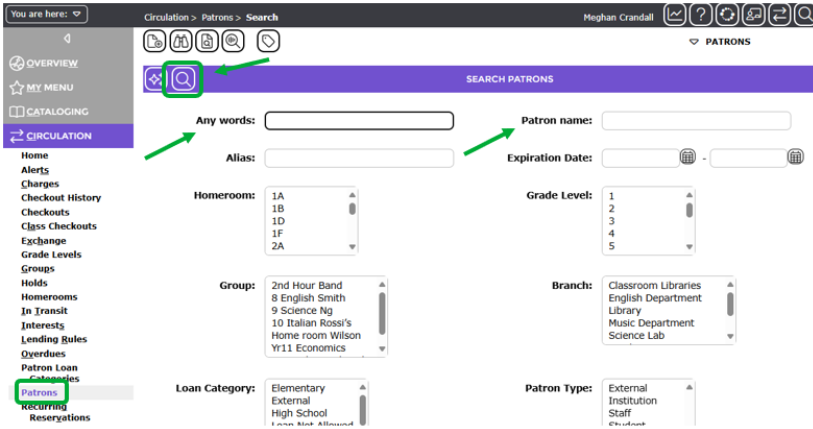
1. Complete a search for the desired patron record by going to Circulation > Patrons.
2. Enter any part of the patron’s name in the fields below. Click the Search icon.

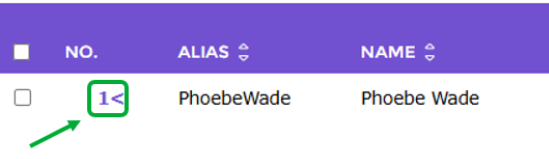
3. Open the student’s record by clicking the number beside their name.
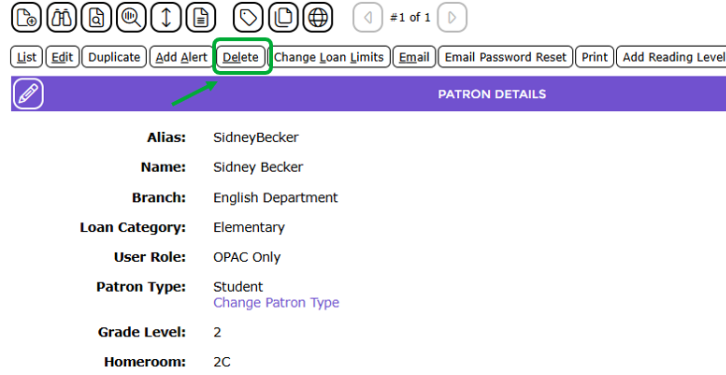
If a Delete button is displayed, staff can delete the patron record without the need to complete a return or payment process.
4. Click on the Delete button.
5. A popup message will display asking if you wish to delete the patron.
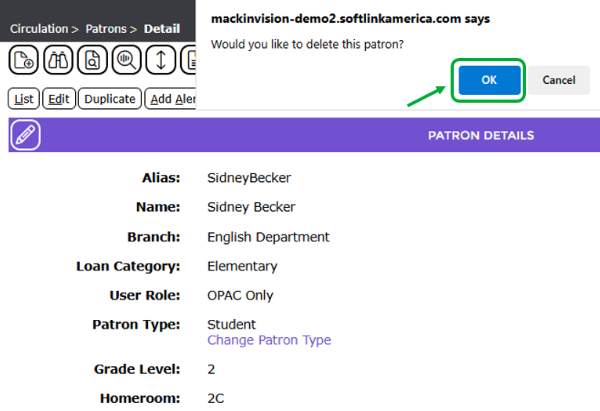
6. Click OK.
The patron List screen will display and the patron is no longer listed. You can confirm the patron is deleted by attempting a search for the patron.
If the Patron Record Does Not Include a Delete Button
If the patron you want to delete has outstanding checkouts, holds or charges, or if the User Role of the patron (to be deleted) is "higher" than the User Role of the patron attempting the delete process (as controlled via parameter 3365 'canDeleteHigherLevelBorrowers') , the Delete button will not display on the patron Details screen.
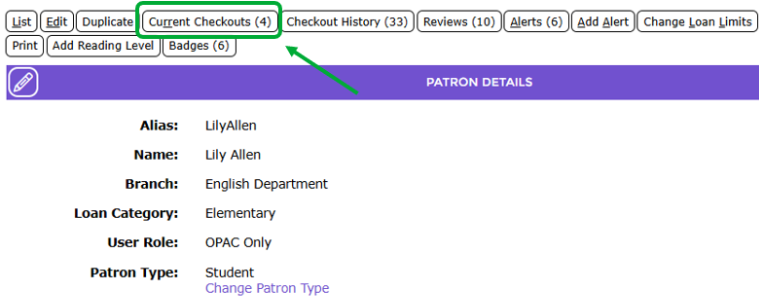
You will first need to return the outstanding checkouts via the Returns tab in the Circulation Desk. Refer to How to Return a Copy (Item) for information on returning checkouts.
To complete a payment process via the Charges tab in Circulation Desk refer to How to Pay a Fine or Charge via Circulation Desk.
If the patron being deleted has holds assigned to their patron record, they will also need to be deleted. This is done via Circulation Desk, the patron or the resource record. Any of the following guides will assist you with deleting a hold currently tied to a patron record:
Was this article helpful?
That’s Great!
Thank you for your feedback
Sorry! We couldn't be helpful
Thank you for your feedback
Feedback sent
We appreciate your effort and will try to fix the article