Summary
A User Privilege is the term given to a set of operations that can be enabled, or disabled, to determine access by library users and staff to, for example, view, add, edit, remove, restore, request and override functions in the system. User Privileges are named according to the module the operations relate, for example, Cataloging, Circulation and OPAC. One or more User Privileges are then tied to one or more User Roles (selection of a User Role is mandatory for a patron record).
Overview
The setting on User Privilege operations determines staff and library Patrons access to particular areas of the system and if they have access, what level of access those patron types will have. For example, OPAC patrons will not have access to any library Management are operations to modules and options but will have access to self-help functions in their My Portal area while for library staff, some will have access, add, edit and delete options to most or some screens and others only restricted viewing and accessing and search functionality may apply.
Editing of User Privilege operations may be necessary if, for example:
- The role of a staff member has changed resulting in the need to enable (or disable) one or more operations
- When new functionality is added which requires the turning on or off of default settings
- When operations were enabled incorrectly and should be disabled.
Enabled operations display a check in their corresponding checkbox while disabled operations are identified by the absence of a check in their corresponding checkbox. If a check displays in an operation checkbox, clicking in that checkbox removes the check thereby disabling the operation. Clicking in an empty checkbox will display a check identifying it is now enabled.
Edit an Operation of a User Privilege
Two examples will be provided for editing a User Privilege operation. One example will show how to disable an operation using one related to the Articles sub-menu which is located under the Cataloging top level operation, the other, how to enable the operation. The process explained for disabling or enabling this operation is the same for any operation, only the selection of the ‘Access to…’ link or sub-level is different depending on the operation that requires editing and the area under which it would be located.
To Disable an Enabled User Privilege Operation
- Navigate to System > User Privileges.
- Click on the Edit icon corresponding to the applicable User Privilege, for example, Cataloging.
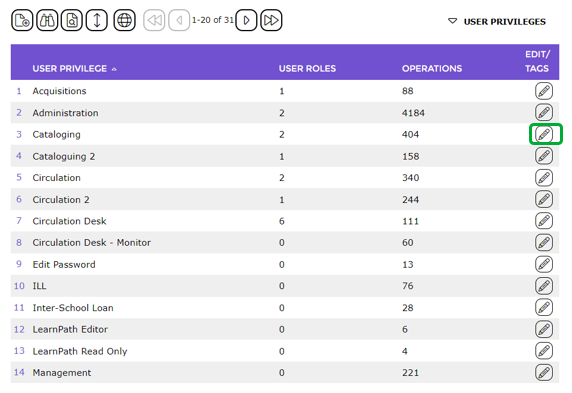
- The User Privileges > Edit screen will display.
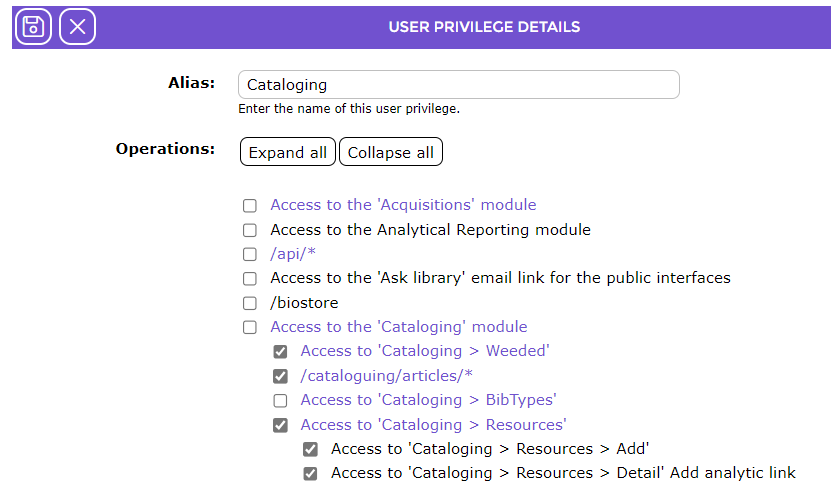
- In the Edit screen, click on the top level Access to the ‘Cataloging’ module link. (do not click in the corresponding checkbox).
- All sub-level and single operations related to Cataloging will display.
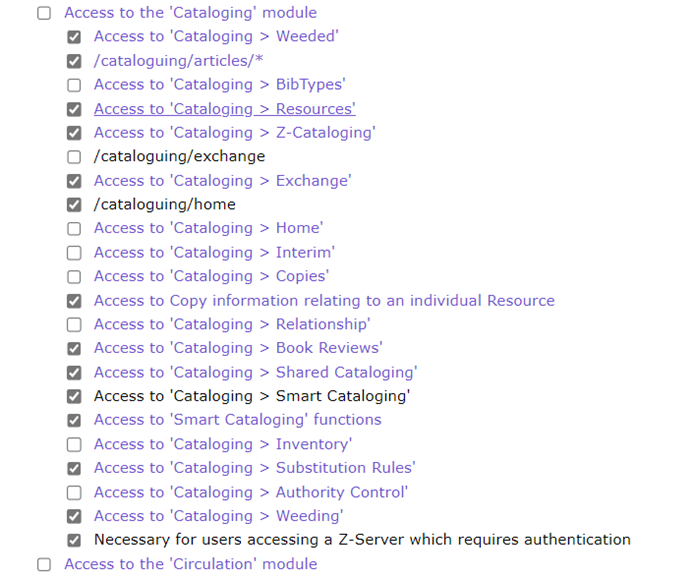
TIP: If the checkbox next to the top level operation, for example Access to the Cataloging Module, includes a check then every single operation related to Cataloging is enabled. |
- Click on the Access to ‘Cataloging > Resources’ sub-level to display its associated operations. Note that there is a checkbox corresponding to the sub-level indicating all operations related to it are enabled.
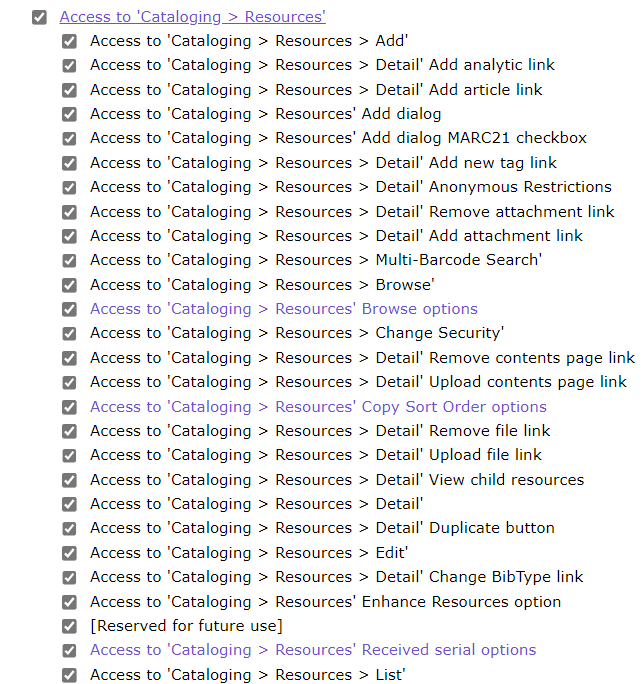
- Click in the checkbox corresponding to the operation to be turned off, for example cataloging>resources>Detail’removeattachmentlink, and the check will be removed.
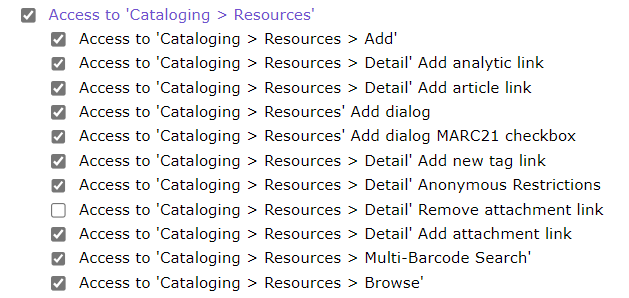
- Repeat Step 7 for any other operations that are to be disabled if applicable.
- Once all edits have been complete click the Save button.
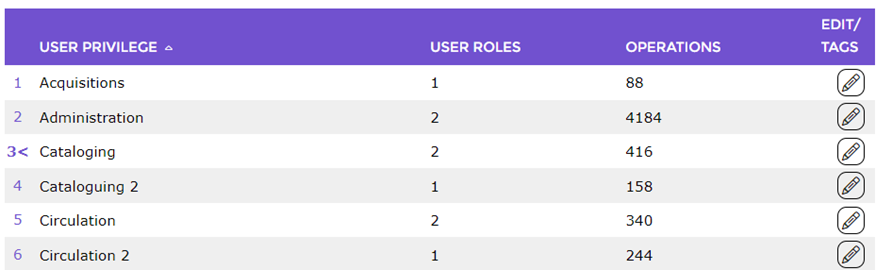
- The User Privileges > List screen will display.
- Click on the Edit icon corresponding to Cataloging to access the Edit screen again.
- A check no longer displays in the checkbox next to the top level and the sub-level whose operation was turned disabled.
- The settings will take effect once any User, whose User Role includes the User Privilege with the edited operation/s, next logs into the system. Those Users will no longer be able to remove attachments from resource records.
To Enable a Disabled User Privilege Operation
- Complete steps 1-3 as described in the section on disabling an operation.
- Click on the applicable sub-level link (do not click in the checkbox).
- Locate the operation required. For example if the attachmentRemove operation is to be re-enabled for the User Privilege, click on applicable sub-level link to display its related operations.
- Click in the empty checkbox next to the /cataloguing/resources/detail/removeattachmentlink operation.
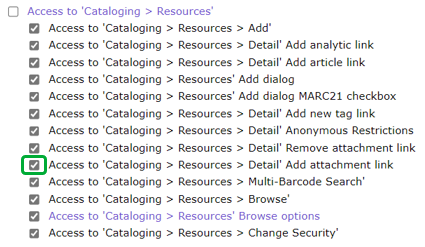
- A check displays in the checkbox. Click the Save button when all operations to be enabled have been completed.
- The settings will take effect once any User, whose User Role includes the User Privilege with the edited operation/s, next logs into the system.
Was this article helpful?
That’s Great!
Thank you for your feedback
Sorry! We couldn't be helpful
Thank you for your feedback
Feedback sent
We appreciate your effort and will try to fix the article