Summary
Copy records, can be deleted for a number of reasons, for example, some of them have been missing for a time, some are damaged, or not circulated for a significant period of time, and unlikely to be loaned in the future. Staff can delete copies individually or in bulk. If the copy record being deleted is the only copy tied to the resource, then the resource record can also be deleted at the same time. You may not want to delete the resource record if, for example, the copy being weeded is damaged and is to be replaced.
This guide will provide the steps required to delete a copy.
Weeding Parameters
There are three parameters (found under Management > Parameters) related to weeding:
Parameter No.2001 Resource Weeding Batch Limit – this parameter determines the maximum number of resource records that can be weeded at a time. The default setting of 1000 can be changed. If the default value is changed, do not replace it with one that is significantly larger, or the performance of the system may be impacted.

Parameter No.2107 Item Weeding Batch Limit – this parameter determines the maximum number of copies that can be weeded at a time. The default setting is 1000 but this can be changed.

Parameter No.2103 Weeding Reason is Mandatory – this parameter determines whether it is a mandatory requirement that a reason for the weed process be entered as part of the process. If a reason for why a resource is being weeded is required, choose Yes on this parameter.

Delete a Copy Record
If weeding a copy because it has been overdue for a significant length of time, it will need to return it via Circulation Desk. To weed (delete) a copy record:
- Navigate to Cataloging > Copies > Search.
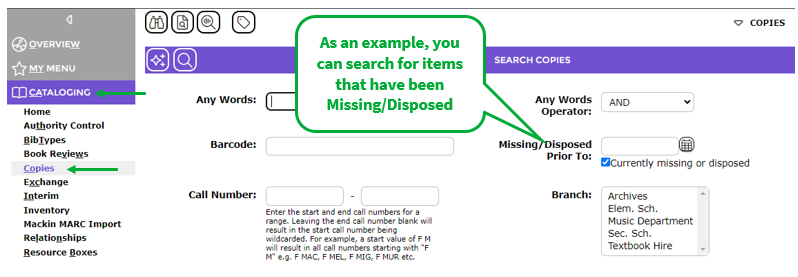
- Search for the copy record required in the usual manner.
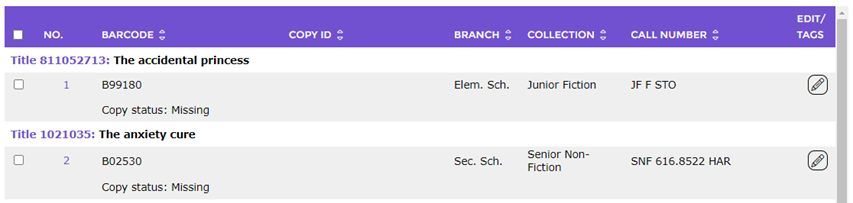
- Click on the number corresponding to the copy to be deleted, for example, 1.
- In the Detail screen locate and click on the Weed button.
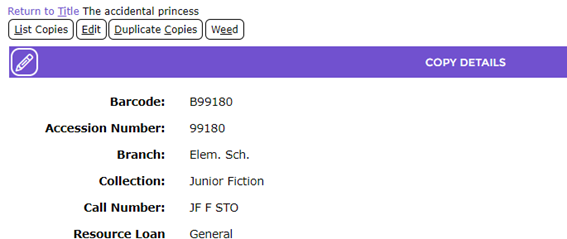
Note: A Weed button will display on the copy’s Detail screen only if it is not currently on checkout to a Patron or is on request.
- The Weeding screen will display. The information includes the title of the resource to which the copy is attached and the copy barcode. A checkbox, which includes a check by default, also displays.
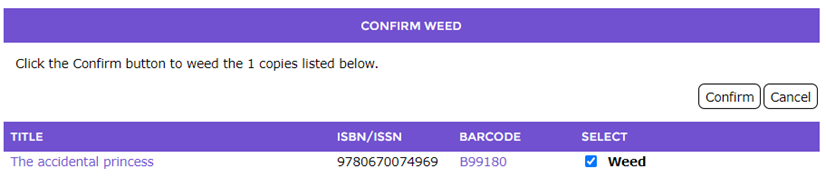
- Check that the barcode matches the one on the copy you are deleting then click the Confirm button.
- A popup box will briefly appear on the screen indicating the weed is being processed and the screen will refresh identifying the barcode is deleted.
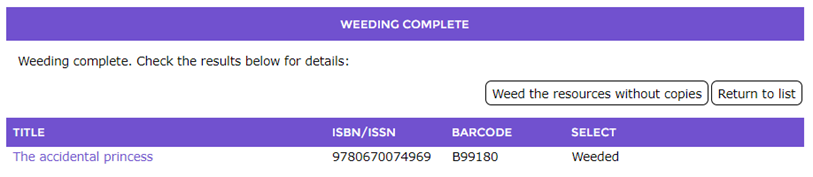
- If the copy just deleted is the last copy tied to that resource, a message in a button, “Weed the resources without copies” will also display. The message is a button that enables you to delete the copy’s resource record if you wish (see the To delete a resource section below). It is not mandatory to delete the resource record.
- If a list of copies was returned when the initial copy search was done and you wish to return to the list of copies, rather than delete the resource, click on the Return to list button.
To delete the resource:
- Click on the Weed the resources without copies message link.
- The Weeding screen will display.
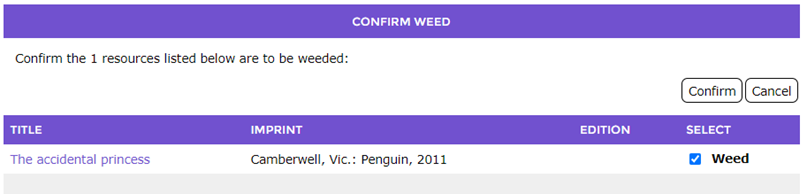
- The resource’s title will be identified and the checkbox next to Weed in the Select column will include a check by default.
- Click on the Confirm button to delete the resource.
- A Weeding popup box will display to identify the weed is being processed.
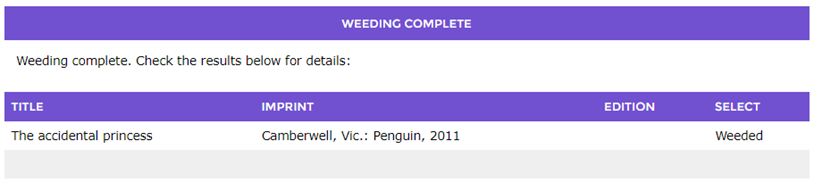
- The screen will refresh and Weeded displays in the Select column.
Was this article helpful?
That’s Great!
Thank you for your feedback
Sorry! We couldn't be helpful
Thank you for your feedback
Feedback sent
We appreciate your effort and will try to fix the article