Overview
User Roles will include one or more User Privileges. User Privileges determine the areas and functions to which users, with a particular User Role, have access. User Privileges consist of individual, activated, operations relating to one or more specific areas within the system, for example Cataloging, and/or Circulation. They are effectively a group of applicable activated single operations.
The number of User Privileges tied to a staff User Role for example, will determine the level of access they have to areas within the system. For library patrons, access is restricted to the library Home page and any self-help functions as determined by library policy.
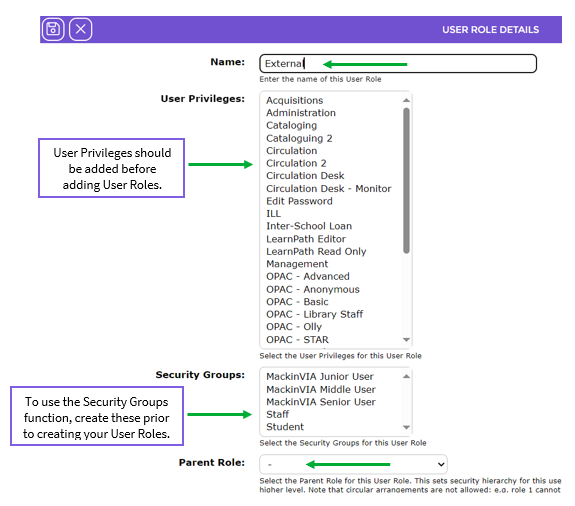
Create User Privileges first as one or more of them will be required for selection when creating a User Role. Any user allocated a User Role without any User Privileges will not have access to the system.
Security Groups, if created, can also be selected on User Groups. They determine what restricted resources users with the Role can view in the Search interface and Management modules. For example, resources restricted from view in the Search interface, will not be seen by users whose role only enables them access to the Search interface however, those records can be viewed in the Resources and Copies List screens by users with a Staff User Role.
The creation of User Roles (and User Privileges) is complex. The Overview of User Privileges and User Roles guide provides a brief introduction.
Related Parameter
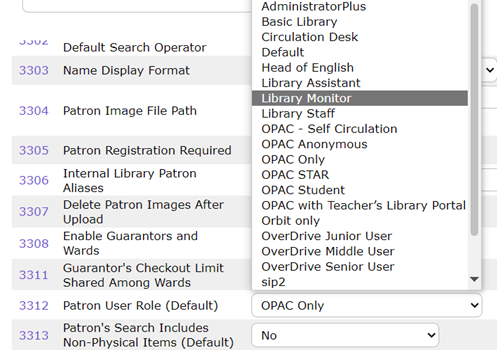
Parameter No. 3312 – Patron User Role (Default).
The above parameter is available to set a User Role as the default. This ensures that role is selected automatically when you are creating a new patron record. The default User Role should be the one that is the most applicable, for example Student or Adult.
Default User Roles
The following table lists the User Roles, their User Privilege “groups” (with applicable operations) and Parent Roles, set up in the system by default:
User Role |
User Privilege Groups |
Parent Role |
Administrator | Administration
|
|
Circulation | Circulation Desk OPAC – Advanced OPAC – Olly OPAC – Basic Staff – Basic
|
|
Default | OPAC – Advanced OPAC – Basic OPAC – Olly
| Staff |
Library Staff | OPAC – Advanced OPAC – Basic OPAC – Olly Self Circulation Circulation Staff – Basic Cataloging Technical System Management Acquisitions
| Administrator |
Olly only | OPAC – Olly
| Staff |
OPAC – Anonymous | OPAC – Anonymous
| Staff |
OPAC only | OPAC – Advanced OPAC – Basic OPAC – Olly
| Staff |
Staff | OPAC – Advanced OPAC – Basic OPAC – Olly Self Circulation Staff – Basic
| Library Staff |
Web Services | Web Service
|
|
Create a User Role
The applicable User Privileges must be set up before creating your User Roles (see the How to Create a User Privilege guide on creating a User Privilege). Only a user with the Administrator User role, or a user whose role also includes access to User Roles and User Privileges operations, can add or edit User Roles. The Administrator User Role is one of several provided with the system by default. Select at least one User Privilege option when creating a User Role. If the User Role selected on a patron record, has no User Privileges, the User will have access to the Search interface as an Anonymous user but when they log in can access nothing.
- From the library Management screen navigate to System > User Roles.
- The User Roles List screen will display.
- Click the New icon, type ‘ne’ or select New from the Function menu.
- The User Roles > Add screen will display.
- In the Name field, enter the name of the new User Role, for example, External.
Select User Privileges:
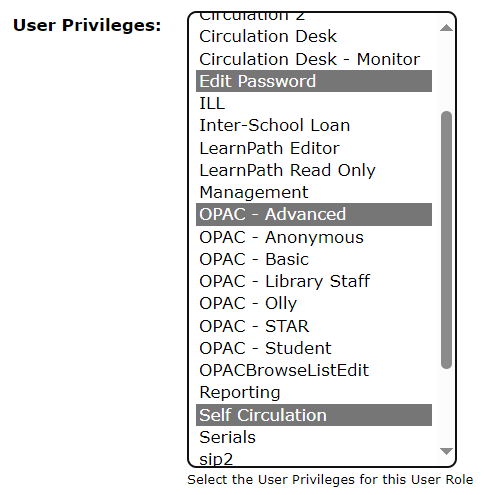
User Privileges must be created prior to creating User Roles. The User Privileges list-box contains all currently available User Privileges. User Privileges “group” a number of related, single operations. The example User Role being created is for external patrons who will only have access to the Search interface (OPAC).
Select which User Privilege will apply. To select more than one, hold down the Ctrl key on the keyboard and click on each one required. The User Privileges selected are highlighted in blue.
Security Groups:
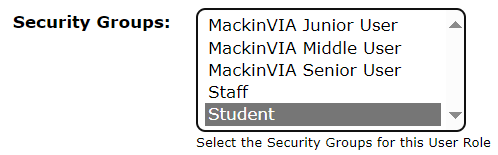
Security Groups can be established, via System > Security Groups, if there are records whose viewing is to be restricted.
- If there are groups established, and they are to be applied to the User Role being created, select one required from those available in the field’s list-box.
Parent Roles:
A list of all User Roles created displays when the down arrow at the end of the field is clicked. Select one from the list.
- A Parent Role may be selected to ensure Users with a particular Role cannot increase their security access to a higher level. Therefore, the Parent should be a higher level Role than the one being created. If in doubt always choose Administrator.
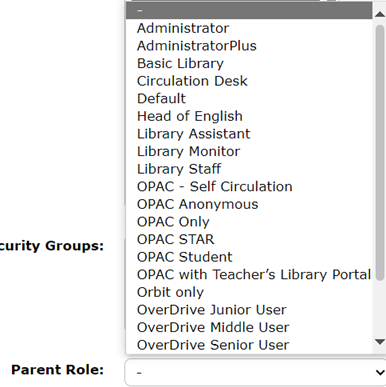
8. Once all required selections have been completed, click the Save button. 
- The Detail screen of the new User Role will display.
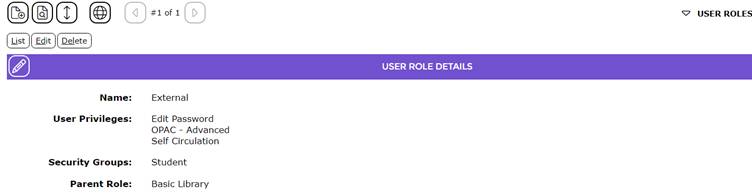
The User Role is now available for selection when adding a new patron or editing an existing patron.
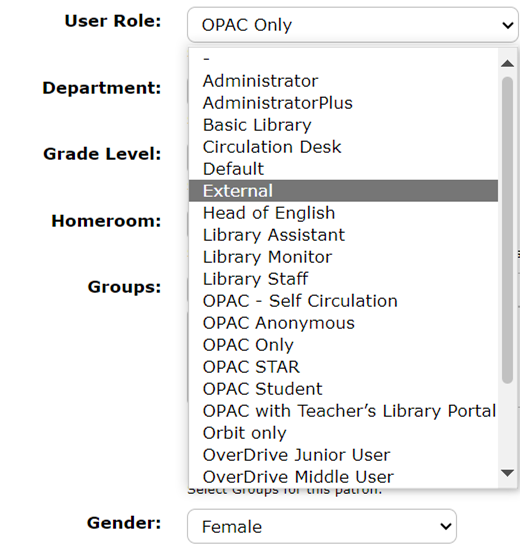
The selection of a User Role is mandatory. The default role, as selected on Parameter No. 3312 will display in the User Role field on entry to the Patron Add screen. You can click on a different User Role in the Patron Add screen when applicable.
Example Screen of Patron Whose User Role Has no User Privileges
User Roles must have applicable User Privileges tied to them for patrons to have access to applicable areas in the system. For patrons with a User Role selected on their record, which does not have any User Privileges tied to it, the following message will display on the screen once they log in.

Was this article helpful?
That’s Great!
Thank you for your feedback
Sorry! We couldn't be helpful
Thank you for your feedback
Feedback sent
We appreciate your effort and will try to fix the article