Summary
The process to create a parent patron record is the same whether the record is for library staff, teachers, parents, or students. Logged in staff with the add/edit user privilege operations can create or edit patron records.
This example will provide the steps required to create a Parent patron record.
- From the main Management screen navigate to Circulation > Patrons.
- The Search screen will be displayed.
- Click on the New icon or select New from the Function menu.

- The Add New Patron popup screen will display.
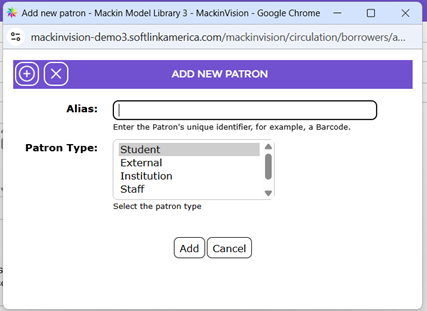
- A process for determining what to use as an Alias will have to be determined by the school.
- The default Patron Type Student is highlighted. If this is not the type required, click on the type applicable to the patron for whom a record is being created, for example External. Additional Patron Types can be created in Management > List Files > Patron Types, if required.
- Click the Add button to access the patron Details screen.
- Complete the required fields set by your school.
- The Branch field will default to the same Branch value as the staff user who is adding the Parent patron record. Parents would typically be assigned a separate Parent Loan Category (as defined in Circulation > Lending Rules, which determines borrowing / checkout rights) and OPAC Only as the User Role (this determines which areas of MackinVision they can access, which is usually just searching the library catalog / OPAC).
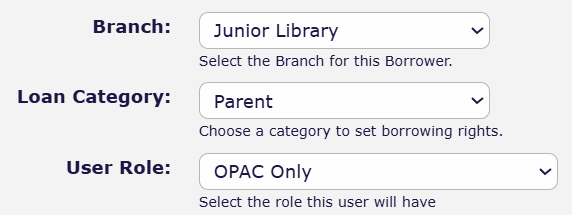 NOTE: The list of available (Patron) Loan Category values and User Roles will vary between schools.
10. Some of the fields are not mandatory to complete however, for reporting purposes (including valuable statistical information), it is recommended that as many of the fields as possible be completed.
- Once all details have been completed click the Save
 icon.
icon.
- In the resulting screen, check that all the details are correct.
- If any detail needs to be corrected click on the Edit button button, make any required changes then click the Save button again.
Was this article helpful?
That’s Great!
Thank you for your feedback
Sorry! We couldn't be helpful
Thank you for your feedback
Feedback sent
We appreciate your effort and will try to fix the article