Summary
Security Groups can be created and tied to User Roles to enable specific resources to be restricted from view in the Search interface by specific Users such as library Patrons (as opposed to Patrons who are library staff). If created, Security Groups will also be available for selection on resource record to block them from inclusion in the resource List screen and the Search interface. Patron records must include a User Role, and Security Groups are tied to User Roles (which consist of one or more User Privileges).
This guide will provide the steps required to create a Security Group and select it on a User Role.
Create a Security Group
Security Group called Not Visible will be created for this example. Only staff with the applicable User Privilege operations can access and add or edit in this option.
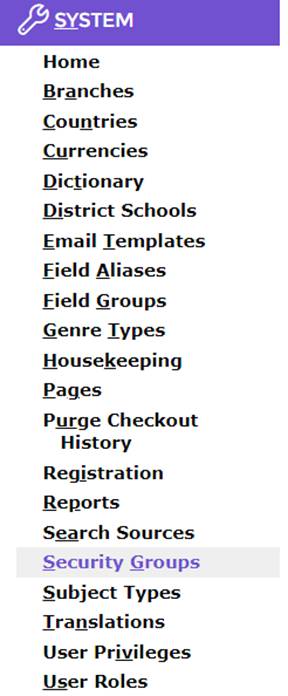
- Navigate to System > Security Groups.
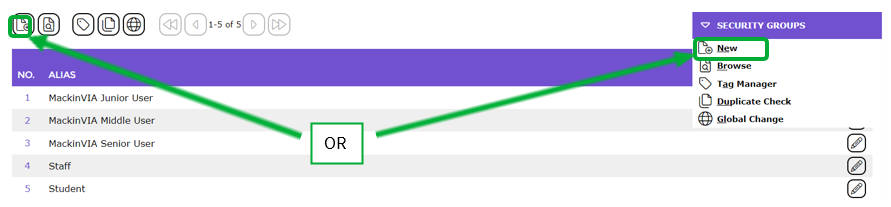
- In the List screen click on the New icon, or type ‘ne’ or select New from the Function menu.
- The Security Group Details screen will be displayed. Enter a name for the group, for example, Not Visible.
- Click the Save button.

- You will be prompted to add a new tag. Click on Add New Tag.

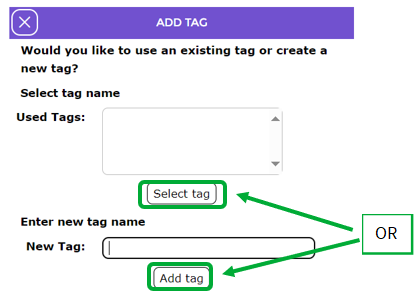
6. You will get a pop up asking if you would like to Select tag name or Enter new tag name. Click on the used tag you want to use or type in the name of the new tag.
7. Press Select Tag or Add Tag or X if you don’t want a tag.
- You will be returned to the List screen and the Security Group of Not Visible is now included.
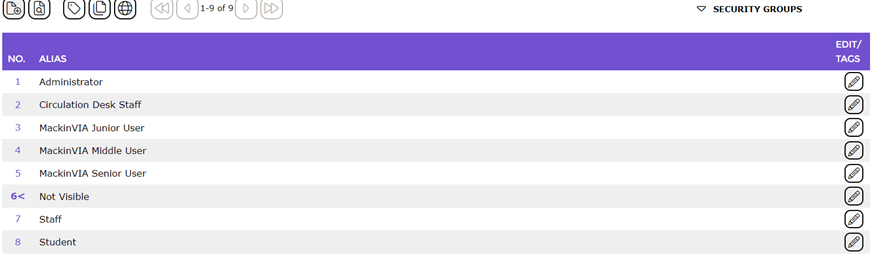
The newly created security group will be available for selection on a User Role via System > User Roles. It is also available for selection on resource records that are to be restricted from view.
Security Group on a User Role Screen
In the example steps provided below the security group of Not Visible is tied to a User Role.
- Navigate to System > User Roles.
- The User Roles > List screen will display.
- Click on the Edit icon corresponding to the User Role on which the Not Visible Security Group is to be selected, for example, OPAC Only.
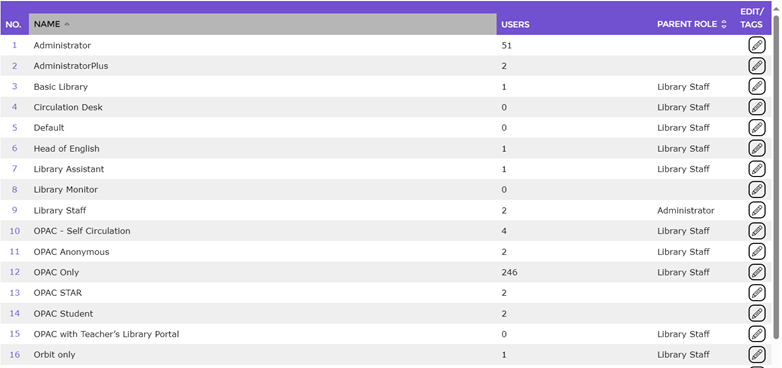
- The User Roles > Edit screen will display.
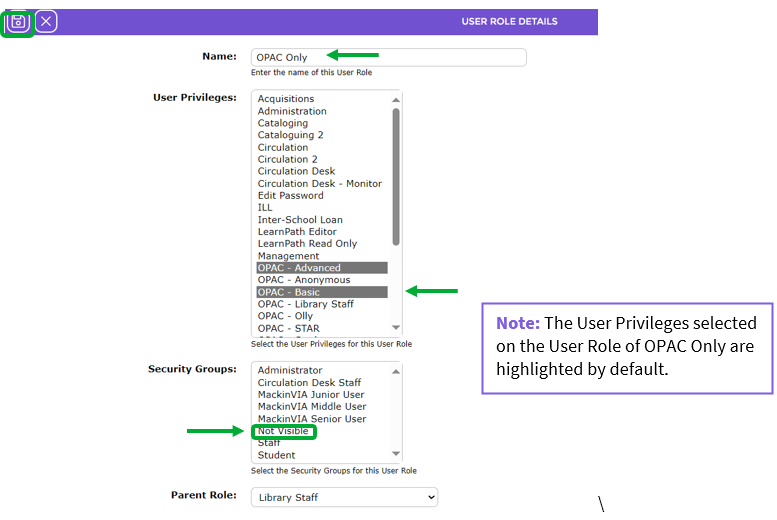
- Click on Not Visible in the Security Groups list-box.
- Click the Save button.

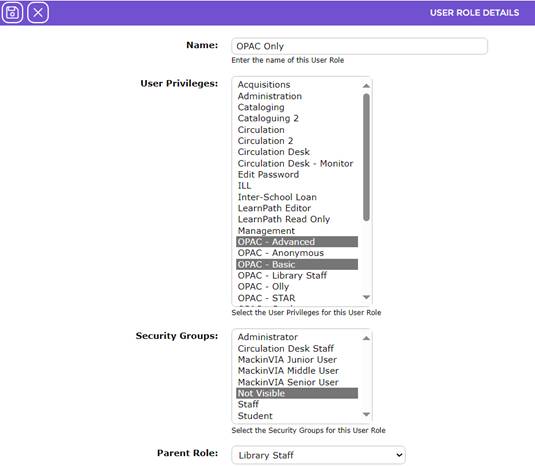
- The User Roles List screen will display.
New Security Group in the Edit Security Popup on a Resource
The Security Group can be selected, via the Security button on the Resource Detail screen, if any resource records are to be blocked from viewing in the Search interface.
- Access the Detail screen of a resource.
- Click the Security button at the top of the Resource Details screen.
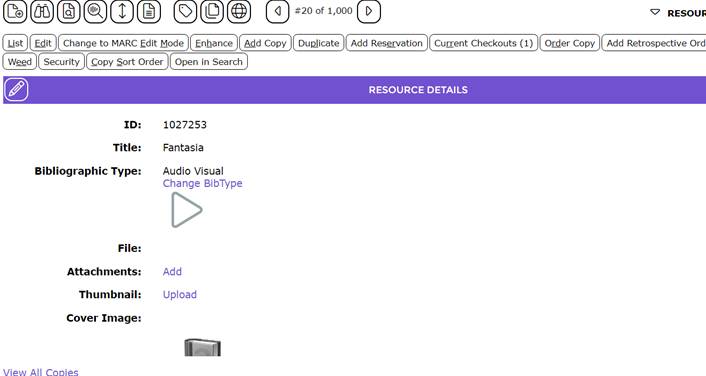
- The Edit Security popup screen will display.
- If no security group has been disallowed on the resource all Security Groups are included in the Allowed list-box including the security group just created.
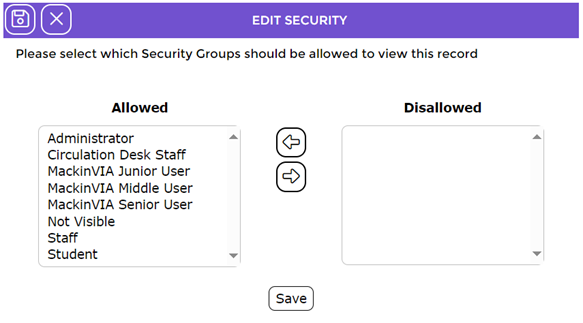
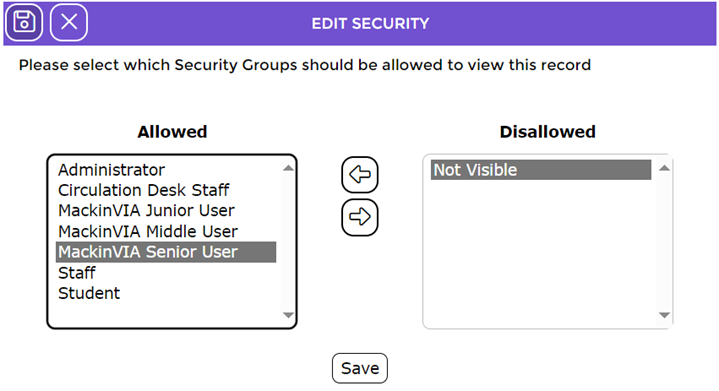
The newly created Security Group (or any other) can be disallowed by highlighting it then clicking the right facing Arrow icon to transfer it to the Disallowed list-box then clicking Save.
Was this article helpful?
That’s Great!
Thank you for your feedback
Sorry! We couldn't be helpful
Thank you for your feedback
Feedback sent
We appreciate your effort and will try to fix the article