Summary
The Status on copy records can be changed manually either individually or in bulk.
This guide will provide the steps required to change the Status on a single copy record.
Change the Status of a Copy Record
The example provides the process required to change the status of Missing, to Disposed, on a copy record. The steps required to change the status on copy records, irrespective of what the status is, are the same.
Copies with a Status of Missing can be returned via Circulation Desk if you wish, however it is not a requirement to do so. For copies that are actually missing, and are going to be weeded or disposed of, “returning” it not only changes the copy’s status back to Available, but it is also an unnecessary additional step.
- Navigate to Cataloging > Copies > Search and search for the required copy record. If, for example, you have the copy barcode click in the barcode field and scan the barcode to locate the copy. You can also search by entering the title or selecting the applicable status from the Status field for example.
(Picture below)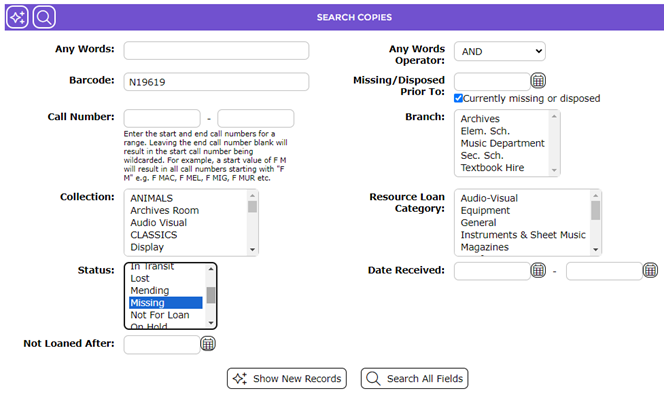
- In the resulting List screen click on the Edit icon corresponding to the applicable copy.

- The copy’s Edit screen will display.
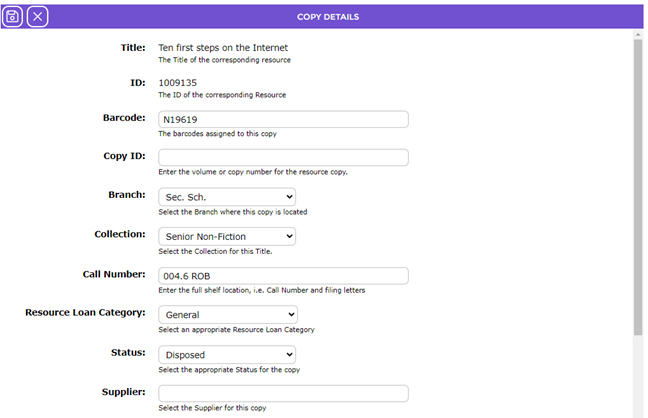
- Locate the Status field and ensure Missing is set in the field.
Note: If it is not the copy with the Missing status, click the Cancel button to return to the List screen and click on the correct copy. This may happen if there is more than one copy of the same title.
- Click on the down arrow at the end of the Status field and click on Disposed so that it now displays in the Status field. (Picture below)
- Click the Save button.
- The List screen will display. Check to confirm that the status of the copy in the List has changed to Disposed.

Was this article helpful?
That’s Great!
Thank you for your feedback
Sorry! We couldn't be helpful
Thank you for your feedback
Feedback sent
We appreciate your effort and will try to fix the article