Summary
In many instances holds, place on hold, are not collected by the patrons who reserved them.
This guide will provide an example process for managing an uncollected hold.
Manage Uncollected Holds/Holds
While library policy determines the number of days a reserved item is held for collection by patrons, once the number of days has expired, the items should be removed from the Holds area. The uncollected hold should be removed from the relevant patron’s record and the copy scanned through returns. If another patron has a hold on the title, when the copy is scanned through Returns, the Process Hold popup screen will display and staff will complete the hold process. If the copy is not for a title on request the status on the copy changes to Available.
Hold Duration Parameter
Parameter No. 3209 - Available Hold Hold Duration. In this parameter text field, enter the number of days that a request will be held for collection, for example 10.
Note that only staff with applicable user privileges can edit parameter settings.
Delete the Uncollected Hold via the Patron Record
- Navigate to Circulation > Patrons and search for the patron record. The example patron is Sherlock Holmes.
- Click on the number link corresponding to the patron in the List screen.

- The Detail screen will display.
- Click on the Current Holds (1) button.
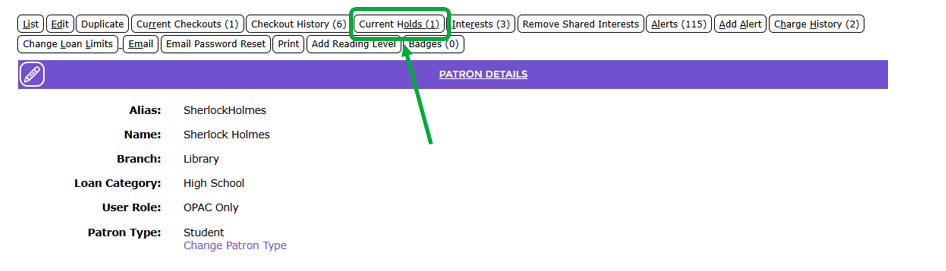
- The Holds > List screen will display. Click on the Edit icon corresponding to the hold to be deleted.

- The Holds > Edit screen will display. The value in the Count column cell corresponding to the Title identifies there is currently 1 request.
- The name of the patron will display in the Names list-box.
- Click on the Delete button and the hold will be removed from the list.
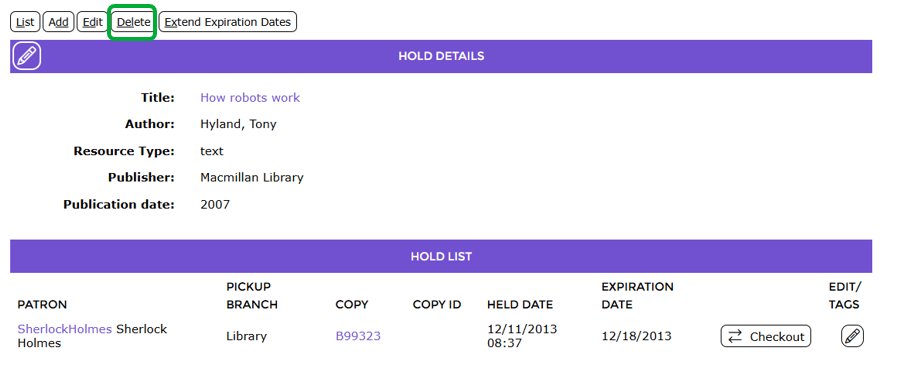
- Click the Save button. The Holds > List screen will display. Note that the value in the Count column, corresponding to the title, has reduced by one from 2 to1.
- Return to the patron’s Detail screen to confirm the hold is deleted. The number in brackets on the Current Holds button is adjusted to reflect that one of their holds has been deleted
Note: If the patron only had one hold there will no longer be a Current Holds button included on the screen.
If there are other patrons with a hold for the item, they will list in the Process Hold pop up screen when the copy is scanned through returns. By default, the radio button corresponding to the patron who is next in line will be active. Staff can change the order of the patrons listed, by clicking in the radio button next to the patron for whom the item is to be placed on hold.
Was this article helpful?
That’s Great!
Thank you for your feedback
Sorry! We couldn't be helpful
Thank you for your feedback
Feedback sent
We appreciate your effort and will try to fix the article