Summary
Copies are added to resource records via the Add Copy button on the resource Detail screen. Copy related information such as cost, currency, and supplier is added as part of the process. Donated, or free copies, are also added to resource records in the same way.
This guide will provide the steps required to add a copy to a resource. Separate guides provide the steps required to order and receive copies, complete a search and add a tag.
Add a Copy to a Resource
- Navigate to Cataloging > Resources > Search and complete a search for the resource record that the copy is to be added to.
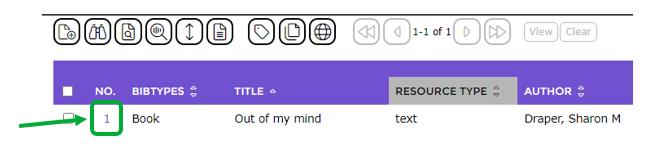
- Click on the number link on the List screen to access the resource Detail screen.
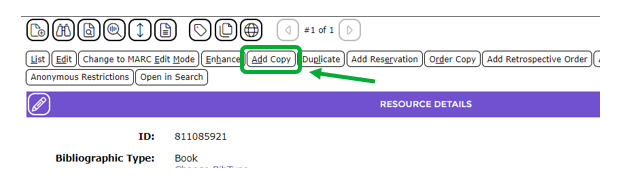
- In the Detail screen, click on the Add Copy button.
- The Add Copy popup screen will display.
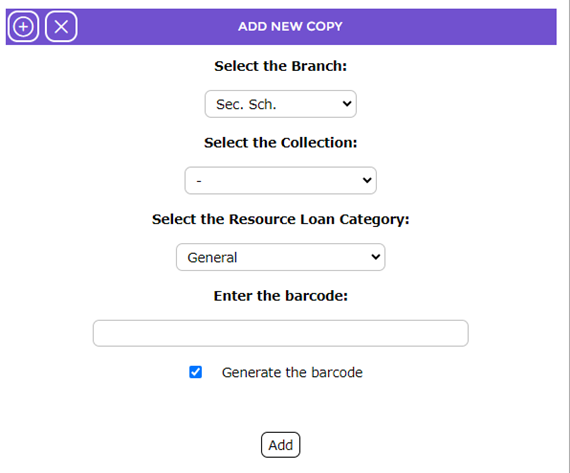
- If the branch that displays in the Branch field is not correct click on the down arrow at the end of the field and select the applicable branch from the drop-down list that displays (for library organizations that have more than one branch).
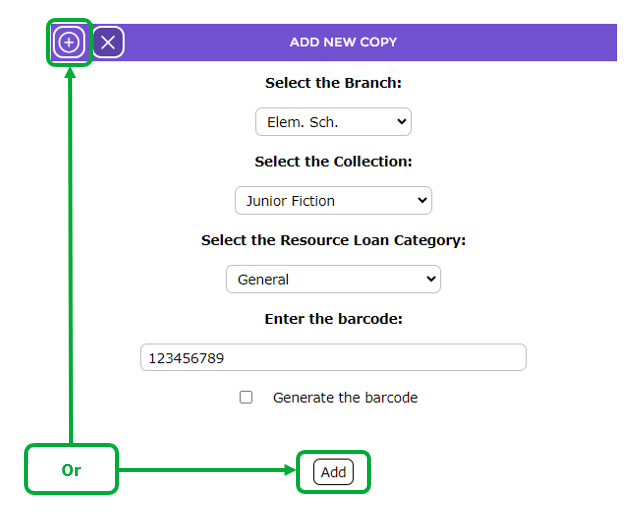
- Click on the down arrow at the end of the Collection field and select the applicable collection, for example Junior Fiction, from the drop-down list.
- If the default selection in the Select the Resource Loan Category field is not the one you want, click on the down arrow and click on the required RLC from the drop-down list.
- Scan or manually enter a barcode in the Barcode field.
Note: If the library does not use their own barcodes, click in the checkbox next to Generate the barcode to use a system-generated barcode.
- When all fields have been completed, click the Add button (or icon).
- The Copy Details screen will display.
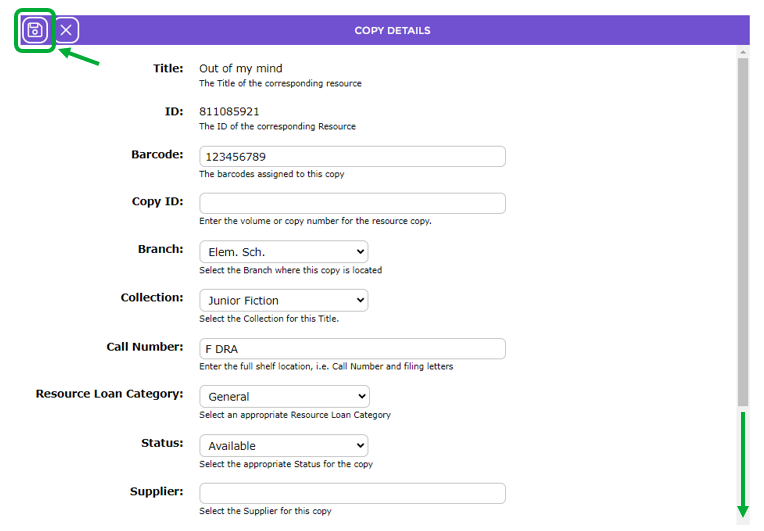
- Complete the applicable fields, for example, Supplier, Price, Cost and Currency fields if required.
- Click the Save button when all the details have been completed.
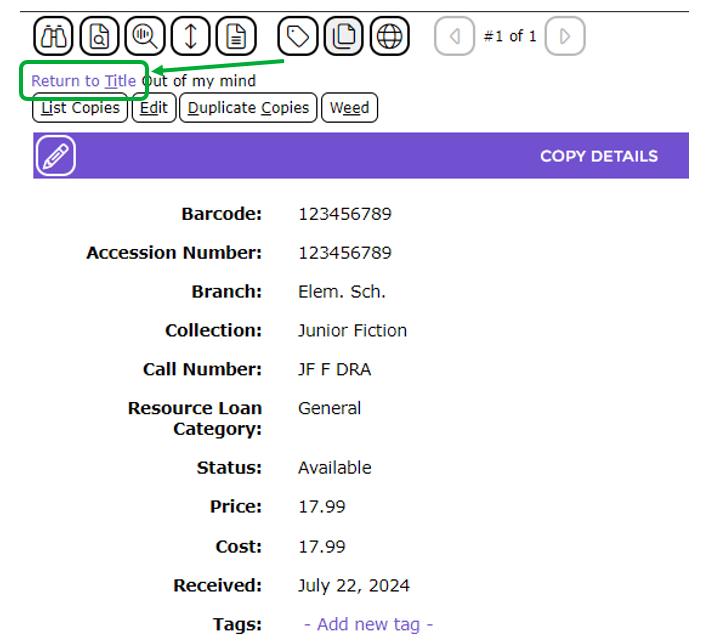
Note: A tag can be added to the copy record by clicking on the Add new tag link and either adding a new or selecting an existing tag in the usual manner.
- Click on the Return to title link to access the resource’s Detail screen.
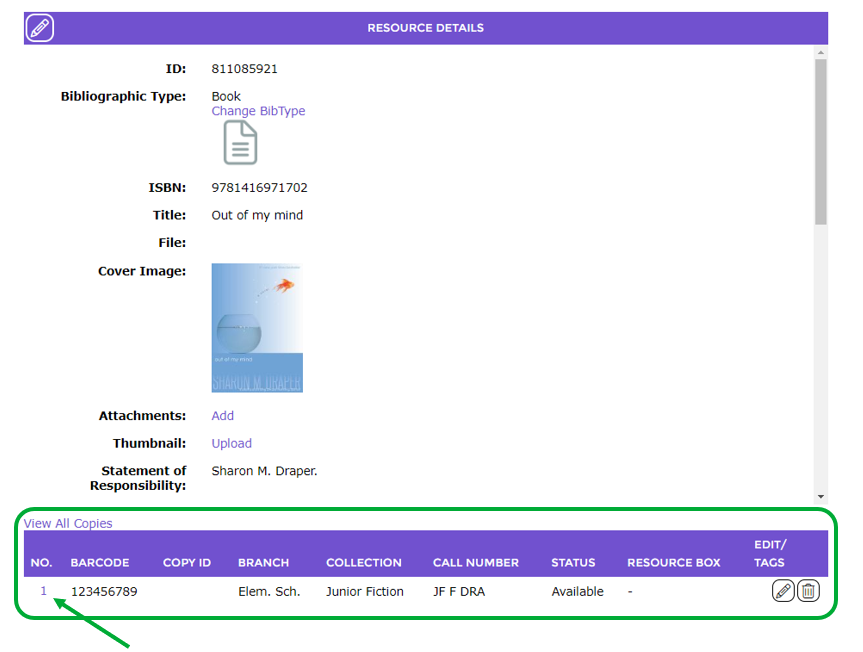
- The copy is displayed in the grid at the bottom of the resource Detail screen. To access the copy’s Detail screen, click on the number link.
Was this article helpful?
That’s Great!
Thank you for your feedback
Sorry! We couldn't be helpful
Thank you for your feedback
Feedback sent
We appreciate your effort and will try to fix the article