Summary
All Copy records in the system will include a Status. The Status provides staff with a clear indication, in the Copies List screen and the Copy’s Details screen, of the current situation that applies to a particular copy, for example, whether it is missing, available or on checkout.
This guide will provide information on how to create a library specific Status and how to edit a system provided Default for process Status.
Default for Process Status Types
There are eleven Status types provided by the system and they are flagged as Default for process:
- Available
- Disposed
- ILL Request
- In Rotation
- In Transit
- Missing
- Not Available
- Not for Checkout
- On Hold
- On Checkout
- Recall
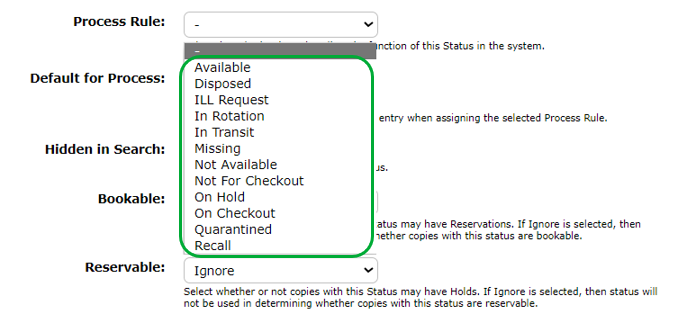
A Rule Name is a mandatory selection on any status you create. The Rule Name field is included on any Status’ Details screens.
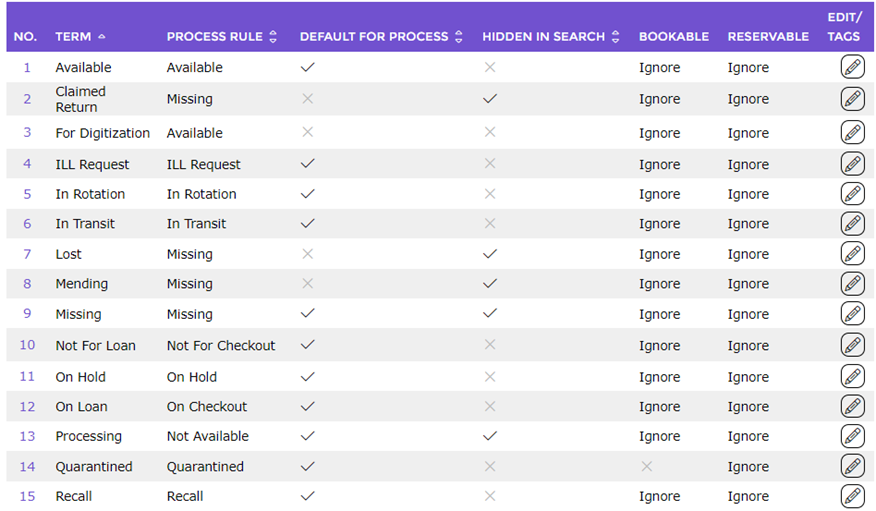
A corresponding Check in the Default for Process column in the List screen identifies the applicable statuses while user created Statuses will display a Cross in the column.
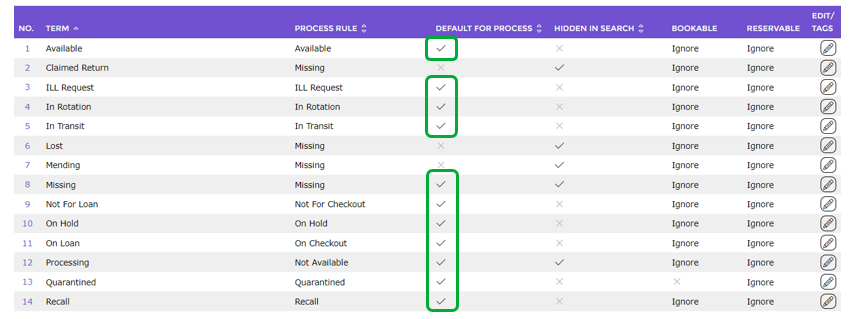
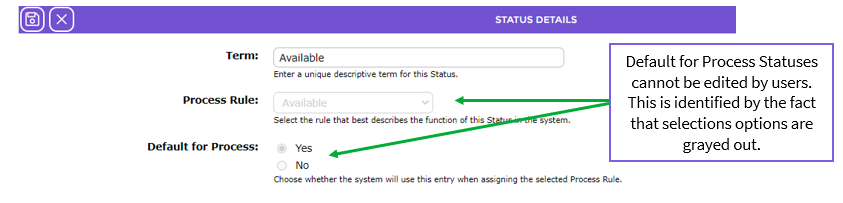
Default for process Statuses cannot be deleted; only the Available and Reservable settings on those Statuses can be edited.
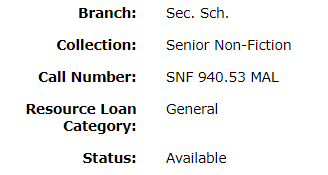
The applicable Default for process Status will be automatically applied to any item, if it is subject to a particular process, for example:
- When a copy is added to the applicable catalog record is is automatically flagged according to the setting, for example Available
- A copy that is scanned through the Checkouts tab will be automatically flagged as On Checkout
- A copy with a Status of Available, was therefore included when the Inventory Section was created, but was not scanned in during the Inventory, will automatically be flagged as Missing when the Inventory is finalized. The status will again change to Available when the copy’s barcode is scanned in, or manually entered, via Returns.
Actions Triggering Automatic Status Change
The following table explains the actions that automatically change a Copy’s status:
Default for Process | When Used |
Available |
The Available status is applied during the following actions:
|
ILL Request |
The ILL Request status is applied when an item is received from another library as an ILL request.
|
In Rotation |
The In Rotation status is applied if Stock Rotation functionality is activated which results in the addition of the Stock Rotation field in copy Details screens.
|
In Transit |
The In Transit status is applied to copies that have been reserved or booked and processed through a non pick-up branch. Records for In Transit copies will include a Destination branch on the Detail screen.
In Transit functionality requires the copies to be returned to their Home branch. To ensure this, the Home Branch field on the Copy Add/Edit screen must be completed on all copies that will be subject to the In Transit process.
Note: Be aware that if the Home Branch field is not completed on copy records, the system will view them as floating stock. If such copies are returned to a branch that is not the one from which they were loaned, the Branch field will change to reflect the branch to which the copy is returned.
|
Missing |
The Missing status is applied to copies that are identified as missing from the library when an inventory is completed.
Note: Staff can apply the status manually if, for example, a patron maintains they have returned an item that was the subject of an overdue for example. |
Disposed |
If you are not yet prepared to weed a copy from the database use the Default for process of Disposed.
|
On Hold |
The On Hold status is applied to copies that have been reserved and are currently awaiting pick-up
|
On Checkout |
The On Checkout status is applied when a copy is issued to a patron via the Circulation Desk.
|
Recall |
The Recall status is applied when a copy, that is on checkout, needs to be returned to the library. Recalling an item is done by clicking on the Current Checkouts button on then Patron Detail screen then clicking on the Recall link.
Note: An item can also be recalled by clicking on the Current Checkouts button on the resource Detail screen then clicking the Recall link |

Create a New Status
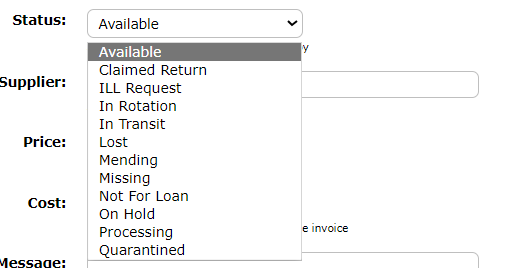
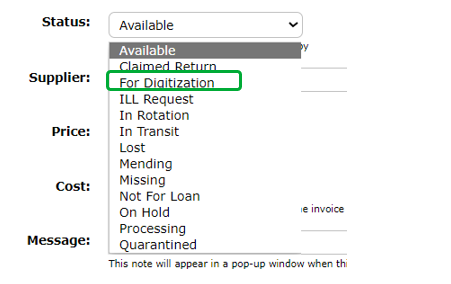
If there are some Statuses that are used at your library, which are not included in the ones provided by default, such as Mending or Repair, they can be created. It is recommended that any library created Statuses are not set as Default for process as this will remove the Default for process flag from one of the system provided Statuses. Any Statuses created by the library will need to be manually applied when appropriate. User created Statuses are available for selection, in the Exchange screen, if you want to bulk change the status on a number of copies. They are also available for selection on the Copy Details screen.
- From the library Management Home screen navigate to Management > Statuses > List (or Search) screen
- Click on the New icon or type ‘ne’ or select New from the Function menu.

- The Add Status popup screen will display.
- Enter the name of the Status you are creating, for example, For Digitization.
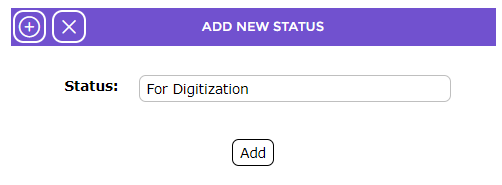
- Click the Add button to display the Details screen.
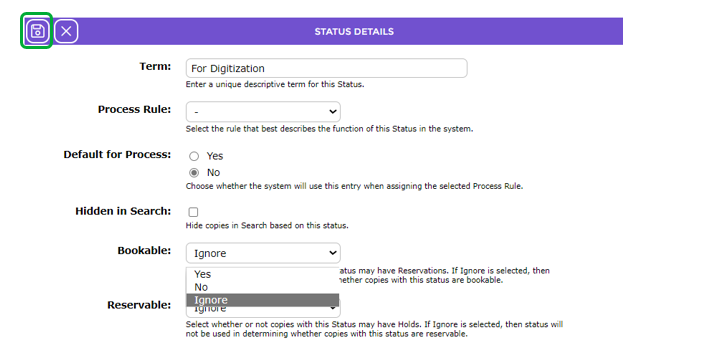
- The name of the new status entered in the previous popup screen displays automatically in the Term field.
- By default no rule is selected in the Rule Name field. All the rules which display in the drop down list are the Default for Process options. Choose the rule most applicable to the non Default for Process Status being created, for example, Available.
- The options provided in the Bookable field’s drop down list are Yes, No and Ignore. If:
- copies with this status can be booked, choose Yes,
- copies with this status cannot be booked, choose No
- the status does not determine whether the copy can be booked choose Ignore.
- The options provided in the Reservable field’s drop down list are Yes, No and Ignore. If:
- copies with this status can be reserved, choose Yes
- copies cannot be reserved, choose No
- the status does not determine whether the copy can be reserved, choose Ignore.
- Once all the details have been completed click the Save button.
- If a mandatory field is not completed, the new Status cannot be saved and a message, in red text, indicating which field requires completion will display below the applicable field.

- Complete the field as required and click the Save button again.
- The Details screen for the newly created Status will display.
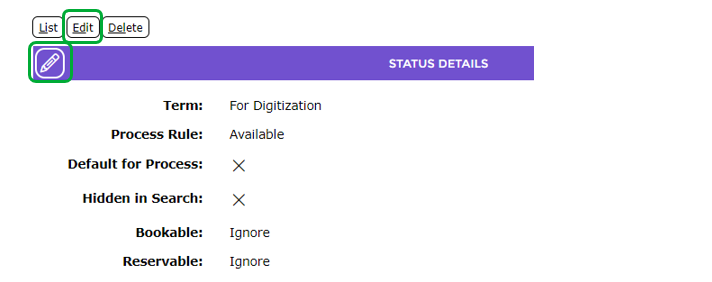
- Click the Edit button if any edits to the settings on the Status require changing or to correct a spelling mistake for example.
- If the Status is not tied to any copy and, at some point in the future, is no longer required click the Delete Button.
TIP: The Delete button will not display on any Status that is currently selected on a copy record in the system. |
- Click the List button to return to the List screen.
- The Status can now be chosen on any applicable copy.
Edit a Default for Process Status
There are two fields in any Default for process, system provided, Statuses that can be edited. In the following example, the setting on the Reservable field for the Status of Missing is to be changed from Ignore to No.
- From the Statuses > List screen click on the Edit icon of the applicable Status.
- The Status Details screen will display. Note that only the Rule Name and Default for process fields are grayed out.
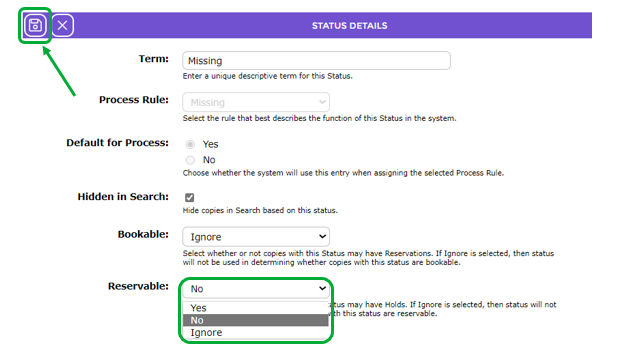
- Click on the down arrow at the end of the Reservable field and select No.
- Click the Save button.
- Any copies with the Status of Missing now cannot be reserved.
Was this article helpful?
That’s Great!
Thank you for your feedback
Sorry! We couldn't be helpful
Thank you for your feedback
Feedback sent
We appreciate your effort and will try to fix the article