Manually add Barcodes in the Multi-Barcode Search Screen
- Navigate to Cataloging > Copies > Search (or List) screen.
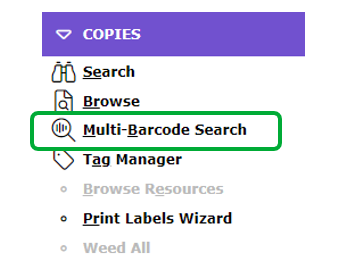
- From the Function menu, select Multi-Barcode Search.
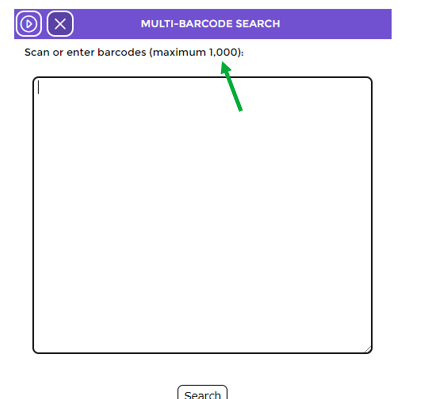
- The Multi-Barcode popup screen will display. A maximum number of barcodes you can search at any one time via this screen is identified. This number is determined by the value set on Parameter No. 1200 – Maximum List Size.
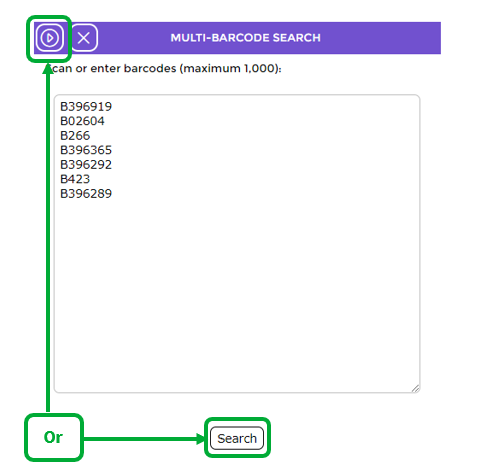
- Scan or manually enter the applicable barcodes. If you are manually entering the barcodes hit the Enter key on the keyboard after each one. Hitting the Enter key is not necessary if you are scanning barcodes.
- Click the Search button (or icon).
- A list of copies matching the valid barcodes entered will be displayed.
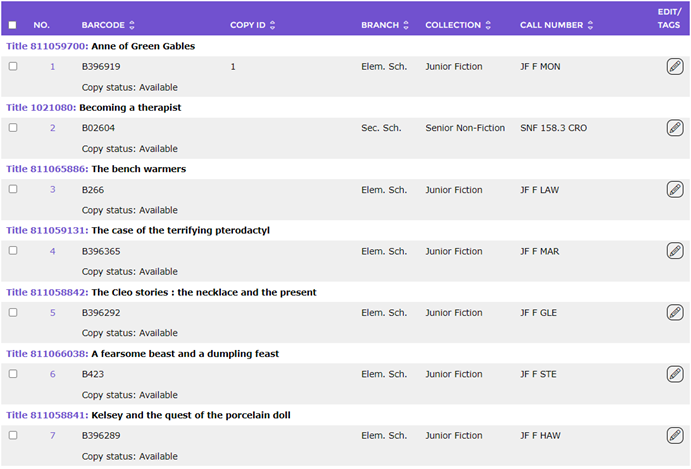
Staff can run a report, complete a global change, or weed process in bulk on the records returned from the Multi-Barcode search.
Was this article helpful?
That’s Great!
Thank you for your feedback
Sorry! We couldn't be helpful
Thank you for your feedback
Feedback sent
We appreciate your effort and will try to fix the article