Summary
The Resource Usage Summary report is useful for identifying how often or not, copies are being circulated. While there may be a number of copies that will either not be checked out often or are reference material and therefore not for checkout, identifying copies for titles that are available for checkout but never or hardly ever circulated could indicate the copies and associated resource records should be considered for weeding.
This guide will provide the steps required to run the Resource Usage Report.
Search for Copies to Include on the Resource Usage Summary Report
Complete a search for copies to be included in the report.
- Navigate to Cataloging > Copies > Search.
- In the Search screen, select the applicable criteria to return a list of resources on which you want to report.
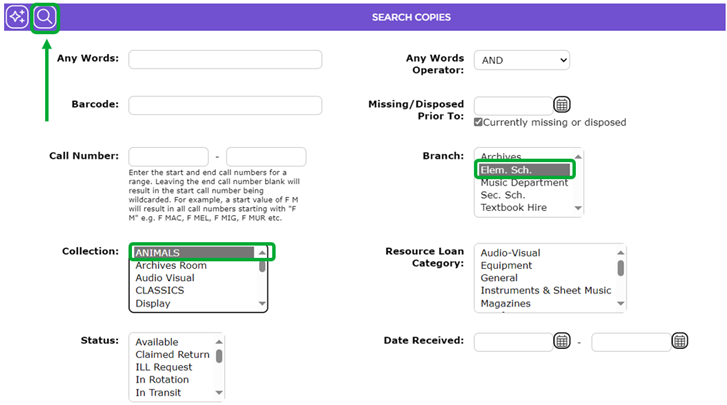
- Click the Search icon.
 The list of copies will display.
Access and Run the Report
- Click on the Report icon.
 The Report Setup screen will display.
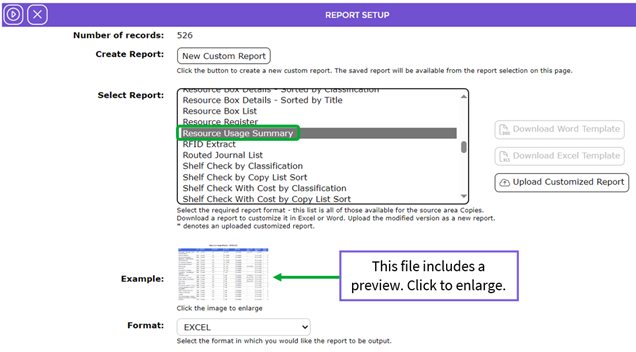
- In the Select report list-box scroll to locate and click on the Resource Usage Summary report.
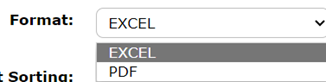
- The default format of (EXCEL) displays in the Format field. The other available format is PDF.
- In the Parameters section there is a Fields list-box and a Sort by list-box. You can choose one or more additional fields to sort the report data from the Fields list-box by transferring them to the Sort by list-box to the Sort By list-box in the usual manner.
- When all details are completed, click the Go button.

- The Report screen will display.
- Click on the Download Resource Usage Summary report link.
- A message will display noting that the report can be opened once it finishes downloading.
- The File Download popup screen or Do you want to open…panel will display. Both options include Open, Save, and Cancel buttons.
- Click on Open and the report will open on the screen. You can then go to File > Print and print the report. Alternatively, click on Save to save the report to a location on your computer from where it can be printed out later.
- To return to the list screen click on the Return to copies list icon.

- This report can be scheduled. To do so see the How to Schedule a Report guide.
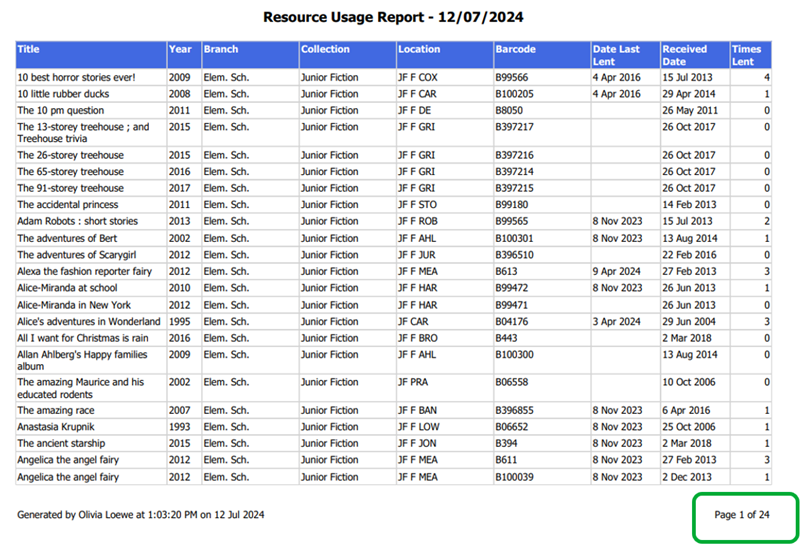
Example Resource Usage Summary Report
Information on the report includes:
- Title
- Year
- Branch
- Collection
- Location
- Barcode
- Dated Last Lent
- Received Date
- Times Lent
It also identifies the logged in staff member who generated the report, the date and time stamp and the number of pages.
Was this article helpful?
That’s Great!
Thank you for your feedback
Sorry! We couldn't be helpful
Thank you for your feedback
Feedback sent
We appreciate your effort and will try to fix the article