Summary
Once you have added new copies to resources the next step is to print out the spine labels for those copies. There are a significant number of spine label reports from which to choose.
This guide will provide the steps required to run a spine label report.
Enter Barcodes in the Multi-Barcode Screen
Spine label reports are designed to print on specific label stationary so the stationary you use will determine the spine label report to choose in the Select reports list-box in the Reports screen.
Once the copies have been added to the system, the applicable spine label report can be run. The example steps provided will explain how to run the Labels 2x7 – Avery 5162 (Letter Paper).
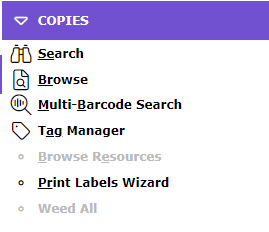
- Navigate to Cataloging > Copies and from the Function menu click on Multi-Barcode Search
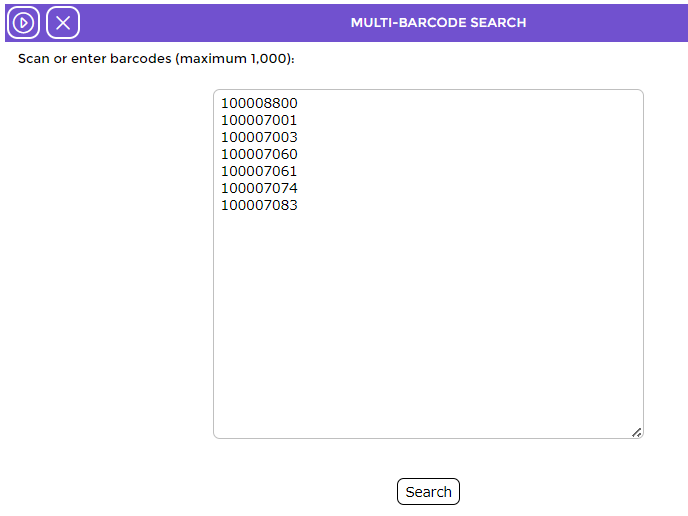
- In the Multi-Barcode popup screen scan in the barcode of each of the newly added copies then click the Search icon or the Search button.
- The Copies > List screen will display. It will only include the copies corresponding to the barcodes scanned/entered in the previous screen.
Run a Spine Label Report on the Applicable Copies
- In the Copies > List screen, click on the Report icon.

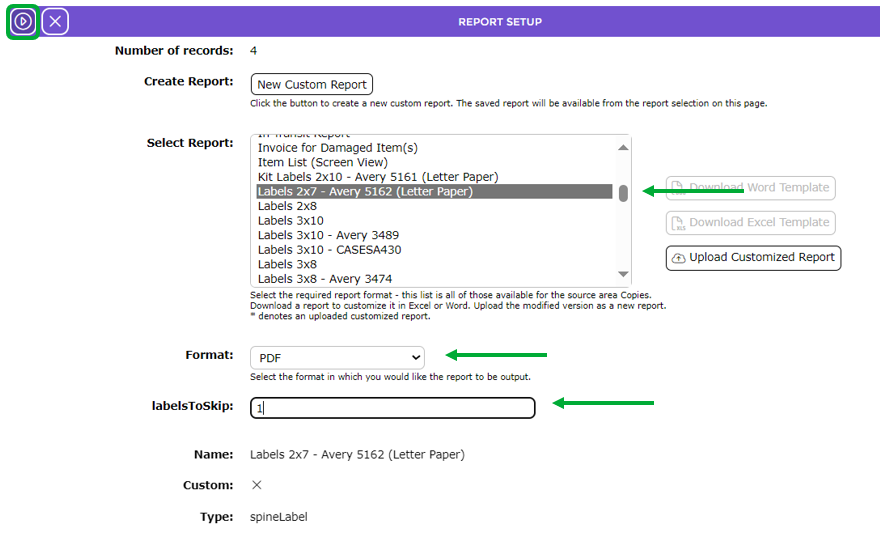
- The Report Setup screen will display.
- In the Select report list-box scroll to locate the spine label report you want to run and click on it. This example will use the Labels 2x7 – Avery 5162 (letter Paper). You would click on the report applicable to the spine labels used by your library.
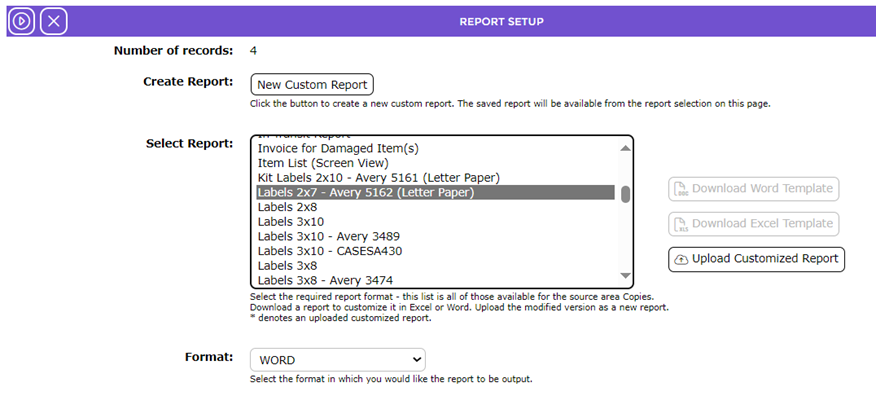
Once you click on the report, the Sort fields section is hidden. This is because sorting by additional fields does not apply to this report (or other spine label reports).
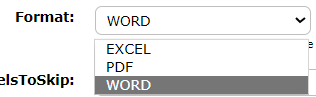
- If the default selection in the Format field is not the one you want, click on the down arrow at the end of the field and select the other option.
- If there are any labels to skip, when printing the report, enter the number, for example 1, in the Labels to Skip field. This field displays once the report is selected.
- Click the Go button.

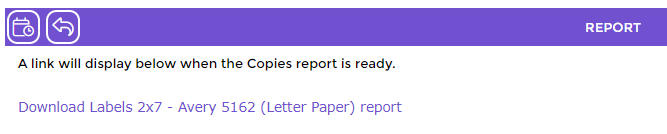
- The Report screen will display and when ready the Download report link, in this case Download Labels 2x7 – Avery 5162 (Letter Paper) report link, will display.
- Click on the report link.
9. A message noting you can open the report when it finishes downloading displays.
- The File Download popup screen or Do you want to open…panel will then display. Both options include the Open, Save, and Cancel buttons.
- Click on Open and the report will open on the screen. You can then go to File > Print and print the report. Alternatively, click on Save to save the report to a location on your computer so it can be printed out later.
- To return to the list screen click the Return to list icon.

- This report can be scheduled. To do so see the How to Schedule a Report guide on how to do so.
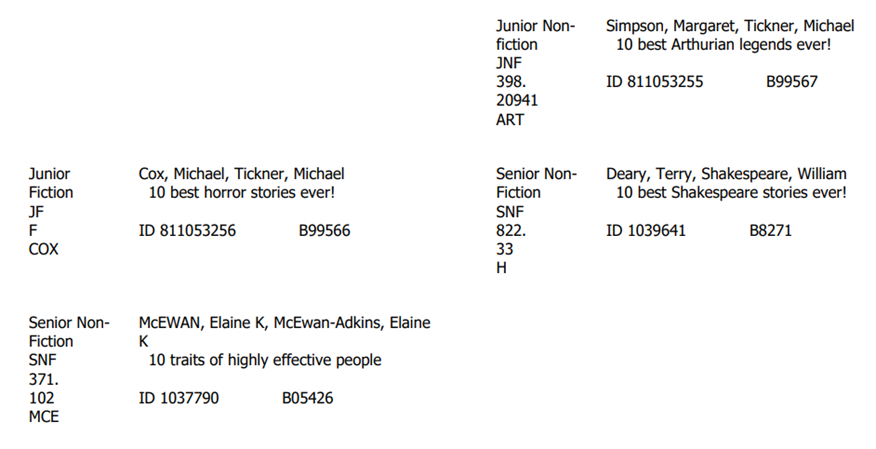
Spine Label Report Example
The spine labels include the following information (if they are included on the copy records):
- Call Number
- Author
- Title
- Copy ID
and
- Barcode
Other spine label reports, for example Spine Labels 5x13 exampled below, may include less information, for example, just the call number and collection.

Was this article helpful?
That’s Great!
Thank you for your feedback
Sorry! We couldn't be helpful
Thank you for your feedback
Feedback sent
We appreciate your effort and will try to fix the article