Summary
The Renaissance Accelerated Reader (AR) functionality is primarily used by schools although it has application for public libraries which operate in conjunction with schools in their district. Softlink provides integration so that reader quiz titles, which are held in the library’s catalog, are identified as being included in the AR program.
This guide provides the steps required to export the required data from MackinVision and import the AR CSV file into your MackinVision catalog. An overview and separate setup guide provides further information on the Renaissance Accelerated Reader features and enablement.
Export the Accelerated Reader CSV file report from MackinVision
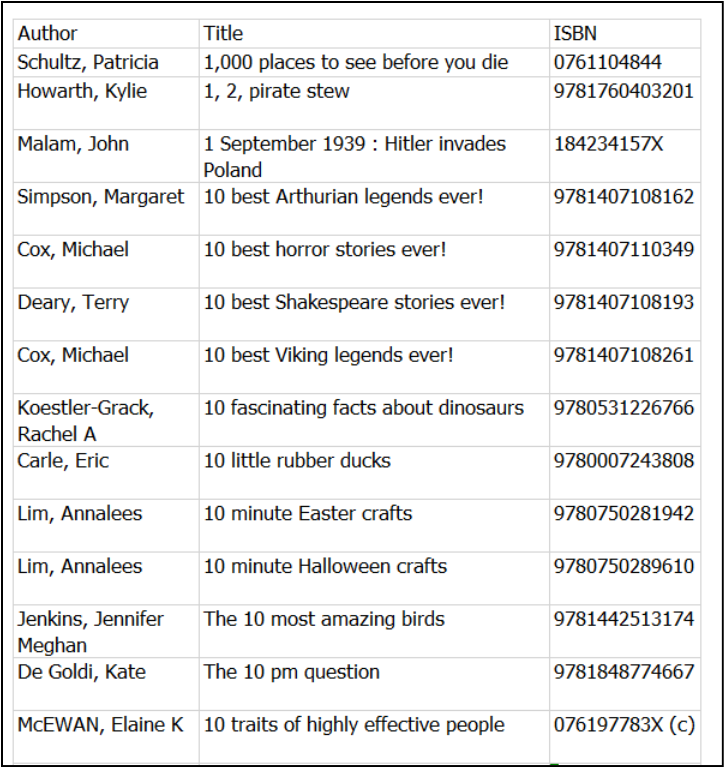
The first step in the AR quiz process is to supply Renaissance Learning with a csv file from your MackinVision catalog. A new 'Accelerated Reader CSV Export' report has been added to Resources. This report contains author, title and ISBN information. The Excel version of the report is in a suitable format to give Renaissance for their 'quiz to book' matching service. This report is found in Cataloging > Resources > Reports > Accelerated Reader CSV Export. This report is only available once the AR feature is set up. Renaissance Learning will then email back an AR CSV file to import into MackinVision.
1. Go to Cataloging > Resources.
2. Search all fields or click the button to Browse all
 .
.
3. Click on the Reports icon and select Accelerated Reader CSV Export in “Select Report”.
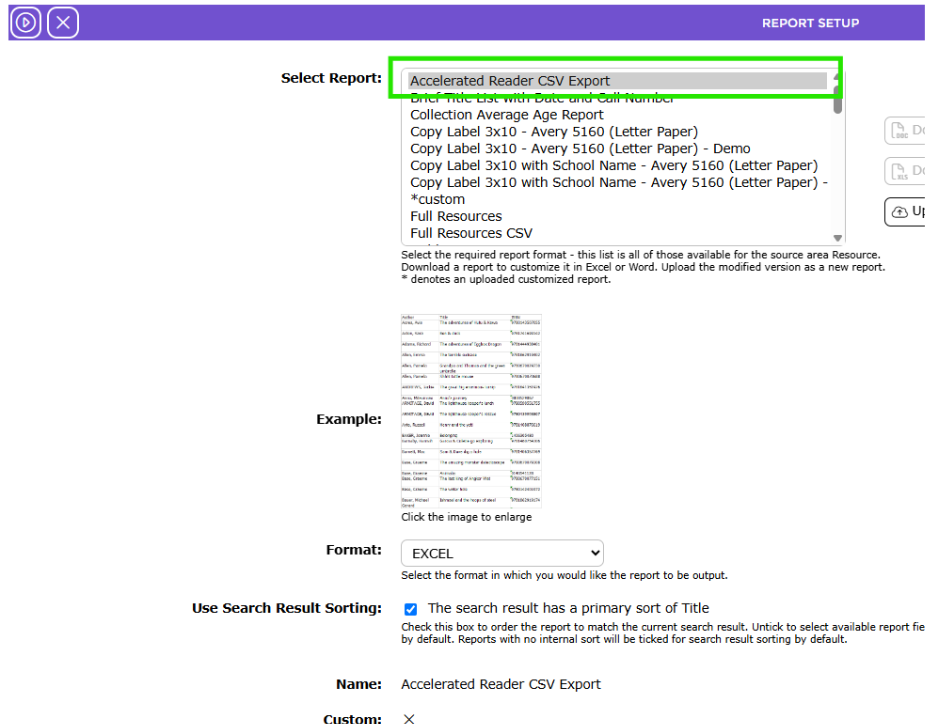
4. Click the Go icon to run the report.
5. Click Download Accelerate Reader CSV Export report link.
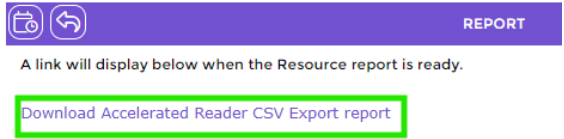
6. The report should go to your downloads. Click to view or save it.
Example Report:
Was this article helpful?
That’s Great!
Thank you for your feedback
Sorry! We couldn't be helpful
Thank you for your feedback
Feedback sent
We appreciate your effort and will try to fix the article