Summary
A report on how frequently Patrons use the library based on, for example, their Homeroom, Year, Checkout Category within a specified date range, is available with the system. Choosing from the significant number of options from which to choose to ensure the report contains the patron data you require.
This guide will provide the steps required to run a Patron Usage report.
Run a Patron Usage Report
The following example will use the selection criteria of Homeroom, Checkout Category, Patron Type, Branch to ensure the selected Patron Usage Report – Full Summary report contains that specific information.
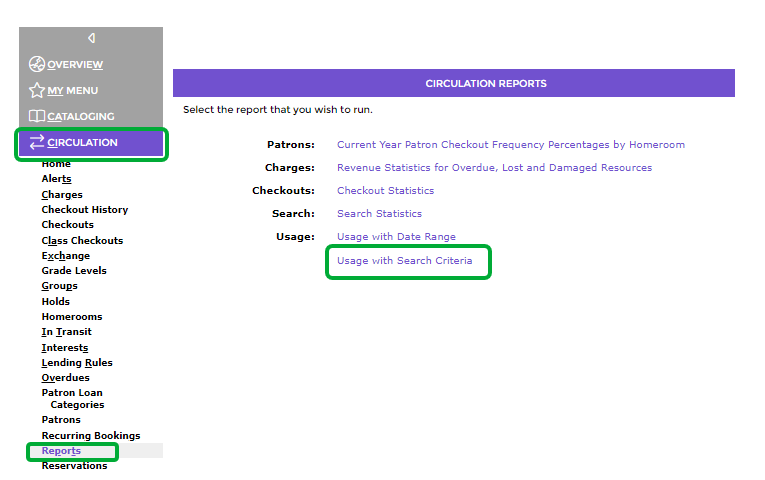
- Navigate to Circulation > Reports.
- In the Reports screen click on the Usage with Search Criteria link in the Usage field.
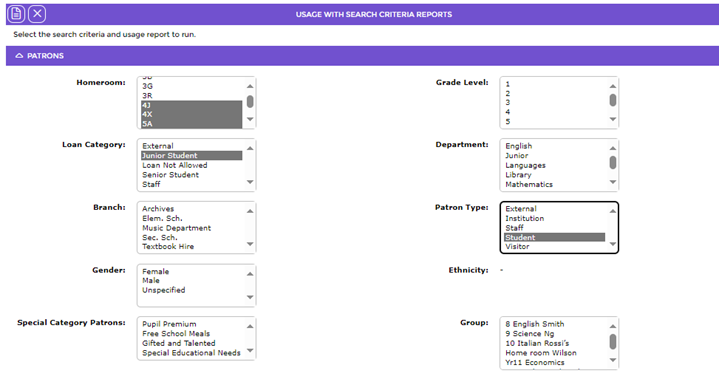
- The Usage with Search Criteria Reports screen will display.
The criteria used in the Patrons Section are:
- In the Homeroom list-box the 4 to 7 homerooms have been highlighted.
- In the Loan Category list-box JuniorStudent has been highlighted.
- In the Patron Type list-box the type of Student has been highlighted.
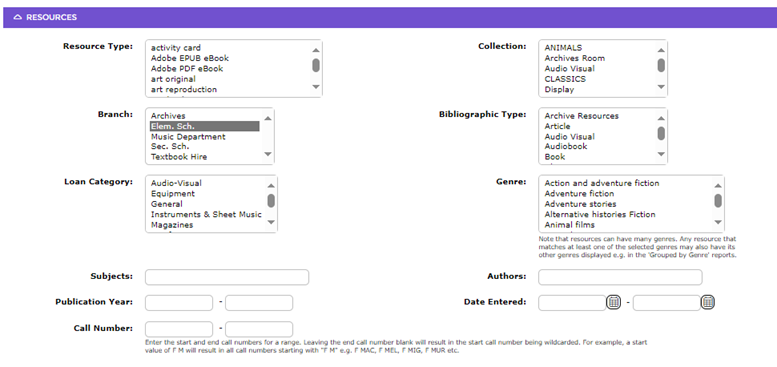
In the Resource section:
- In the Branch field Elem. Sch. has been selected.
In the Transactions section:
- In the Start date field the date of 07/01/2024 was selected by clicking on the Calendar icon and choosing the applicable month, day and year. Note that a date can be entered manually if preferred.
- In the End date field the date of 09/10/2024 was selected by clicking on the Calendar icon and choosing the applicable month, day and year. Note that a date can be entered manually if preferred.

In the Report section:
- In the Report field the Patron Usage Report – Full Summary is selected.
- Once all the required criteria are selected, the Report button is clicked.
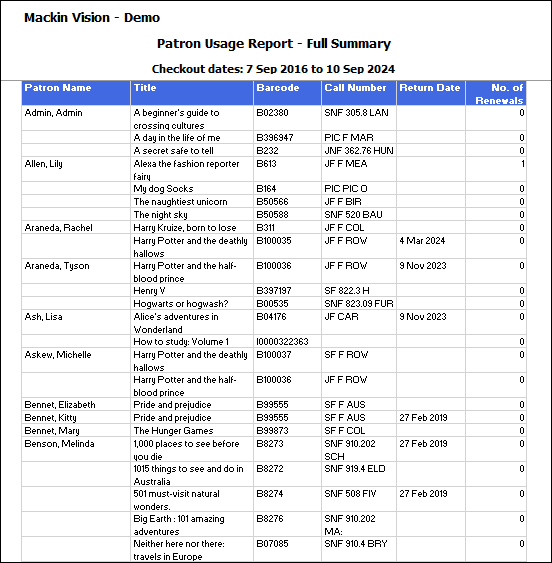
- When the report is ready to run the Download Patron Usage Report – FullSummary Report link will display.
- Click the report link.
- Either the File Download popup screen or Do you want to open…panel will display. Both popup screens include an Open, Save and Cancel buttons.
- Click the Open button to open the report on the screen.
Note: If there is no data of those dates, a notice will appear stating so.
Was this article helpful?
That’s Great!
Thank you for your feedback
Sorry! We couldn't be helpful
Thank you for your feedback
Feedback sent
We appreciate your effort and will try to fix the article