Summary
A list of resources can be exported in MARC formatted file. This functionality is useful for libraries that maintain a general database, and have one or more databases for specific records, for example, genealogy, specialized law or articles’ resources. The allows staff to catalog all new records on the general catalog then create an export file of applicable MARC records which is then imported it into other databases or other systems.
This guide provides the steps required to export a MARC file. Separate guides provide the steps required to import MARC records and edit MARC records.
Related Parameters
Two parameters affect the export of MARC records:
Parameter No. 6001 - Hide Specialized MARC Formats. If the parameter is set to Yes only the Stored MARC21, Stored MRCXML, Generated MARC21 and Generated MARCXML options will display for selection in the Select an Export format popup. If Parameter No. 6001 is set to No other options will display in the popup screen.
Parameter No. 6002 – Export Includes Copies. If the parameter is set to Yes the export file will include any copies tied to the resource record with a MARC record.
How to Export MARC Records
Any changes done on the Edit screen, rather than in the MARC Editor screen of a resource that has a corresponding MARC record, will not be included in the export file.
- Navigate to Cataloging > Resources.
- Search for the list of applicable resources in the usual manner.
- Select Export MARC from the Function menu.
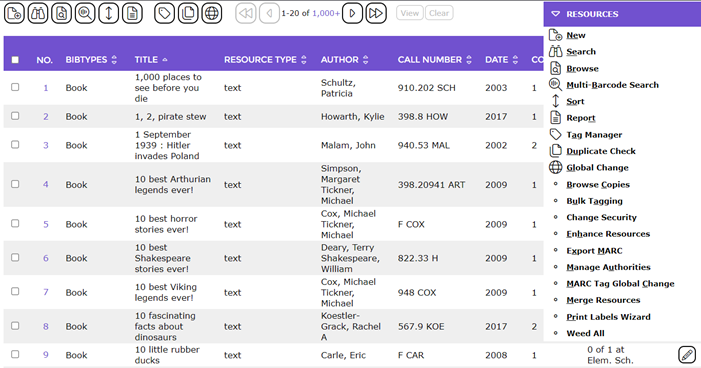
- The Select an export format popup screen will display.
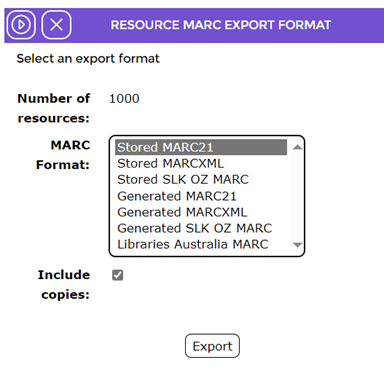
- Select Stored MARC21 then click the Export button. Note that if Yes is set on Parameter No. 6002 the checkbox next to Include Copies is ticked.
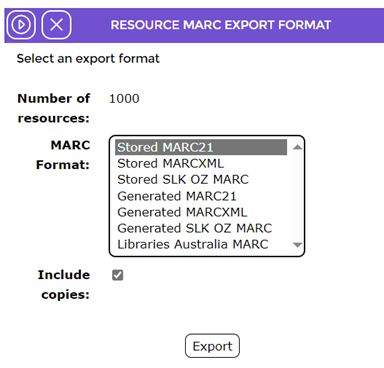
- A Preparing… popup will display briefly then the MARC Export Result popup will display. Click on the Download MARC data link included in the screen.

- The screen will refresh and identify the file created. The screen includes an Open, Save and Cancel button. Click the Open and Save button and save the file to a folder on your machine.
Navigate to the folder and confirm the file is stored there. Note it is a .dat file.

Was this article helpful?
That’s Great!
Thank you for your feedback
Sorry! We couldn't be helpful
Thank you for your feedback
Feedback sent
We appreciate your effort and will try to fix the article