Summary
A list of the least used resources in the library can be reported on. This report is useful for identifying those resources that may be monitored for possible weeding.
This guide provides the steps required to run a Least Used resources report.
Related Parameter
Parameter No. 3900 – Least Used Resource Max Checkouts. This parameter enables staff to determine the maximum number of times a resource can have been loaned for it to be included in the Least Used Resources report. The value could be for example, 3.

Run a Least Used Resources Report
- Navigate to Circulation > Reports.
- The Circulation Reports screen will display. Click on the Usage with Search Criteria link in the Usage field.
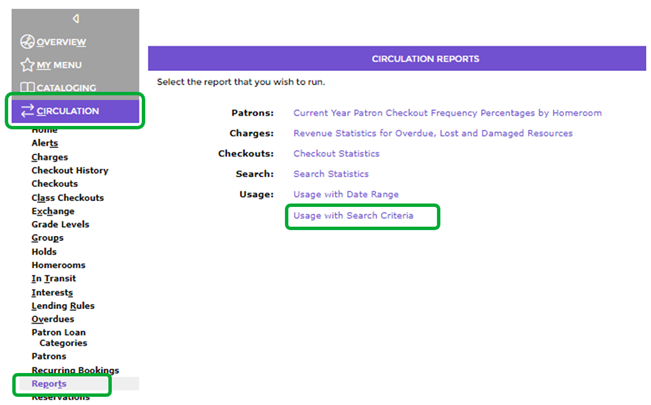
- The Usage with Search Criteria Reports screen will display. The screen is divided into four sections.
The Patrons Section
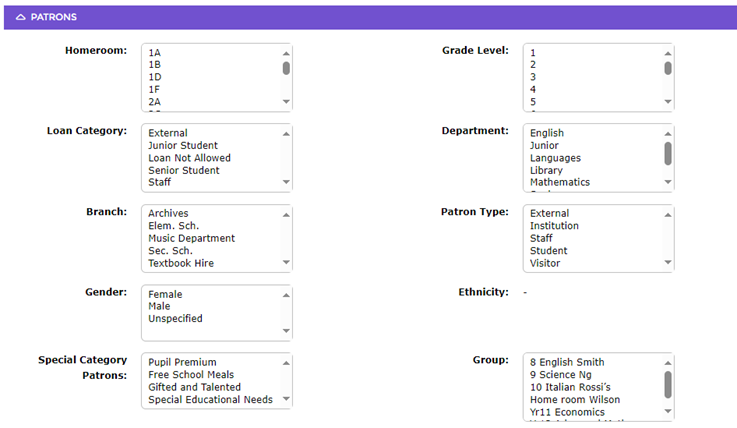
No selections are made from the Patrons section for this report.
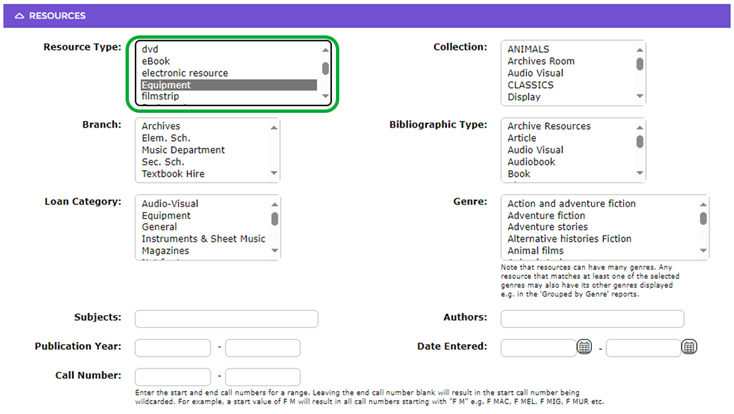
The Resources Section
- A few search criteria are available. For this example, a Resource Type of Equipment is selected. You can make one or more selections from the options available. There are fields in this section where you can enter additional terms, for example a specific subject in the Subject field. You can also enter a call number range and/or a date entered range.
Transactions Section
- In the Transactions section, you can enter a date range using the Start date and End date fields. The date can be manually entered or click the Calendar icon at the end of each field to set the required dates.

The Reports Section
- Click on the down arrow at the end of the Reports field and select the Least Used Resource report.

- Click on the Reports icon
 in the top left-hand corner of the screen or the Reports button at the bottom of the screen.
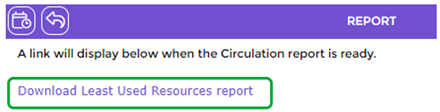
- In the resulting Reports screen click on the Download Least Used Resources report link.
- The File Download popup screen or the Do you want to open…panel will display. Both options include the Open, Save and Cancel buttons.
- To print the report to the screen click on the Open button.
- The report will display on the screen.
Report Screen Example
The information includes:
- Rank
- Title
- Author
- Year
- Collection
- Call Number (if included on the resource record
- Edition
- Times lent
- Date last lent
- Last lent by
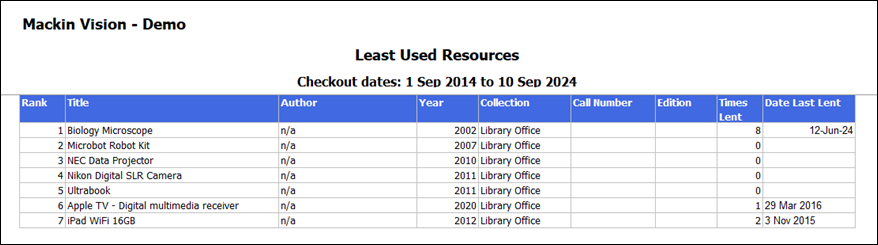
Note that the user, date, and time stamp information is located at the bottom of the report.
Was this article helpful?
That’s Great!
Thank you for your feedback
Sorry! We couldn't be helpful
Thank you for your feedback
Feedback sent
We appreciate your effort and will try to fix the article