Summary
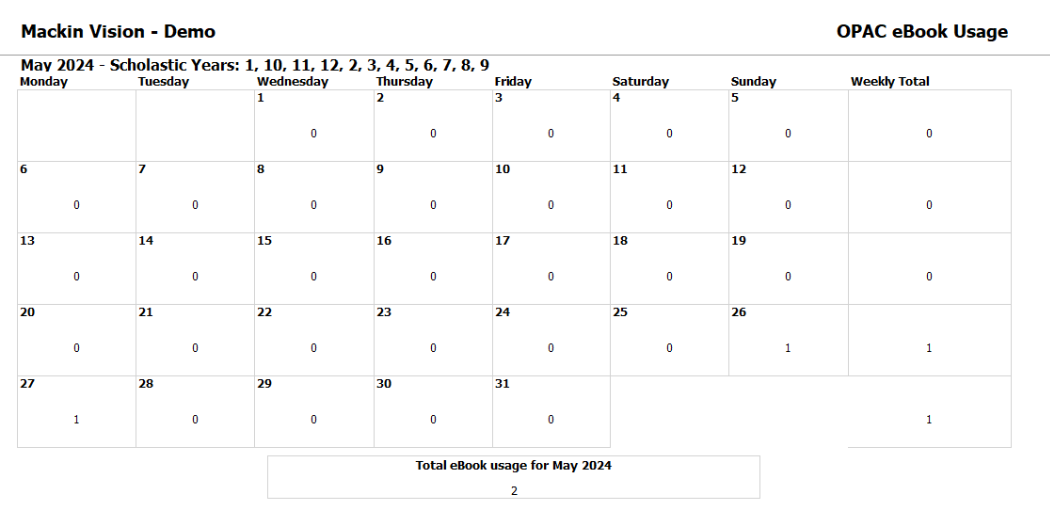
The eBook Usage Report list the usage of eBook resources in calendar format. The details section of the report lists each resource, the eBook platform it relates to and its usage.
This guide will provide the steps required to run the eBook Usage report.
Run the eBook Usage Report
Be aware that items will list more than once in the report if the resource can be accessed via multiple eBook platforms.
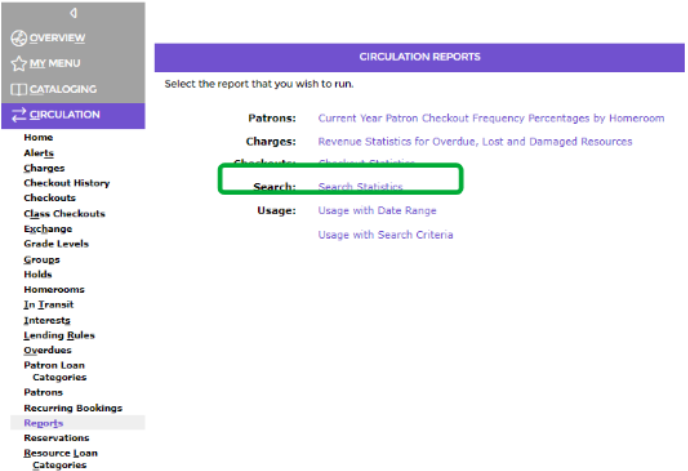
1. Go to Circulation > Reports and click on the Search Statistics option.
2. In the resulting Search Statistics popup screen, complete the Start and End date fields.
3. If you are using Grade Levels you can select one, some, or all of the years in the applicable list-box.
4. Click on the down arrow at the end of the Report field and click on the eBook Usage option.
Note: When the eBook Usage report is selected the Number of Ranked Terms field no longer displays for completion as it is not applicable to this report.
5. The Format field you can select PDF, EXCEL or WORD.
6. As this report includes a review image, the image will display in the Example field. You can click on the image to enlarge it.
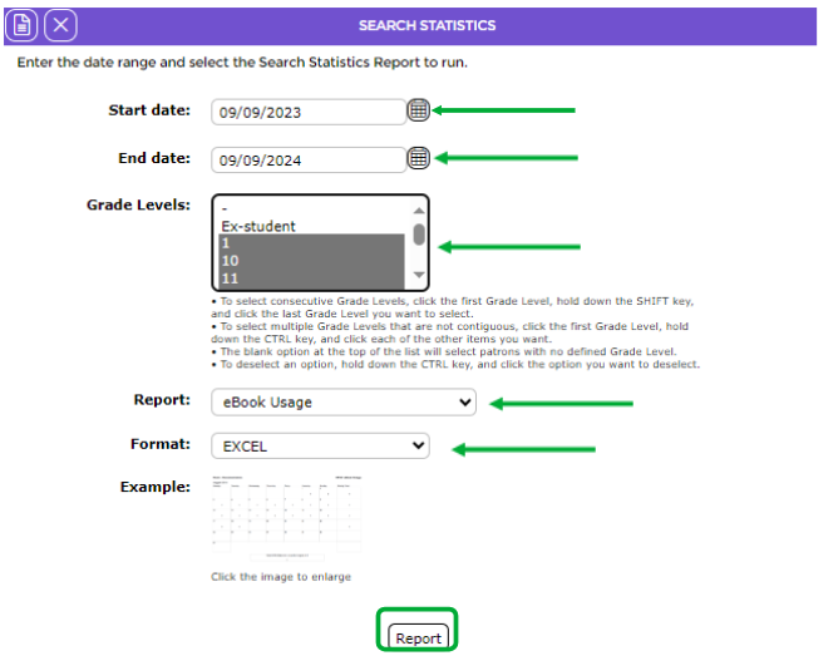
7. When all details have been completed, click on the Report button or icon.
8. The Reports screen will refresh and when ready the Download OPAC eBook Usage report link will display.
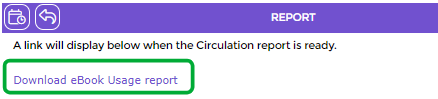
9. Click on the link and the File Download popup screen or Do you want to open…panel will display. Both options include the Open, Save, and Cancel buttons
10. To open the report to the screen click the Open button. To save the report as a file to a location on your machine click on Save.
Example of an eBook usage report

Was this article helpful?
That’s Great!
Thank you for your feedback
Sorry! We couldn't be helpful
Thank you for your feedback
Feedback sent
We appreciate your effort and will try to fix the article