Summary
This guide provides the steps required to create the Homerooms . Separate guides provide the steps required to create Grade Levels.
Creating Homerooms
If the school includes years Prep to Grade 7 classes, and there is more than one class within each of those years, you will need to create a Homeroom for each one for example 1A, 1B, 1C, 2A, 2B, 2C and so on.
The following example shows how to create a simple Homeroom table for Prep to Grade 7 each of the years will include only one class per grade. Create an additional Homeroom of End of School into which students in Grade 7 will be rolled, when the next increment process is run before the start of the new school year. Enter the Homerooms from the lowest level to the highest for example, start by creating the record for Prep, then Grade 1, then Grade 2 etc.
- Navigate to Circulation > Homerooms.
- Click on the New icon or click on New in the Function menu.

- In the New Homeroom popup screen enter the class in the Homeroom field, for example Prep, then click the Add button or Add icon.
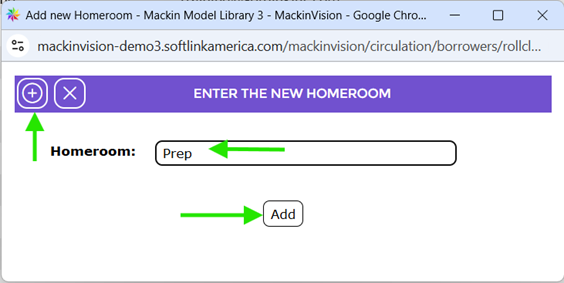
4. The Class entered in the earlier popup screen will display automatically in the Homeroom field.

- The Contact, Email and Message fields are not mandatory but can be completed if you wish. If information is entered in these fields you will need to edit them whenever the information changes.
- When all the details have been completed click the Save icon.
- The Detail screen will display.

Delete Homerooms
Unused Homerooms can be deleted individually or in bulk. You can identify unused Homerooms by the display of a Delete button on their Detail screen.
To Delete an Individual Homeroom:
- Click on the Delete button in the Detail screen
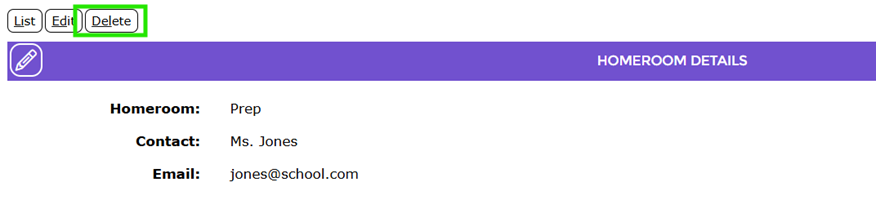
2. A popup message screen will display asking if you wish to delete this homeroom. Click OK.
3. The List screen displays and the deleted homeroom is no longer included in the screen.
To Delete Unused Homerooms in Bulk
- In the Homerooms List screen click on the Homerooms menu and click on the Delete Unused Homerooms option.
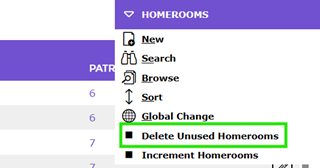
2. The number of Homerooms that are unused in the List screen and can be deleted will display in the Delete Unused Homerooms popup screen.
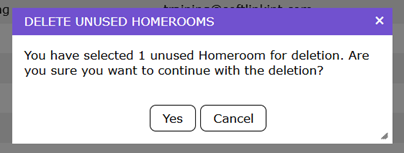
3. To continue click Yes.
4. The List screen will display and the applicable Homerooms will no longer display.
Was this article helpful?
That’s Great!
Thank you for your feedback
Sorry! We couldn't be helpful
Thank you for your feedback
Feedback sent
We appreciate your effort and will try to fix the article