Summary
Once logged in, patrons can create, and delete, private interests which are saved under the My Account Interests Group option located in the My Account > Interests screen. Other logged in patrons cannot subscribe to the private (personal) interest created by other patrons. “Public” Interest Groups, with associated Interests, created by library staff can be subscribed to by logged in patrons. Public Interests are located in the My Account Interests option. Patrons can subscribe to or unsubscribe from public interests but cannot delete them.
This guide will provide the steps required for a logged in patron to create and delete an Interest they have created. A separate guide will provide information on how to subscribe or unsubscribe to Interests tied to Interest Groups available in the My Account Interests screen.
Create a Private Interest
1. Click on Interests under the My account drop down option.


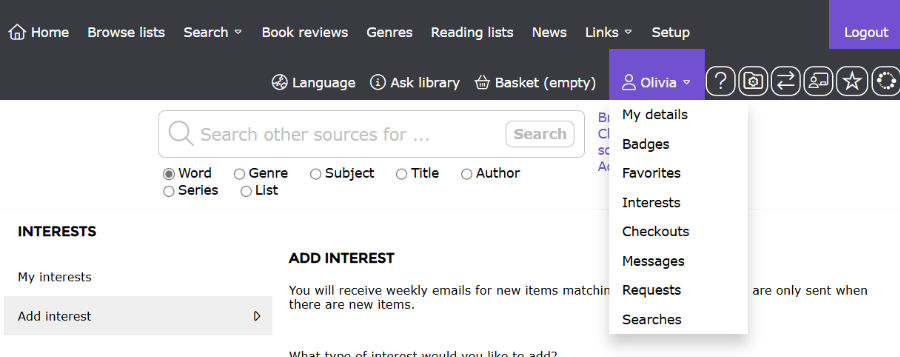
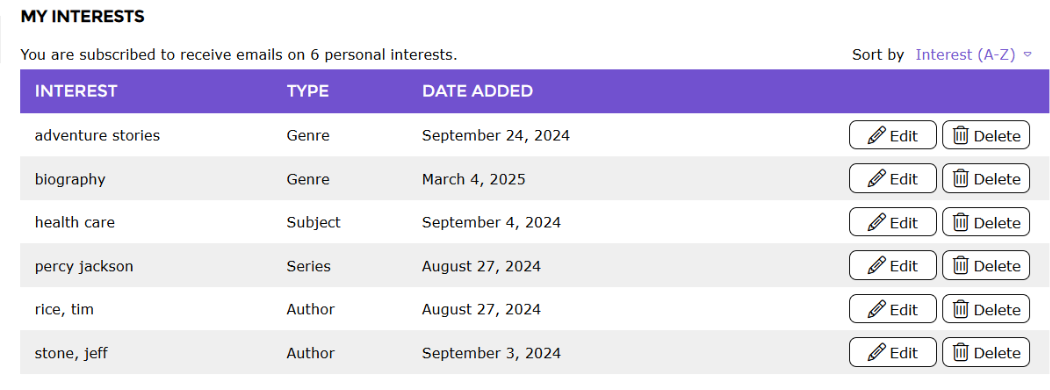
Note: Any existing Interests created by logged in patrons will list under the My Interests section
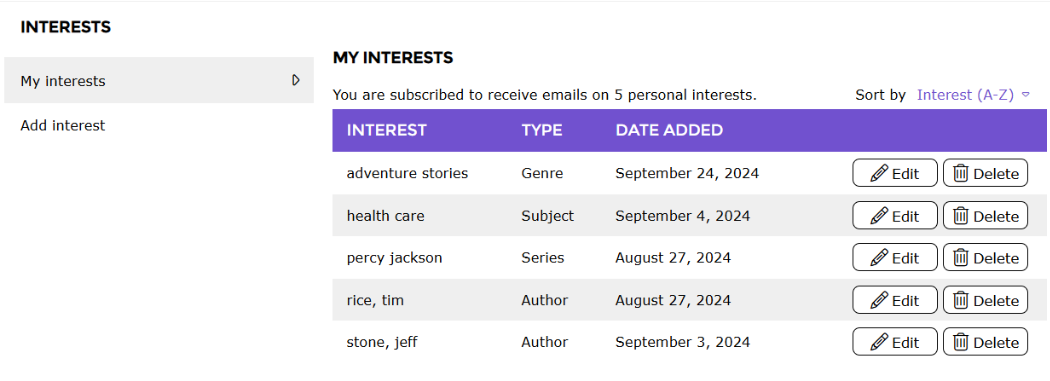
2. Click on the Add Interest section.

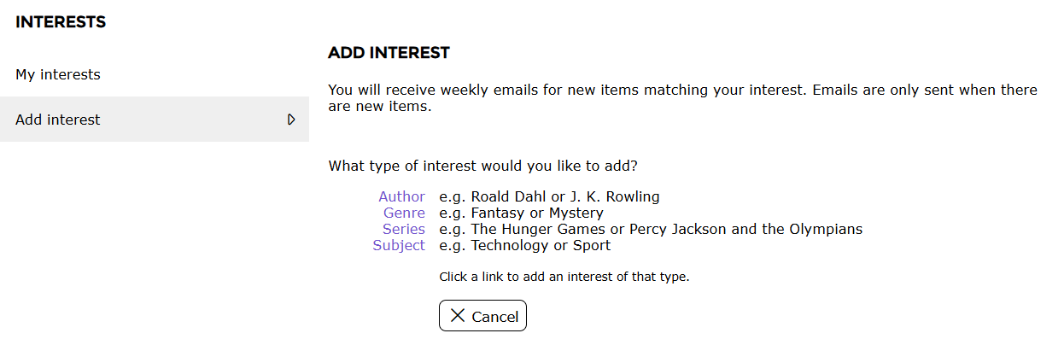
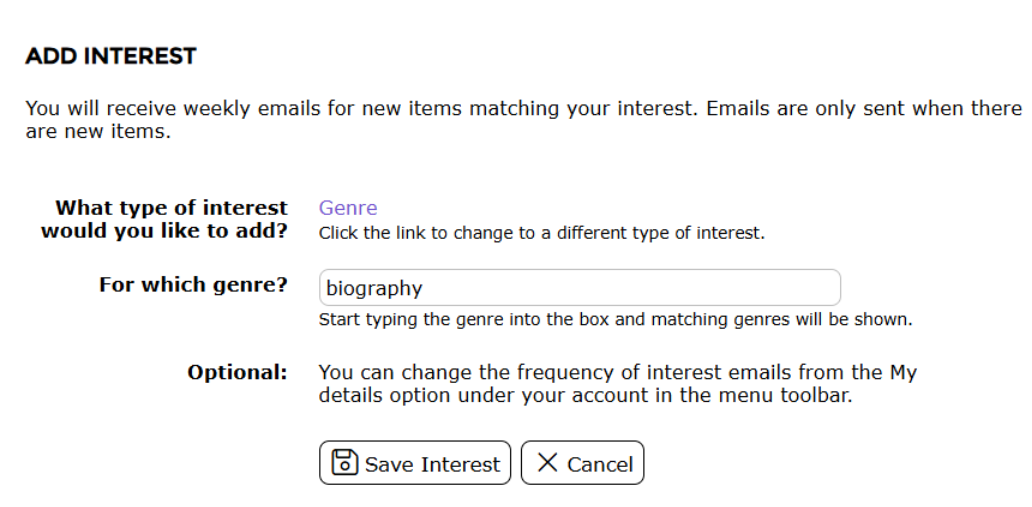
3. The Add Interest screen will display.
4. Select the type of interest you would like to add. Your choices include: author, genre, series, and subject. For example, we will use genre.

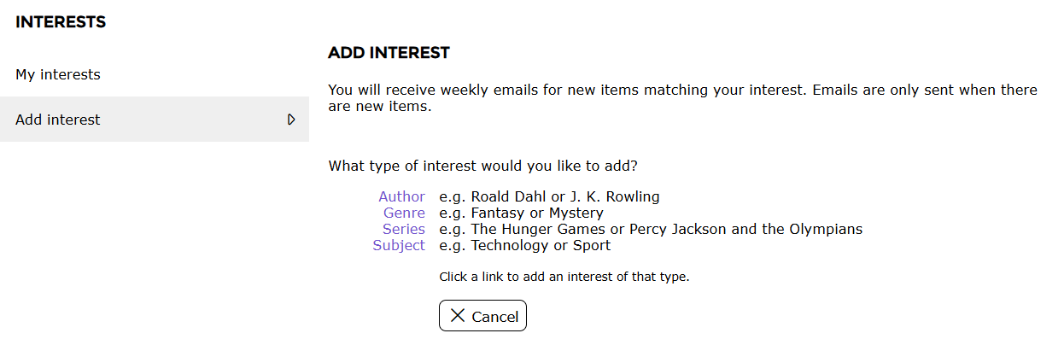
5. It will prompt you to enter the genre you would like to add an interest. Any matching genres will be shown.
6. Once you have entered the genre you would like to add as a personal interest, select the "Save Interest
button at the bottom.
7. The interest will be saved and added to the list of interests you may already have where you can edit and delete as necessary.
Any resources added to the catalog from that date to "today", which match your interests, are identified and you will be notified by email.
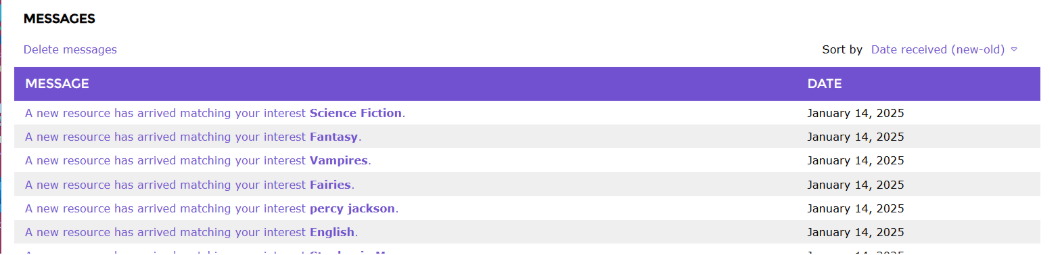
Example of Notification Alerts in the Messages Screen in My Portal
As well email notification, alerts also display in the Messages screen in the My Portal area for any logged in patron who has established their own personal interests or subscribed to “public” interests. Delete messages by clicking on the corresponding Delete messages link.

Was this article helpful?
That’s Great!
Thank you for your feedback
Sorry! We couldn't be helpful
Thank you for your feedback
Feedback sent
We appreciate your effort and will try to fix the article