Summary
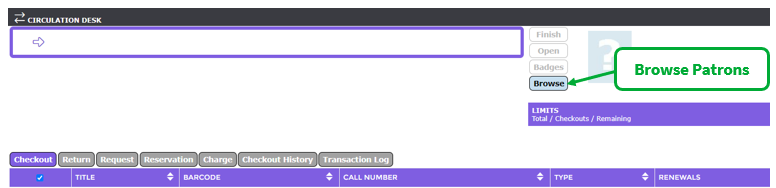
Library staff can browse patrons by Department, Homeroom, Grade Level or Group by using the 'Browse' button that is located next to the 'Finish' and 'Open' buttons in Circulation Desk.
Overview
Clicking the 'Browse' button opens a dialog box that allows the Circulation Desk user to select a group of patrons using the Patron Collection function.
Once the Circulation Desk user has selected the collection of Patrons they wish to browse, they can then further restrict their results using the Highlight Patrons function.
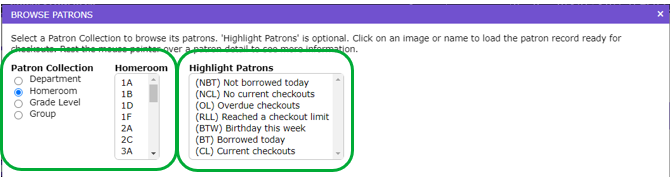
Patron Collection
The Patron Collection function caters to a broad range of scenarios allowing the Circulation Desk user to browse patrons by Department, Homeroom, Grade Level or Group.
Patrons are then displayed with their image (if one exists) and other details, including name, year level and patron checkout limits.
See below for details of each Patron Collection.
Note: Parameter 3057, Browse Patrons Default Collection, controls which of the Browse Group options is selected by default. Initially, this parameter will be set to Homeroom.
Parameter 3092, Browse Patrons Hidden Collection Types, controls whether patron collections are hidden from the browse patrons’ dialog in Circulation Deck. Initially, all patron collection types are visible.
Navigate to Management > Parameters to change these parameters at any time.
Browse by Department
Clicking on Circulation Desk > Browse > Patron Collection > Department allows the Circulation Desk user to select from the list of Departments that have been set up and allocated to Patrons in your MackinVision system.
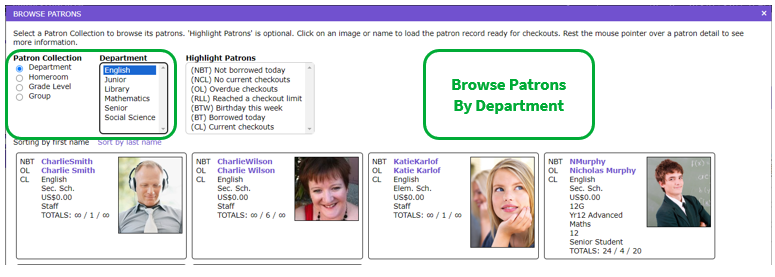
Departments can be created or edited by navigating to Management > List Files > Departments. While it is not mandatory to establish departments in your MackinVision system, this can prove useful.
For further functionality see Highlight Patrons or Select Patrons below.
Browse by Homeroom
Clicking on Circulation Desk > Browse > Patron Collection > Homeroom allows the Circulation Desk user to select from the list of Homerooms that have been set up and allocated to the Patrons in your MackinVision system.
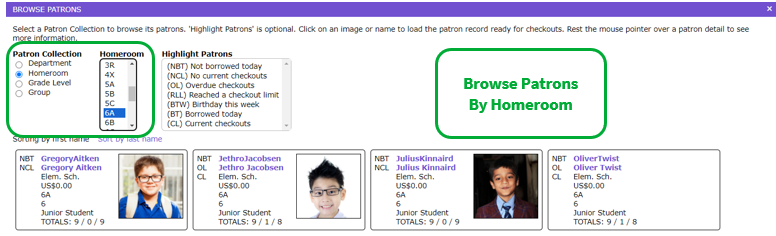
Homerooms can be found by navigating to Management > Circulation > Homerooms.
For further functionality see Highlight Patrons or Select Patrons below.
Browse by Grade Level
Clicking on Circulation Desk > Browse > Patron Collection > Grade Level allows the Circulation Desk user to select from the list of Grade Levels that have been set up and allocated to the Patrons in your MackinVision system.
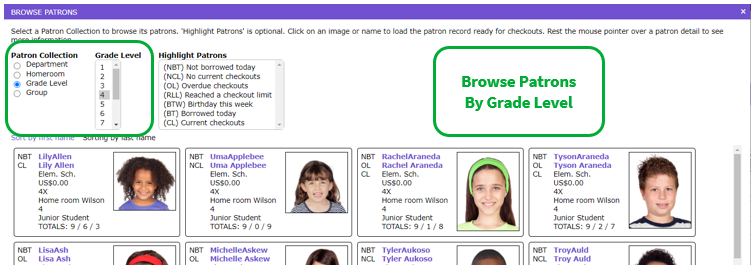
Grade Levels can be found by navigating to Management > Circulation > Grade Levels.
For further functionality see Highlight Patrons or Select Patrons below.
Browse by Group
Clicking on Circulation Desk > Browse > Patron Collection > Group allows the Circulation Desk user to select from the list of Groups that have been set up and allocated to the Patrons in your MackinVision system.
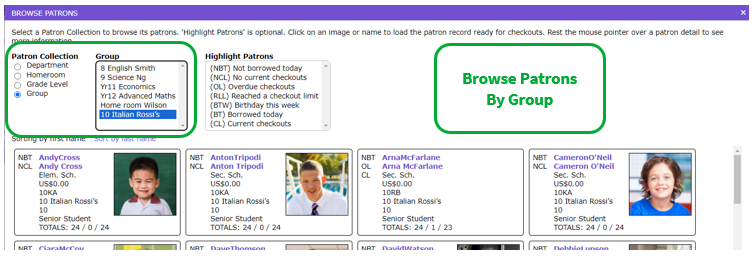
Groups could include Before/After School Care, as well as Sporting or Subject Groups and can be found by navigating to Management > Circulation > Groups.
For further functionality see Highlight Patrons or Select Patrons below.
Highlight Patrons
After selecting to browse by Patron Collection, Circulation Desk users have the option of choosing to filter using the Highlight Patrons function.
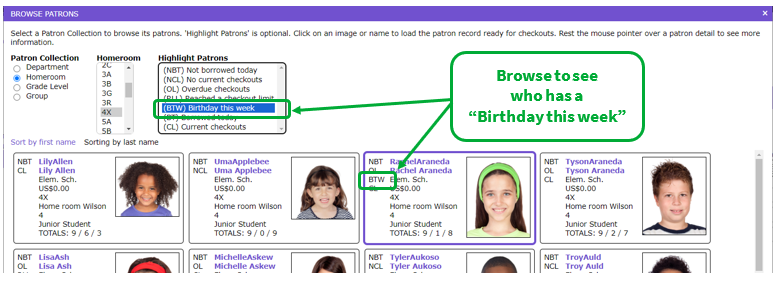
Two or three letter codes are used to help Circulation Desk users identify which categories a patron falls into. The codes are displayed to the left of the patron image.
Clicking on one of the Highlight Patrons fields allows you to filter by:
- (NBT) Not borrowed today
- (NCL) No current checkouts
- (OL) Overdue checkouts
- (RLL) Reached a checkout limit
- (BTW) Birthday this week
- (BT) Borrowed today
- (CL) Current checkouts
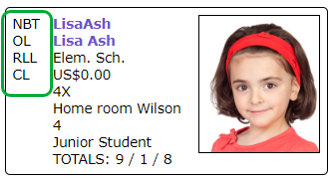
For example, in the image below, the patron Lisa Ash has; (NBT) Not borrowed today, (OL) Overdue checkouts, (RLL) Reached a checkout limit, and (CL) Current checkouts.
Note: Both the codes and filter descriptions are translatable. To change these you should navigate to System > Translations and search for ‘circulation.circulationDesk.browseBorrower.dialog.highlight’
Parameter 3054, 'Browse Patrons Highlight', determines which of the options is selected by default. The standard parameter value is '-' (blank) or no patron highlight option selected.
Select Patrons
Clicking on a patron's image, name or alias opens the patron ready for checkouts in the Circulation Desk.
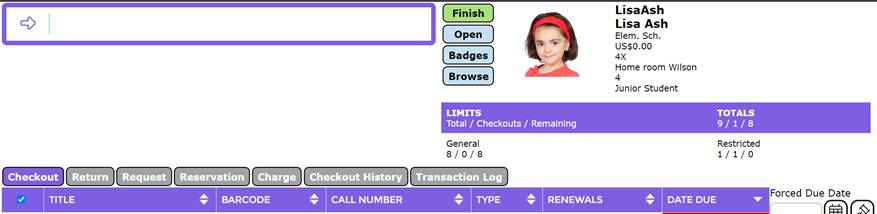
Click on the Browse button to return to the next patron selection. Previous homeroom and patron highlight selections are remembered during the same Circulation Desk session.
Selecting Browse displays the default Patron Collection, e.g. if Homeroom is default and Browse is re-selected, then the previously selected Homeroom is remembered.
However, if the default Patron Collection is Homeroom and Group is selected (after clicking Browse), then the previously selected Homeroom is forgotten. If you select a Group, then click Browse again, it will revert to the default Patron Collection, e.g. Homeroom.
Patron Images
To gain the full experience of the Circulation Desk Browse feature your school will need to import the student patron images.
If patron images are not imported, then a placeholder icon will be automatically provided.
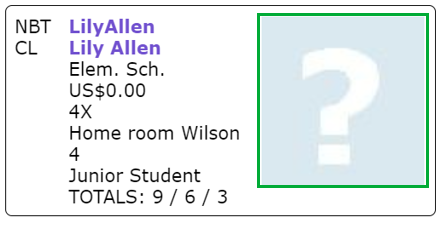
For instructions on how to import patron images, navigate to MackinVision Help and search for the document ‘How to import patron images’.
Print Overdues
From the Circulation Desk > Browse page, Circulation Desk users can choose to print either group or individual overdue notices by clicking on the Print Group Overdues or Print Individual Overdues button.
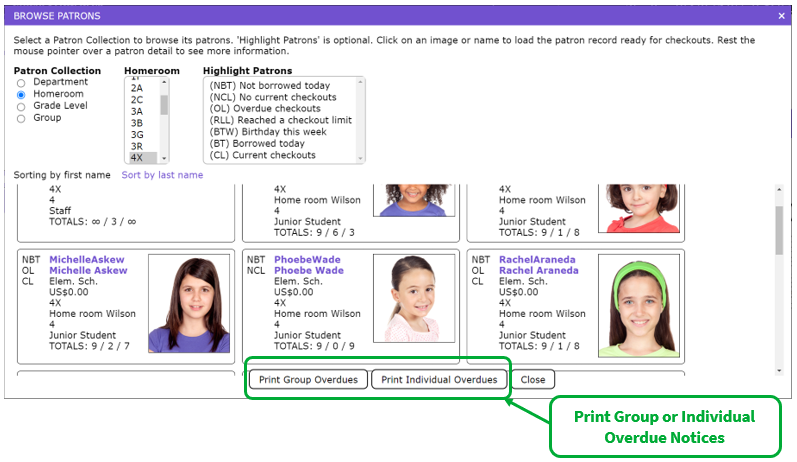
Clicking on the Print Group Overdues or Print Individual Overdues button will automatically start to download the overdue notice.
Note: The following parameters control the report formats used by the Print Group Overdues and Print Individual Overdues buttons:
Parameter 3123 - Print Group Overdues Format and
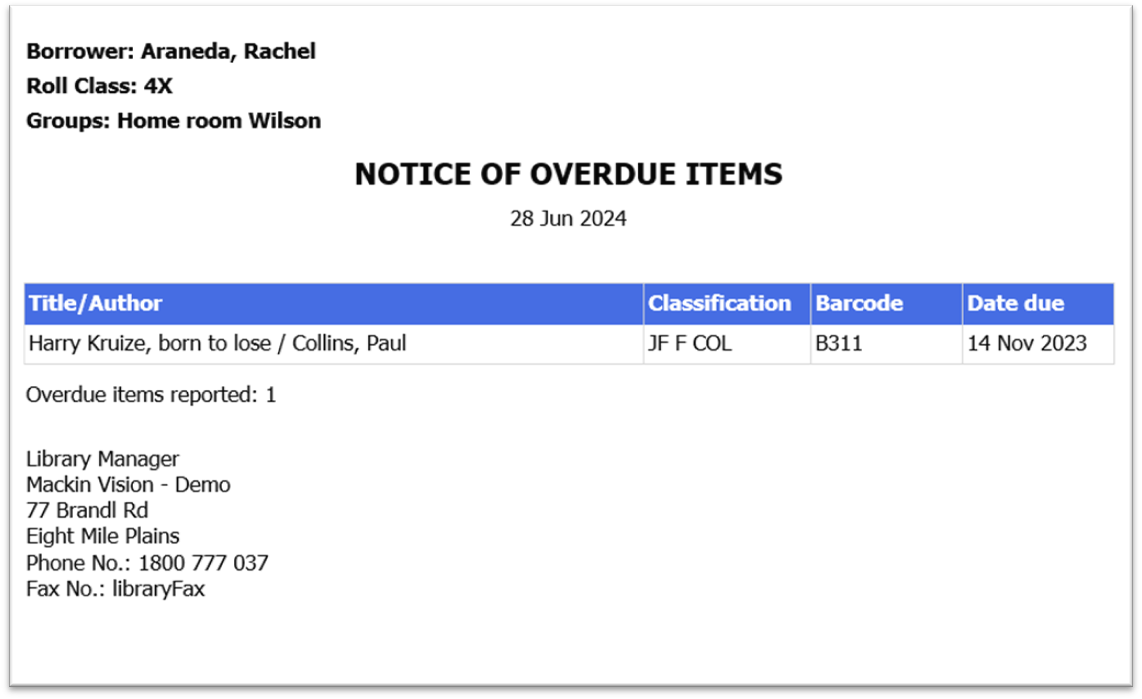 Parameter 3127 - Print Individual Overdues Format
Was this article helpful?
That’s Great!
Thank you for your feedback
Sorry! We couldn't be helpful
Thank you for your feedback
Feedback sent
We appreciate your effort and will try to fix the article