Summary
Incrementing the Homeroom on student records can be done in bulk provided all students will be grouped in with the same classes in the new school year. If your school has more than one homeroom per grade level, then this process will not be of assistance to you and the change of patron homerooms will need to be done by either importing a CSV file of the patron records, or by altering each student’s homeroom in their individual patron records.
Note: If you will be importing a CSV file of the students’ records as a part of your end-of-year rollover for the new school year, then the process described in this guide will not need to be performed.
Check Homeroom Setup
1. Navigate to Circulation > Homerooms.
2. Check that the homeroom being rolled over to is set correctly. For example, Prep rolls over to Year 1, Year 1 rolls over to Year 2, and so on.

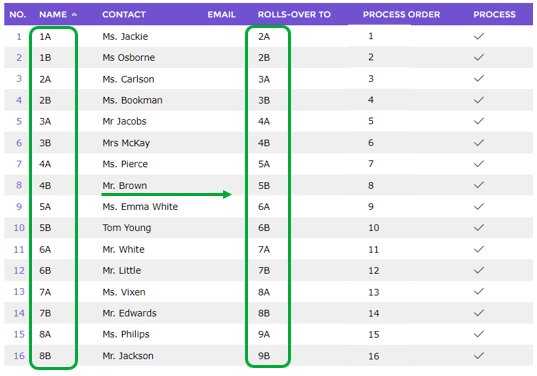
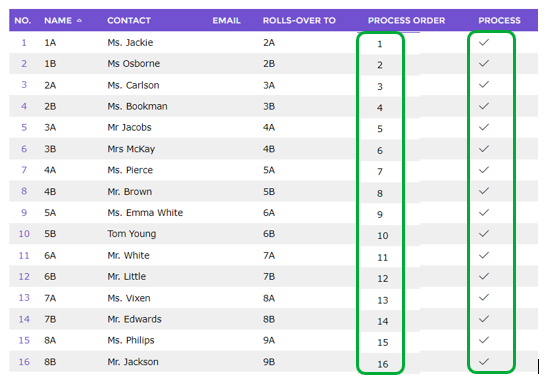
3. Check the process order. The homeroom for the highest grade level will need to be processed first, and the lowest year level last. Therefore, the homeroom for the lowest grade level should have the lowest Process Order number of 1, the homeroom for the second lowest grade level should have the second lowest Process Order number of 2, and so on.
4. The Check indicates that the Homeroom will be included in the Increment Homerooms process run.
 Homeroom Rollover
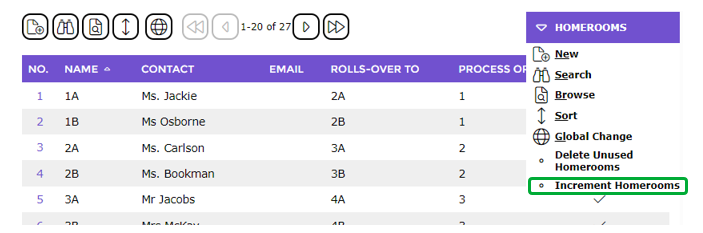
1. From the Homeroom Maintenance List screen Function menu, click on Increment Homerooms.
2. A popup message will display informing you that the operation will update all applicable records.
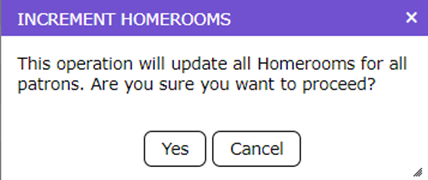
3. Click Yes.
4. The Processing screen will display indicating that the process is complete.
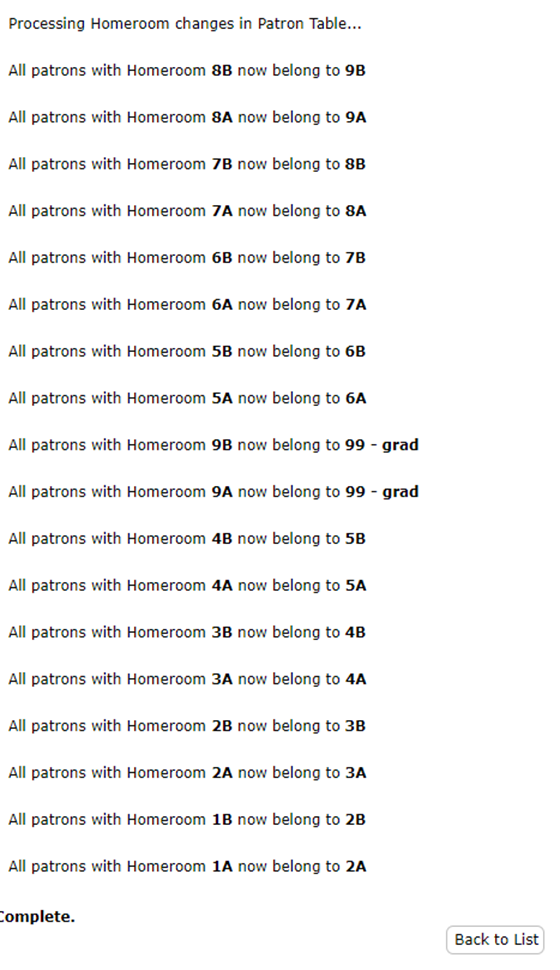
5. Click on the Back to List button to return to the List screen.
Staff can confirm the process was successful by checking the Homeroom field for selection of Patron records.
Was this article helpful?
That’s Great!
Thank you for your feedback
Sorry! We couldn't be helpful
Thank you for your feedback
Feedback sent
We appreciate your effort and will try to fix the article