Summary
There are a large number of spine label reports created to comply with specific spine label requirements. There is also the facility to skip a defined number of labels as well as the ability to run many of the reports in a specified format of PDF and WORD. Some reports are also available in Excel.
This guide will provide the steps required to run a spine label report.
Run a Spine Label Report
For the purposes of this example, the spine label report will include all new copies. Any of the new copies that were already included in a “previous” spine label report, which was the updated, would not be included in the report.
- Navigate to Cataloging > Copies > Search and click on the Show new records only icon.
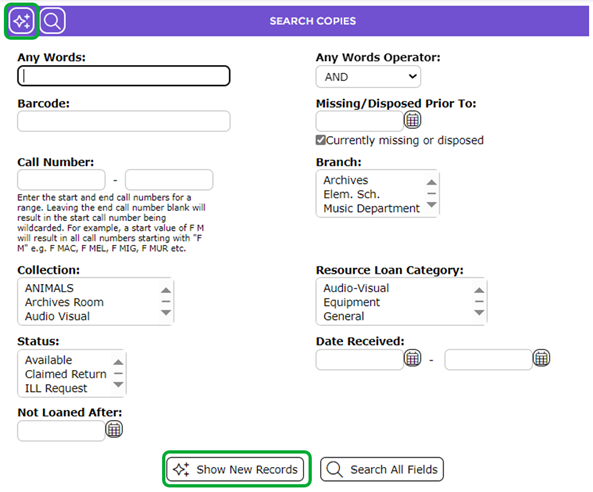
- A list of only new copies will display.

- The Copies List screen will display. Click on the Reports icon.
 The Reports screen will display.
 - In the Select report list-box, scroll down to locate the spine label reports and click on the report required, for example, Labels 3x8 – Avery 3474.
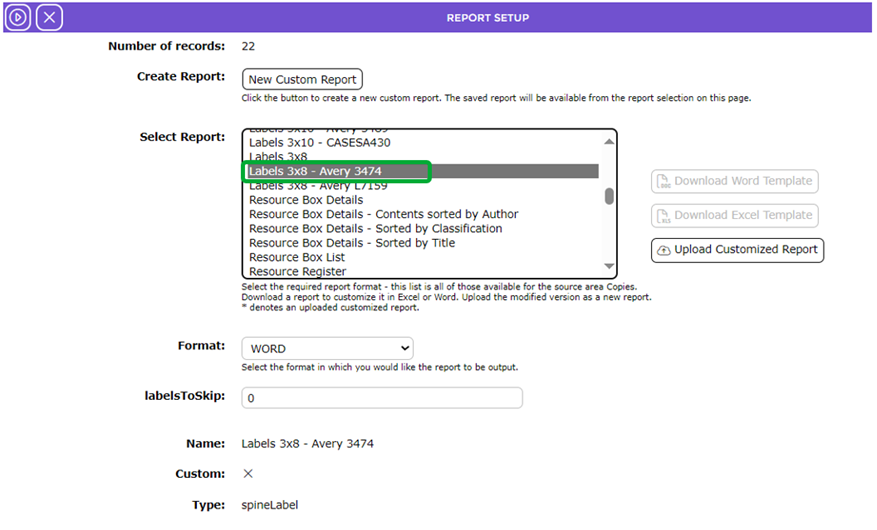

5. The Sort Fields section no longer displays when a spine label report is selected and is replaced with the Labels to Skip field. If, applicable, enter the number of spine labels to be skipped when printing this report.

- Click on the down arrow at the end of the Format field and click on your preferred option if the default option is not the one you want.
- Click the Go icon when all options have been completed.
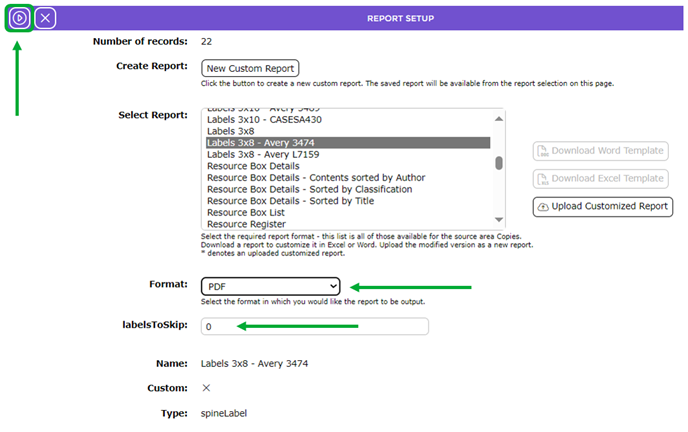
- The Reports screen will refresh to display the Download Labels 3x8 – Avery 3474 report link. Click the report link.
- The Download File popup screen or the Do you want to open…panel will display. Both contain the Open, Save, and Cancel buttons.
- For this example, the Open button is clicked to display the report to the screen.
Example Spine Labels Report
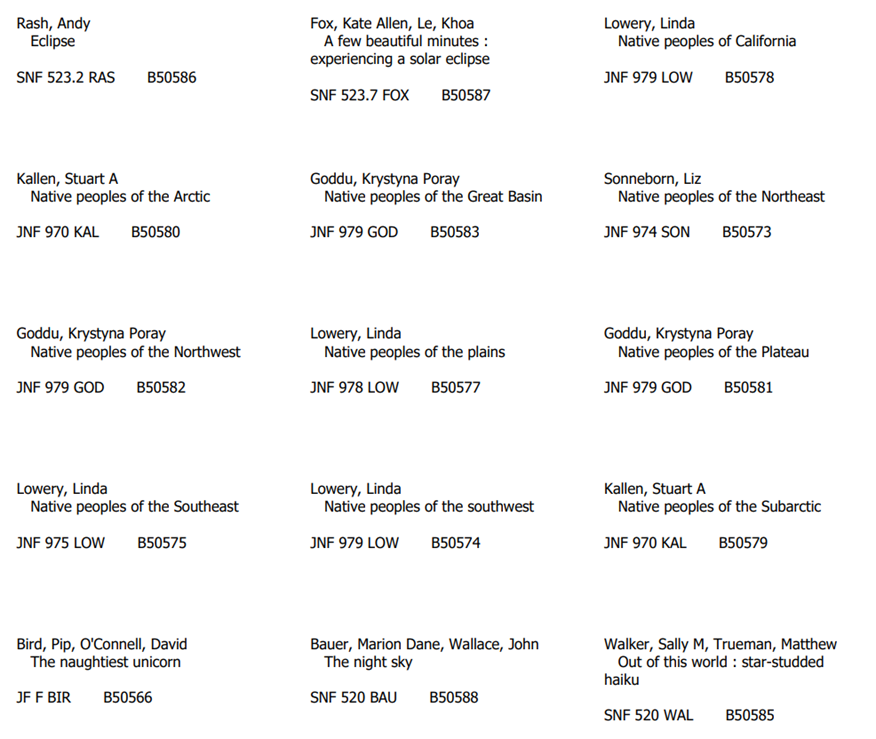
The spine labels details on this report include the author, title, call number, and barcode.
- To print the report to the spine labels sheets, click on File at the top of the screen and either click on the Print icon or press the Ctrl + P key on the keyboard.
Was this article helpful?
That’s Great!
Thank you for your feedback
Sorry! We couldn't be helpful
Thank you for your feedback
Feedback sent
We appreciate your effort and will try to fix the article