Overview
This guide will describe how to set up MackinVision to email an overdue notice to patrons as a reminder that their checkouts are due for return in the near future.
Benefits of a Reminder Notice?
Emailing Overdue Notices is a good way to encourage your patrons to return resources that are overdue, however, a well-worded Reminder Notice, sent a couple of days before the due date, will also help patrons to remember to return their checkouts on time.
Example of a Reminder Notice
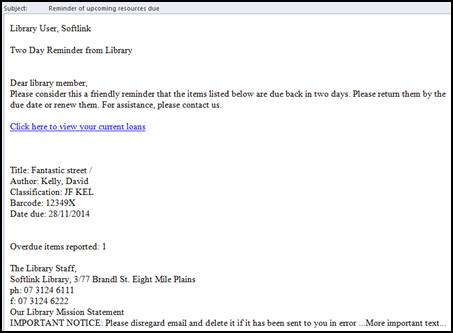
Using email to send the Reminder Notice is faster than printing notices and, once set up, can be completely automated. For this reason this guide will concentrate on the configuration of MackinVision to deliver email reminders.
Before setting up an email Reminder Notice in MackinVision, there are four considerations:
- Is MackinVision configured to send emails?
- Do all Patrons have an email address entered in their patron record?
- Is this going to be a regular reminder Notice, or one that is run on demand?
- How many days in advance of the due date should the reminder be delivered?
Email Configuration Confirmation
To confirm that MackinVision is configured to send emails:
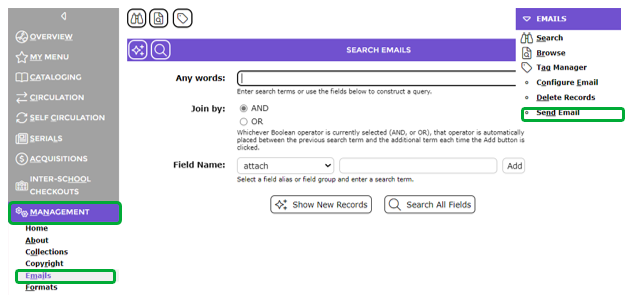
- Navigate to Management > Emails. Select Send Email from the Emails dropdown function menu.
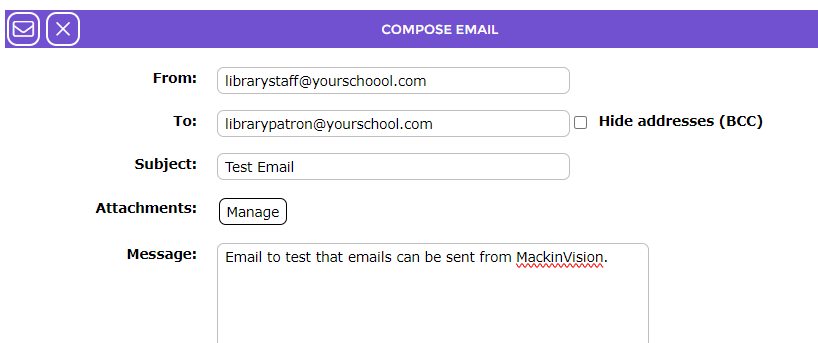
2. Fill in the form and use your own email address for both the From and To fields. Click the Send email button to send the email.
3. If MackinVision is unable to send the email the following message will be displayed. Check that Parameter 7650 contains a valid address for an email server.

4. If you receive the email, then MackinVision can send emails.
5. If the email does not arrive within a reasonable period of time:
- Check any spam filters to make sure the email has not been intercepted.
- Double check that the To: email address you used is valid;
- Try sending the email to another address.
Do all Patrons have an email address?
MackinVision can only send emails to patrons who have an email address entered in their patron record.
- Navigate to Circulation > Patrons. Search for a patron and view their Patron Detail screen. If an email address has been entered it will be displayed.

2. If you need to enter email addresses for a large number of patrons, performing an import from a csv file containing the Alias and email address is a more efficient method than entering each one manually. Refer to the guide: How to Import a Patron CSV file for details.
Reminder Notice Configuration
If the reminder is sent out too early, the patron may ignore or forget the reminder. If the reminder is sent too close to the due date they will not benefit from the reminder. A balance of 2 - 3 days seems to be acceptable to most libraries.
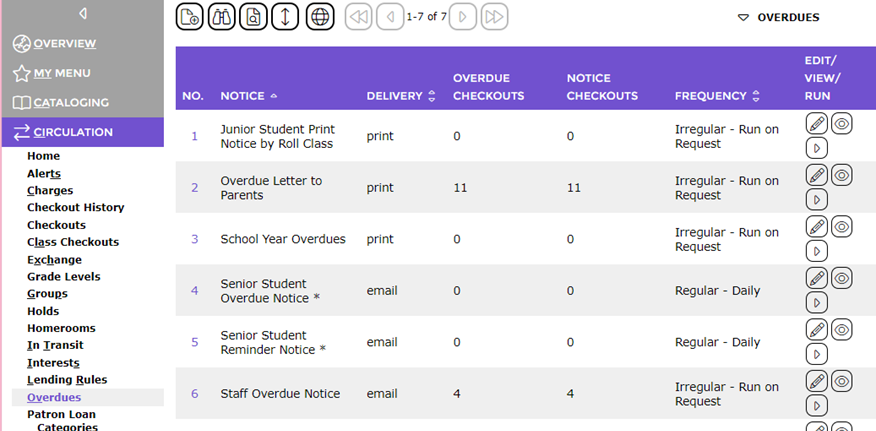
- Navigate to Circulation > Overdues and click the
 button to Create a new overdue.
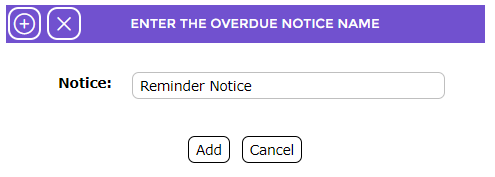
2. Enter a description for the Notice then click either Add button.
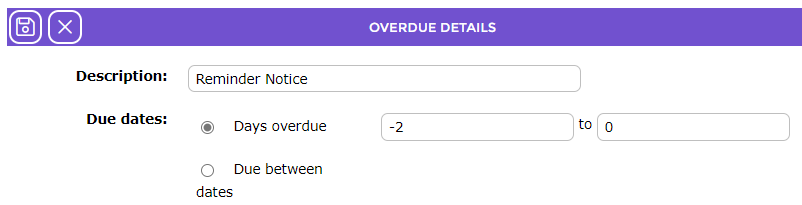
3. To have the notice sent out 2 days before the item becomes due, enter -2 into the Days Overdue (from) field.
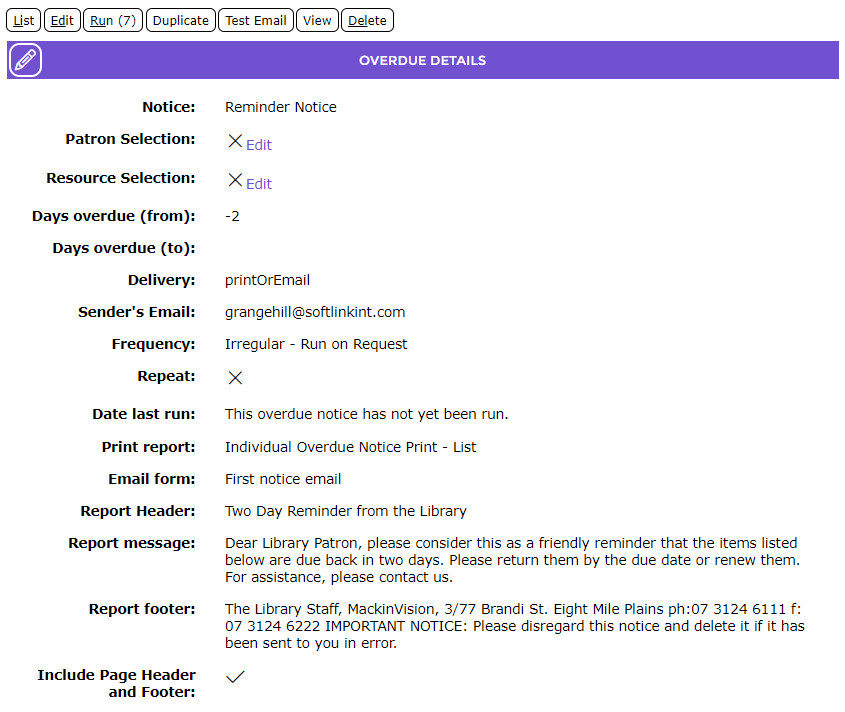
4. Fill out the other fields of the Reminder Notice as shown below.
5. Click the Save Button when all required fields have been completed. 
6. This Reminder Notice has been configured so the emails will only be sent when you choose to run the option.
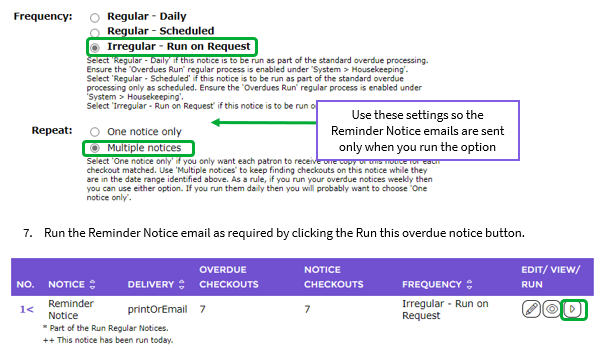
7. Run the Reminder Notice email as required by clicking the Run this overdue notice button.

Scheduling Reminder Notice Emails
If you want the emails to be sent out automatically each night, make these changes:
- Change the Overdue Notice fields Regular to Daily and Repeat to One notice only.
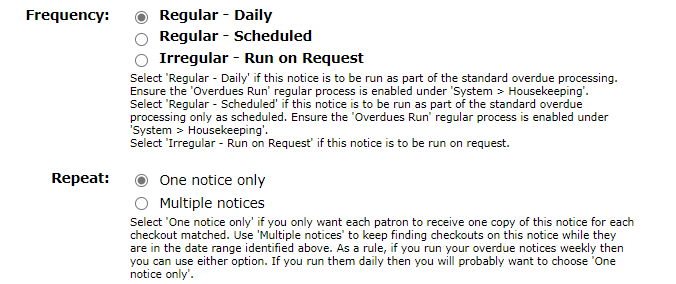
2. Enable the Housekeeping process Overdues Run. To do this:
- Navigate to System > Housekeeping;
- Click the Edit button;

- Ensure the Overdues Run option is ticked;
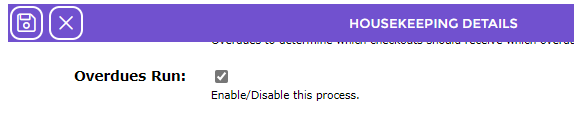
- Click the Save button .
Configuration of Overdue Notice
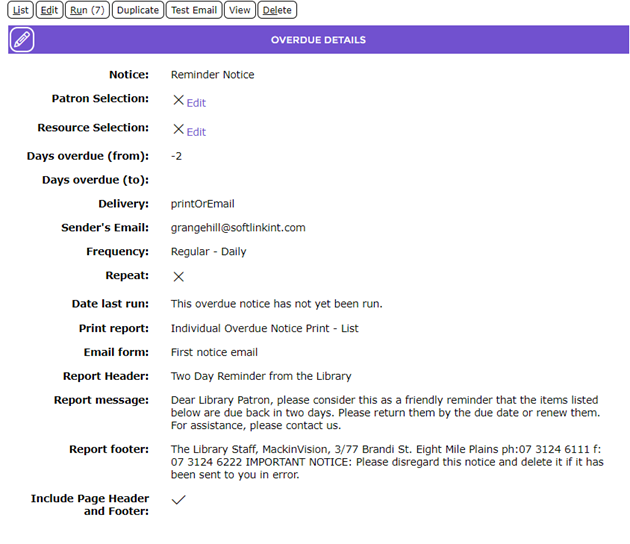
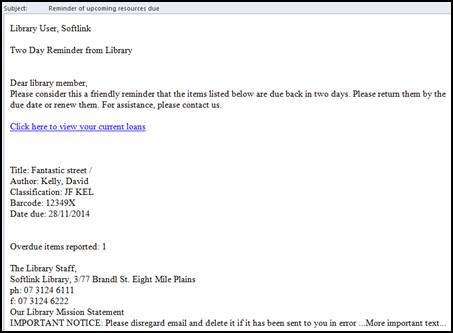
The following configuration of an Overdue Notice in Circulation > Overdues can be modified to suit your library. These settings will generate an overdue email similar to the one displayed below.
Was this article helpful?
That’s Great!
Thank you for your feedback
Sorry! We couldn't be helpful
Thank you for your feedback
Feedback sent
We appreciate your effort and will try to fix the article