Summary
Search queries that identify the overdue checkout items to include in automatic or manually generated overdue notices are established on the Overdue Notice Template screen. All overdue items matching the selection criteria will be included in the notice. Mackin provides default Overdue Notices but you can also create your own custom notices that confirm your specific requirements.
Overdue notices can be set to run automatically or can be run manually as irregular notices. Depending on options established on the Overdue Notice template itself, and/or determined by system settings, notices will either be:
- Automatically emailed to Patrons (or responsible adult)
- Generated as a PDF file or Word document ready for printing or sending via email.
This guide will provide an explanation of what settings need to be made to ensure overdue notices are run automatically and how to run an irregular notice manually. A separate guide provides the steps required to create an overdue notice template.
Automating Overdue Notices
While the running of regular overdue notices can be done manually, you can also automate this as part of the nightly Housekeeping run
More information on how to configure a regular notice can be found in the How to Create an Overdue Notice Template guide.
Overdues Run Housekeeping Process
To ensure the overdue notices are automatically processed:
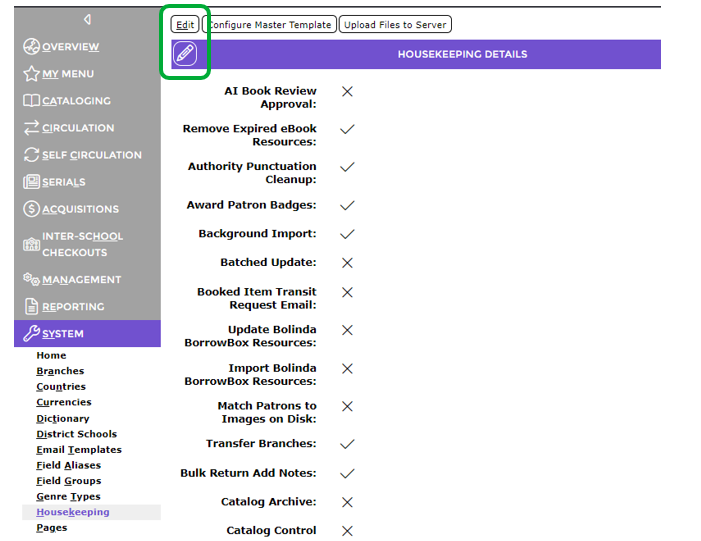
- Navigate to System > Housekeeping and click on the Edit button.
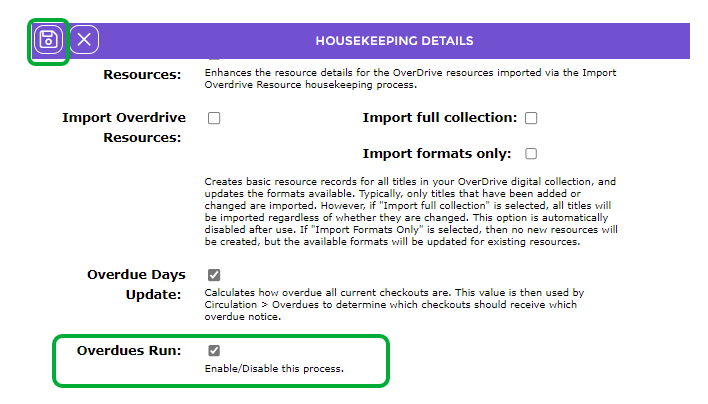
2. Scroll to locate the Overdues Run option. If the checkbox does not include a check click in the checkbox and one will display.
3. If you have had to make an edit ensure you click on the Save icon when finished.
The “Regular” overdue notices will then be run whenever the overnight Housekeeping is run.
Overdue Days Update Housekeeping Process
The number of days that items are overdue are calculated on a daily basis as part of the overnight housekeeping process. If necessary a user with applicable privileges can navigate to System > Housekeeping and locate the Overdue Days Update option.

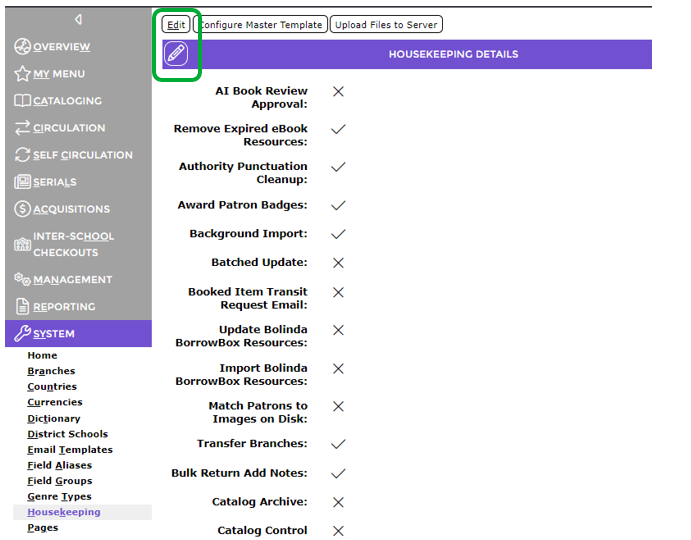
- If a check does not display, click on the Edit button to access the Edit screen.
- Click in the option’s corresponding checkbox then click the Save button.
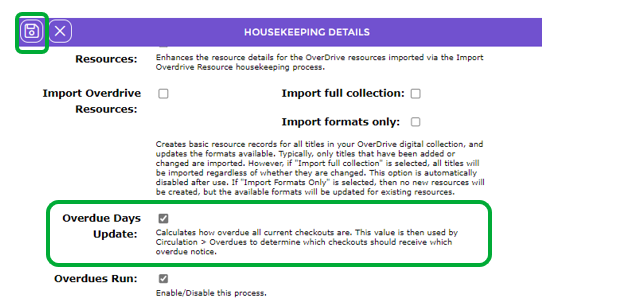
This Housekeeping option calculates the number of days that items are overdue. Circulation then uses this to determine the notice to which the overdue items apply.
Irregular Notices (and Notices not Included in Housekeeping Run)
Overdue notices that are set as irregular must be run manually by selecting the “Run” option for the Overdue template. A notice is set as irregular by clicking in the radio button next to Irregular - Run on Request in the Add/Edit screen of a notice template.

View Items on an Irregular Notice before Running
Staff can view the items that will be included in the irregular notices (and notices not included in the automated housekeeping process) by clicking on the Eye icon corresponding to the applicable notice in the Overdues List screen.
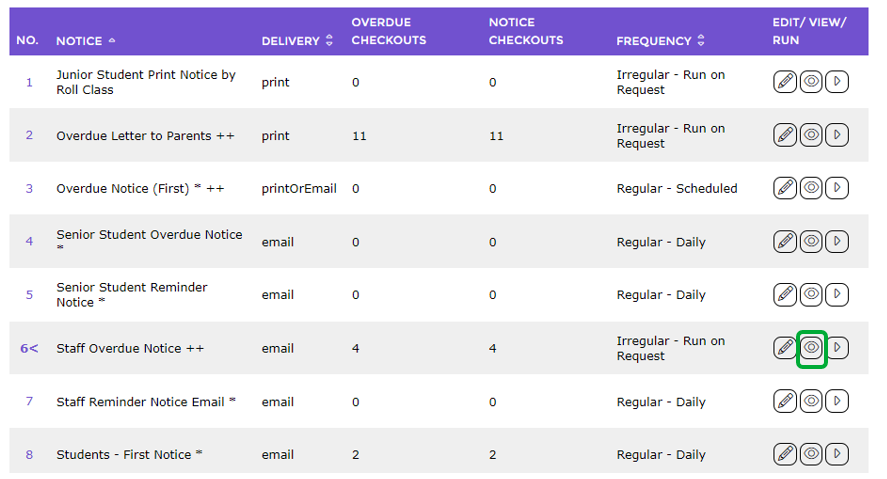
This opens the Overdues Detail screen.
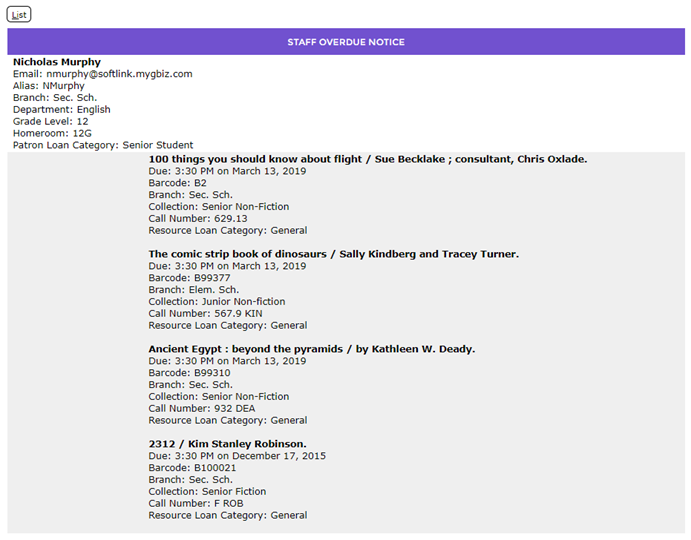
Staff can scroll through all patrons and items they currently have that are overdue and correspond to the selection criteria of that specific Overdue Template.
Note: The format that is displayed when clicking the “View” button does NOT correspond to the format for the delivery method specified in the Overdue template, it is simply for display purposes.
Run an Irregular Notice
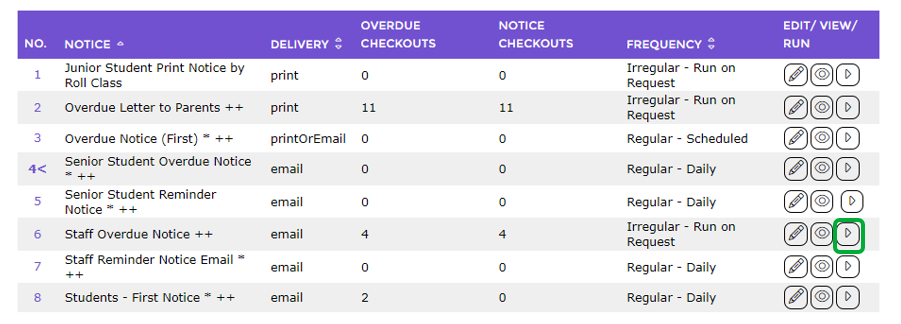
- Navigate to Circulation > Overdues > List.
Note: A message will display in red text at the top of the screen, if the Overdue Days Update process has not been run.
2. Click on the Run icon for the irregular overdue notice. This could be a reminder notice for example.
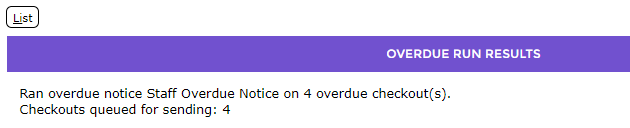
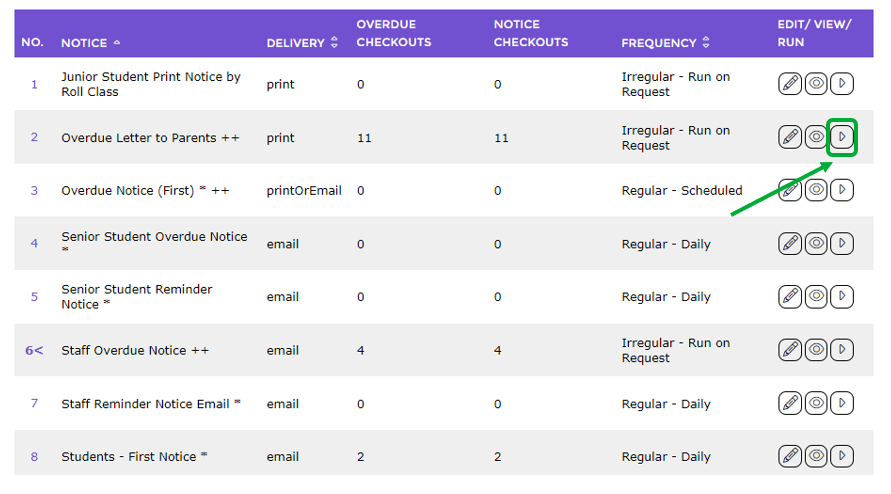 3. The Report screen will display.
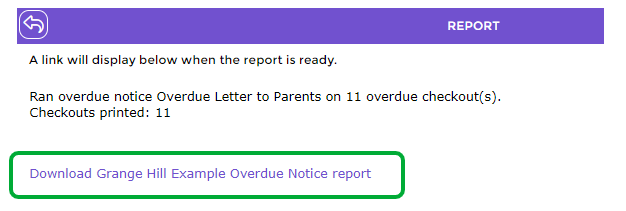
Or if the delivery method is EMAIL then:
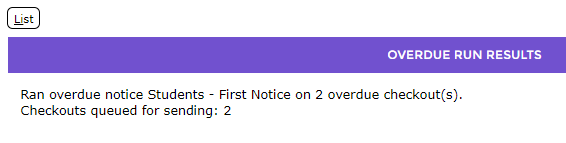
4. If the delivery method is Print or PrintOrEmail then the report, selected on the Notice Template, will be available as a link. Click on it to run the report.
5. The Download File popup screen or a Do you want to open…panel will display. Both options include the Open, Save, and Cancel buttons.
6. Clicking Open displays the notices on the screen from where they can be printed. Click on Save to save the report to a preferred location on your computer from where it can be printed later if required.
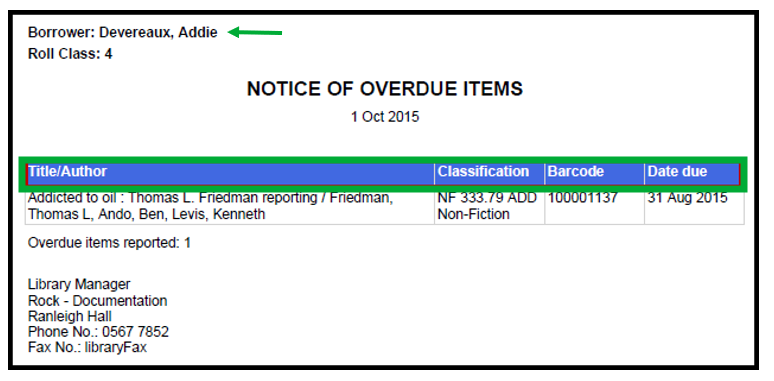
IMPORTANT: Patrons with an email address will have the notices emailed to them automatically. Any emailed notices are not included in the report of overdue notices for printing.
7. Return to the List screen and confirm that two Plus symbols display at the end of the notice you just ran manually. The symbol indicates the overdue notices were run “today”.
Overdue notices included in the Housekeeping run are indicated by an asterisk.

Run All Regular Overdue Notices Manually
You can also run all Regular Overdue Notices manually at the same time if you don’t have the overnight housekeeping option enabled. This allows you to run a group of overdues as and when you want to without having to select and run each one individually.
- Navigate to Circulation > Overdues.
2. From the Function menu, select Run Regular Notices.
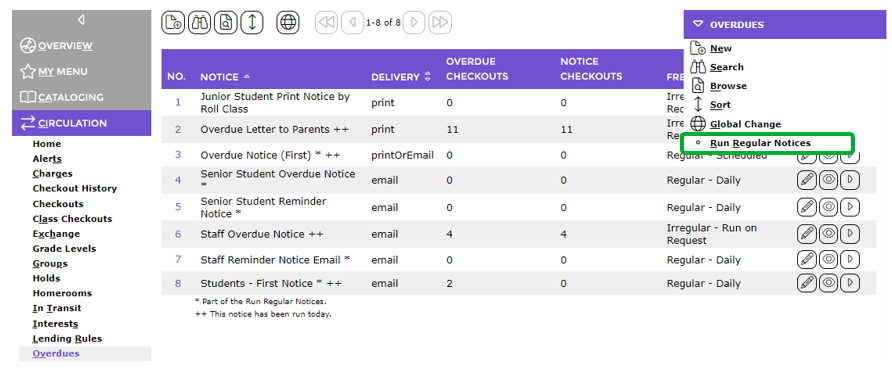 3. Notices to be sent as an email will be emailed when the Run Regular Notices option is clicked.
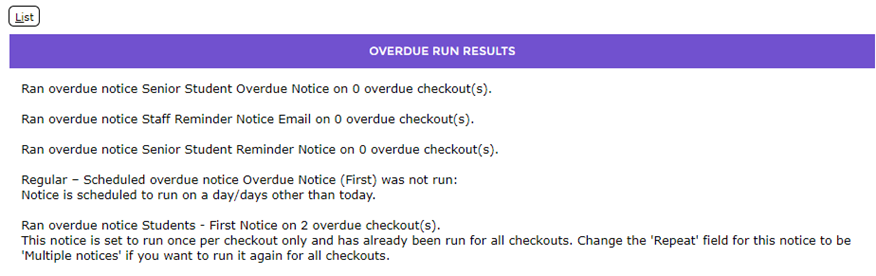
4. Repeat the process to print the report to the screen as noted in steps 4-6 in the previous section.
IMPORTANT: Any emailed notices will not be included in the Notice file for printing.
How to Run a Notice via the Overdues List Screen
- Click on the Arrow icon corresponding to a Notice in the Overdues List screen.
2. The Report screen will display identifying the number of overdues emailed and the number to be printed.
Was this article helpful?
That’s Great!
Thank you for your feedback
Sorry! We couldn't be helpful
Thank you for your feedback
Feedback sent
We appreciate your effort and will try to fix the article