Summary
You can Search for items that were marked as Missing by an Inventory by performing a Search for Copies with:
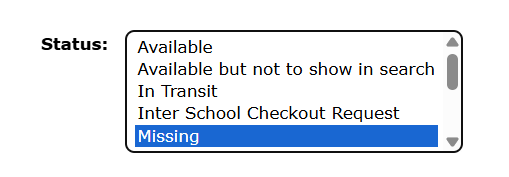
- Status = Missing
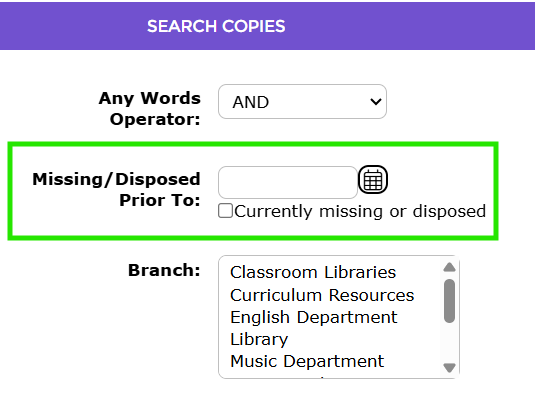
- Missing/Disposed Date = Date the Inventory was finalized
Search for Missing Copies
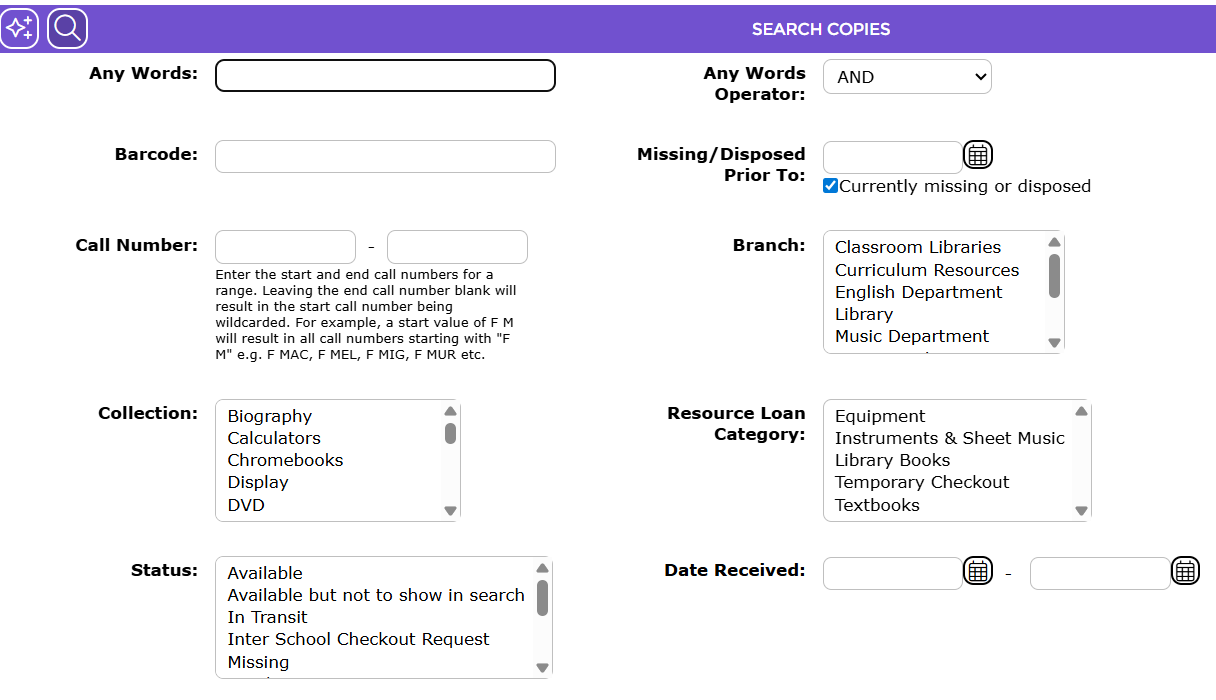
- Navigate to Cataloging > Copies.
- Optionally, select a Branch and/or Collection search filter.
- Select the Missing Status filter.
- Enter the date the inventory was finalized into the Missing/Disposed Date field.
- Click Search.
- Optionally, click the Report icon to generate a printable report of search results.
Was this article helpful?
That’s Great!
Thank you for your feedback
Sorry! We couldn't be helpful
Thank you for your feedback
Feedback sent
We appreciate your effort and will try to fix the article