This guide is an overview of creating custom string searches for commonly searched terms in the Management interface. The guide should be read in conjunction with the Search Strategies for MackinVision document which sets out in detail the types of searching available including Wildcard Searching, Boolean Searching, Phrase Searching and Relational Searching.
General Notes
Double quotes are required for search terms containing spaces (i.e. phrases) e.g. Title = “Harry Potter”. Single terms do not require any quotes e.g. Bibtype = M.
Search terms and field names are case insensitive e.g. Title or title or TITLE will all work to restrict a search to the Title field.
Boolean search operators (AND,OR, NOT) must be entered in upper case.
Searchable Field Names
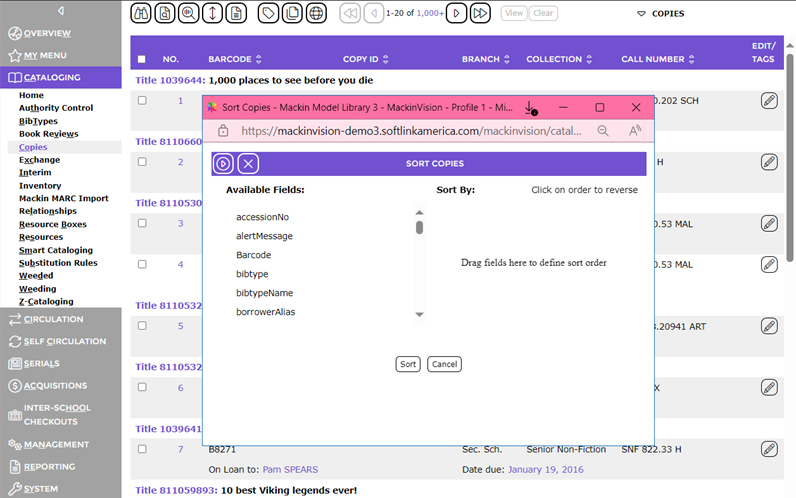
One way of finding the field names available for searching is to go to Resources, Copies, Patrons, etc., click on Browse and then select Sort from the function menu on the right of the page. The list of Available Fields can be used in your search queries.
Resources Searching
Resource ID
A Resource can be identified by searching for the Resource ID value if it is available.
 | Search Result - This search will return the Resource with the matching Resource ID |
Title Searches
A Title can be searched using a specific search string, with or without other search criteria. Examples include:
| Search Result - The search will return any Resource with a title including the value of “1, “, and with a copy that has a current status of ‘On Loan’. |
| Search Result - The search will display any Resources in the range of titles that begin with a numerical value, rather than a letter. |
 | Search Result - The Resources displayed will include any with a textbook Bibtype, which have copies not included in the Textbook Hire branch. |


Reading Lists
It is common to require a list of Titles included in a Reading List. The information can be viewed through Cataloging > Authority Control, selecting Open Lists or alternatively, the Reading List term can be included in the Cataloging > Resources search details:
| Search Result - Returns all Resources that are included in any Reading List. |
| Search Result - All Resources which are included in the ‘Christmas in the Library’ Reading List will be displayed. |
| Search Result - Any Resources which are included in a Reading List that contains the term Classic will be returned. |



NOTE: The term 'readinglist' can be also be used instead of 'topiclist'.
Thumbnails
The thumbnail field stores the cover image which will be displayed in the OPAC, which can be added to MackinVision through SCIS or by uploading a cover image manually. If Resources without a thumbnail image are required to be identified, the recommended search is included below:
| Search Result - This search returns all Resources with no Thumbnail value. |
| Search Result - The alternative is to find all Resources that include a Thumbnail value by using this search term. |


Attachments
If details of whether Resources include Attachments is required, a search in Cataloging > Resources can be used with the criteria in the Any words field:
| Search Result - All Resources with no Attachment will be displayed. |
| Search Result - Each Resource that has an attachment included, will be returned by this search. |


Accelerated Reader
Locating Accelerated Reader Resources of particular levels is commonly required to create Reading Lists. Examples of searches in Cataloging > Resources for Accelerated Reader Quiz IDs or Levels are:
| Search Result - This search will identify all Resources with an AR Quiz ID. |
| Search Result - Returns only those Resources with an AR Quiz level of 4.30. |
| Search Result - All Resources with an AR Quiz level between 4 and 6 will be returned with this search. Inverted commas and specific values are not required for this particular search. |



Tag Searching
Any Resources with a Tag can be searched using the tagname field and search strings, such as:
| Search Result - Returns all resources with a Duplicate tag. |
| Search Result - Can be used to identify Resources brought in with an import on a specific date or other resources tagged with the date value. |


Copies Searching
Cost and Price Searching
Searching based on Cost and Price fields can identify an exact value, a range of values or a 0 value. Examples include:
| Search Result - The query will return all copies that have no cost value. The cost term can be substituted for price to identify all copies with no price. |
| Search Result - All copies with a Cost value greater than zero will be returned. The cost term can be replaced with price for a price search. |
| Search Result - This search will return any Price records with a value of 0.00. The cost term can be used to perform an alternate search for all copy records with a cost value of 0.00. |
| Search Result - The search will return all copies with a price value between $10 and $25. |




Call Number Searches
Searching of call numbers can be narrowed to a specific value or across a range.
| Search Result - Provides a list of Copies with a classification that matches exactly. |
 | Search Result - Any copies that have a classification in the range AAA to AZZ will be returned by this search. |

Missing Items
Details of copies made missing during the year or over a period of time can be obtained by using the search term below in the Any words field:
| Search Result - Returns all items made missing during the specified time frame. |

Another time when a list may be required of missing items is copies that have been made missing by finalizing an inventory. A search in Copies with the search criteria shown, can produce this information:
| Search Result - Displays all copies which have been marked as missing by the finalization of the inventory. |

Equipment Searches
Equipment can be easier to locate in the catalog when you have specific details such as the make, model or serial number. When searching for equipment, the following field names are available:
|
|
|
|
|
|
|
|
|
|
|
|
|
|
|
Examples of equipment searches are shown below and will provide the results as indicated:
| Search Result - Returns the item with the exact matching serial number. |
| Search Result - Any items with the value of Ultrabook in the equipment model field will be displayed. |
| Search Result - Returns all items with the term ipad included in the equipment description. |



Alert Messages
If a copy contains an alert message, a search can be used to identify messages which contain a specific value or all copies with an alert message.
| Search Result - Returns all Copy Records with details in the alert message field. |
| Search Result - All Copy records with an alert message containing Paid are displayed. |
| Search Result - This search will return items with the exact alert message ‘Contains CD’. |



Tag Searching
Any Copies marked with a Tag can be searched using the exact value or a portion of the Tag name, such as:
| Search Result - Each Copy with a tag including the term Cost Price will be identified with this search criteria. |

Weeded Copies
A list of the Copies Weeded over a year or for a specific period may be obtained with the following Any words search in Cataloging > Weeded, selecting the Weeded Resources drop-down in the upper right and clicking [OL1] the Open Weeded Copies option:
| Search Result - Displays a list of all Copies which have been Weeded for the period. |

Patron Searching
Fields related to a Patron record which are not visible on the Patron Search screen can be included in the ‘Any words’ search field to tailor the results of a search. Types of patron searches which may be useful are:
User Role Searches
To search for all users with a specific User Role, a search can be performed using the exact User Role name or using a portion of the name:
| Search Result - The patron records displayed will include any patron with a Circulation Desk User Role. |
| Search Result - If there are multiple roles including Library in the name, this search will return all patrons with those User Roles. |


Text Hire Participation
It may be beneficial to identify a list of students who are part of the Text Hire scheme, or alternatively, not included. The search term below can be used:
| Search Result - All patrons with a tick in the text hire field will be returned. To obtain a search for patrons not included, change the value from True to False. |

Email Searches
The library staff may wish to identify if there are patrons without an email address, with a specific email address or an email address with only a portion of the email value. The following examples can be used for the email address and the Alt Email address (replace email with ‘altemail’:
| Search Result - All patrons without an email value will be displayed. |
| Search Result - This search will return any patron records with the exact email address. |
| Search Result - Returns all records that include the value ‘mackin.com’ in the email address. |
| Search Result - The patron records with a value of ‘ttt’ contained in the Alt Email address will be returned. |




Tag Searching
Patrons may be tagged to identify new patrons, students who have left or for the ability to easily search a group of patrons with a specific characteristic. To search for patrons tags in Circulation > Patrons in the Any words field:
| Search Result - Any patrons with a tag containing the value of Student Patrons will be identified with this search. |

Searching Current Checkouts, Checkout Histories or Overdues from Circulation > Home
From the Circulation > Home screen, the Current Checkouts, Overdue Checkouts or Checkout Histories can be selected and searched to restrict the results to specific criteria, such as Patron Type, Homeroom, Bibtype, Resource Loan Category and DateDue.
Current Checkouts and Overdues
After the value next to Current Checkouts or Checkouts are overdue are chosen, the list of checkouts is displayed. Select to Search Checkouts to display the search screen.
Search criteria can be added directly to the ‘Any words’ field or can be added using the Field name and search term. Choose a field name by selecting the appropriate field and entering the value for searching in the search term box, then click Add. The example below shows the selection of Field name of homeroom and search term of 4B. Multiple fields can be searched.
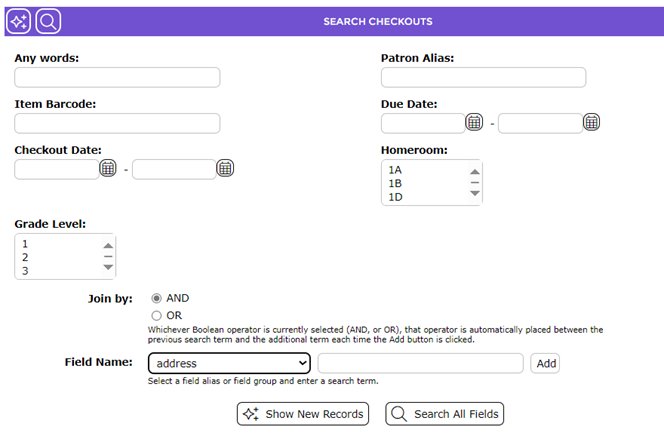
The result of adding the search term is to display the field and term selected in the ‘Any words’ field:

Select ‘Search All Fields’ to run the search.
Search of Checkout Histories
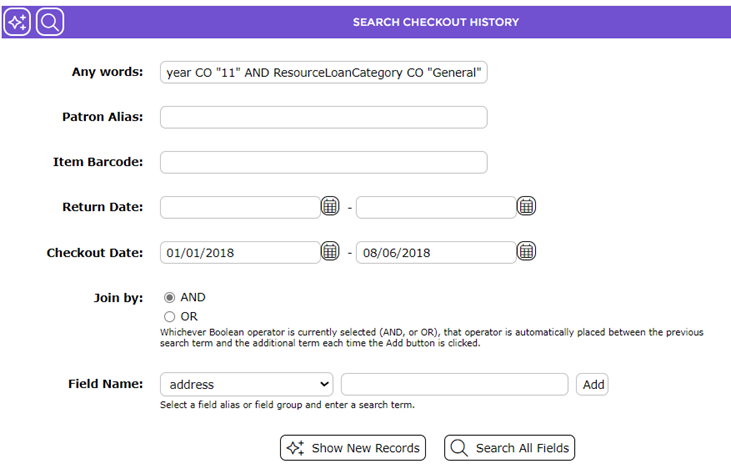
The Search screen for Checkout Histories provides additional search fields of Patron Alias, Item Barcode, Return Date and Checkout Date. Field Names can be selected from the dropdown list, a search term entered and Add selected. Multiple fields can be added, with the example showing a search of the year field of ‘11’ and the Resource Loan Category of General, which have been checked out during a specified period. Click Search All Fields to display the results.
Was this article helpful?
That’s Great!
Thank you for your feedback
Sorry! We couldn't be helpful
Thank you for your feedback
Feedback sent
We appreciate your effort and will try to fix the article