Do I have to inventory the entire library at once?
The inventory does not need to be performed for the entire library at once. It is recommended that you inventory small sections of the library at a time as this will ensure the inventory process is more manageable. Missing items and items that are shelved or cataloged incorrectly can be checked and dealt with quicker if the section you are working with is relatively small and reports are not too large.
Depending on how much time you have, you could:
- Inventory the entire library (branch) at once. This is only advisable if you have a small library with a limited number of resources and are able to close the library for a period of time to complete the inventory.
2. Inventory only one collection at a time. This will reduce the amount of time taken to complete the inventory.
3. Inventory only a shelf range (location range) within one collection. Small ranges are ideal for busy libraries where you do not have a lot of time to perform a big inventory. A small range can be completed in a short time.
Does the inventory need to be completed in a single day?
You do not have to complete the inventory in one day. While there is no set time limit to complete an inventory section, we advise that sections are finalized as soon as possible after commencement. You should always run Process after importing or scanning any new barcodes into an inventory Section as well as before Finalizing if you have continued circulating while stocktaking a section. This will identify any items that have been returned or loaned out.
Do I need to stop circulating when I inventory?
You do not need to stop loaning and returning when you perform an inventory. If you create an inventory section then MackinVision will know what is currently checked out.
If an item is:
- Returned, then MackinVision will automatically add it to the inventory section when that section is next “Processed”.
- Checked out, then MackinVision will not expect that item to have been scanned.
If the item was:
- Scanned into the inventory section and then subsequently checked out then MackinVision will register the item as being checked out (on Loan).
- “Missing” when the inventory section was started and is subsequently found (scanned through Circulation Desk) then it will still need to be scanned into the inventory section.
Do all copies need to be in alphabetical order on the shelf prior to an inventory?
No. It is not mandatory to have your copies in perfect shelf order prior to an inventory. However, if this is your policy, then you can specify that you have scanned in shelf order when you “Process” your sections. MackinVision will then highlight any copies that are not in shelf order and you can rearrange them as necessary. Otherwise MackinVision will just check for a call number that falls within the specified range, or collection match where no call number has been specified.
If an item is Misshelved, such as if it falls outside the specified range or is in a different collection, it is necessary to scan the Misshelved item into the correct section to ensure that it does not appear as Unscanned in the Inventory Section with the correct Call Number range or Collection.
Why am I seeing items with a status message ‘Missing before inventory was processed’
Items that are indicating a status of ‘Missing before inventory was processed’ have been set to a status of Missing prior to the first “Process” of that section but after the last Inventory was finalized. The item may have been set to the status of Missing by terminating a checkout through the Circulation Desk, and marking the item as Missing in Cataloging > Resources or Cataloging > Copies.
Is it possible to inventory more than one section of the library at a time?
Yes, you can inventory more than one section at the same time. Additionally barcodes can be scanned into the same Inventory Section from multiple computers at the same time provided shelf order checking is not required.
The inventory was conducted approximately one year ago but I did not ‘Finalize’. Is there a way to rectify this without redoing the inventory?
If the relevant sections from the previous inventory have not been finalized, only use it for comparison on the current inventory if you are absolutely sure that the scanning had been completed. Do not attempt to finalize the old inventory as this may produce misleading numbers.
Can cataloging be performed during the inventory?
Between the creation of an inventory and finalization, it is possible to catalog new items. Caution is required to ensure that any items cataloged during that period are Scanned into the Inventory Section. If the items are not scanned, running the Finalization option will mark the items as Missing.
When should I click Process on the Inventory?
An initial Process on an inventory Section, or Process All on an entire Inventory, identifies the items that have not had their Barcode scanned, are On Checkout, or have a Status of Missing. An additional Process or Process All should be performed at the following stages:
- Once a batch of barcodes has been added to an inventory Section
- Where circulation has occurred since the last Process
- When items have been Weeded since the start of the inventory
- If items have been cataloged since the commencement of the inventory
- Prior to setting the inventory to Finalize
What does the status message ‘Weeded before the inventory was processed’ mean?
Where a comparison is being made with a Previous Inventory, any items that were present in that inventory that have been Weeded or Purged since that inventory was Finalized, will show the status message of ‘Weeded before the inventory was processed’. No action is required for these items. The items will be included in the Inventory Summary Reports as Disposed items.
How do I find resources marked as Missing by the last inventory?
When the Inventory Finalization changes the Status of an item, it also adds a Status Reason to explain why the change has been made and enters the date on which the item was marked as Missing in the Date Missing field.
You can search on the field/s to locate items marked as missing on a specified date or date range. You can select copies marked as Missing prior to a specified date by searching through Cataloging > Copies. Alternatively, you can use a search string in the Any Words field, to find copies marked as Missing by a particular inventory finalization process:
statusReason CO "inventory" AND dateMissing CO "mm/dd/yyyy"
e.g. statusReason CO "inventory" AND dateMissing CO "27/09/2018"
The dateMissing value is the date that the required inventory was finalized.
For full details of this please consult the ‘How to complete an inventory’ document that is available by clicking the MackinVision Help (?) button.
Is it possible to restrict access to just the inventory module?
Yes. This can be done by creating a new User Role with User Privileges limited to just the inventory module (and any other desired modules). Once the User Role has been created then you can edit a current patron record or create a new account and assign the new User Role to it.
The specific privileges for Inventory only are:
Access to the 'Cataloging' module
Access to 'Cataloging > Inventory'
Used internally to allow the menu to work
/welcome
Access to the Management window
For assistance creating User Privileges and User Roles please contact Support.
Does Mackin recommend or sell barcode scanners?
Please contact Mackin for information and pricing on barcode scanners. The MackinVision Specifications note that you need a keyboard wedge or USB type scanner.
Is previous inventory information cleared?
All previous inventory information should be retained in the system. An Inventory or Inventory Section should only be deleted if it has been created in error, if it is not required for comparison purposes for future inventories or if instructed to do so by Support. An Inventory will be removed when you click the Delete Inventory button in the Inventory > Section > List page. Alternatively, a single section can be deleted from within an inventory in the Inventory > Section > Detail page. MackinVision will first prompt you to confirm that you are sure you want to continue and delete a section or an entire inventory. This step does not update or impact your catalog in any way.
Can any of the inventory section parameters be left blank?
Yes. You can narrow the group of copies that you are stocktaking by using the “Branch”, “Collection” and “Call Number Range” options. You can leave all, some or none of these blank.
All blank fields would select every copy in your library. A branch and collection selection would specify the collection from the specified branch. A branch and call number range selection would specify all copies within the call number range no matter what collection they were in.
How do I identify a section to inventory?
An Inventory section can be identified by any combination of Branch, Collection and Call Number Range.

If you wish to compare an inventory section to a previous inventory then the inventory section must use the identical Branch, Collection and Call Number ranges that were specified in the previous inventory section.
Do you need to scan every item within a resource box?
Yes. The resource box copy record and the copy records that are linked to it have a branch, collection and location assigned to them. Each of the barcoded items needs to be scanned if they fall into the current inventory range.
Is there a consequence of scanning a barcode twice?
If a barcode is scanned into the same Inventory Section twice, a status message will identify that it is ‘Already scanned in this section’. No further action is required.
What needs to go into the Call Number Range?
The Call Number “From” and “To” range is Alphanumeric. This means that “ 1” (space followed by 1) is before “1” which is before “999.9” which is before “999999” which is before “ A” (space followed by A) which is before “A” which is before “ABC” which is before “Z” which is before “ZZZZZ”.
Note: Collection codes do not constitute part of the call number, they are for display purposes only. You can check if you are using “Collection Codes” by navigating to Management > Collections and displaying the Detail Records so see if you have an entry in the “Code” field.
e.g. A collection Code for Fiction of “F” will result in a call number of “123.456 ABC” displaying as “F 123.456 ABC”, however the F should not be included in your call number range.
Note: In some legacy systems the “F ” for Fiction has not been entered as a “Code” in the Collection record but has been entered directly into the call number field of the resource or copy record. In this case the Collection Code will be blank and the resource or copy record will still display as “F 123.456 ABC”. In this case you should include the “F “ (F followed by a space) as part of your call number rage.
The table below contains a few examples that will hopefully make this easier to understand: Range Includes Excludes
Blank to ZZZ | Everything |
|
AAA to ZZZ | Call Numbers that begin with an alphabetical character, e.g. F 000.001, F 100 STO, F ADA and F | Call Numbers that begin with a number, e.g. 000.001, 100 and 100 STO Blank Call Numbers or Call Numbers that begin with a blank |
F AAA to F ZZZ | Call Numbers that begin “F “ and a letter, e.g. F ADA, F ADA1, F ADA 1, F BAR and F STO | Call Numbers that begin with a number Blank Call Numbers or Call Numbers that begin with a blank Call Numbers that contain a number in the 3rd position, e.g. F 100 and F 100 STO Call Numbers that contain e.g. just F or FA Call Numbers that begin with anything less than or greater than “F “ e.g. “A “ or “F “ (2 spaces) or “G “ Call Numbers that do not have one blank space after the F, e.g. FF or FF STO |
“ A” to D | Call Numbers that begin with a number, e.g. 800.000 ZZZ Call Numbers that begin with space + alphabetic character, e.g. “ E 800.000 ZZZ” | Blank Call Numbers or Call Numbers that begin with a space + numeric character Call Numbers that begin anything greater than “D”, e.g. F CAR |
“ A” to “ D” | Call Numbers that begin with space + A, space + C, space + B and space + D, e.g. “ C 800.000 ZZ | Blank Call Numbers Call Numbers that begin with a number Call Numbers that begin with anything greater than “ D” e.g. F CAR |
A to B | Call Numbers that begin with an A e.g. A AAA, A 999.999 ZZZ, A999.999ZZZ, B (only) | Call Numbers that begin with a number Blank Call Numbers or Call Numbers that begin with a blank Call Numbers that begin with anything greater than a B, e.g. “B “ (B + space), B AAA, F 100 |
000 to 999 | Call Numbers that begin with a number between 000 and 999, e.g. 500.000 BAR | Call Numbers that begin with an alphabetical character Blank Call Numbers or Call Numbers that begin with a blank Call Numbers that begin with anything greater than 999, e.g. 900.000 |
Note: If the details on a copy record are altered, the Process and Process All can pick up the changes, such as a change in the Call Number or the Collection. Where it is necessary to adjust the Inventory Section details (Branch, Collection or Call Number) or the Previous Inventory chosen for comparison needs to differ, the following steps should be taken:
- Export Scanned Barcodes should be used to make a copy of all barcodes scanned into the section
- Delete the Inventory Section
- Create a new Inventory Section
- Import the scanned barcodes
What do the errors in the inventory mean?
For full details on inventory errors and messages please click the MackinVision Help (?) button and search for “How to Complete an inventory”.
If while Finalizing we find some resources are ‘Missing’, how do we go back and add to the inventory?
Finalize submits the Inventory Section for overnight Housekeeping to complete. When Finalized, the Unscanned items in the processed Inventory Section are made Missing in the Cataloging > Copies record.
Any item that was regarded as Available and on shelf (and was not checked out or returned) and did not have its barcode scanned into the Inventory is regarded as newly Missing. If copies are found after a section has been marked for finalization or the section was simply set to finalize by mistake, but before the overnight housekeeping has run, then the inventory or section can be unfinalized by clicking the Cancel Pending Finalization button. You can then continue scanning in any copies that were originally missed.
If an overnight housekeeping process has run then it is still possible to unfinalize a section if parameter 2420 ‘Reopen Finalized Section Time Limit’ has been set.
Note: This is not recommended as Unfinalizing will not change the status of any copies that were made Missing by the finalization process. This will present confusing figures for the Inventory Section Summary as it will no longer show any Unscanned items as they will already be marked as Missing. The status of each of the copies will now reflect as ‘Missing before the inventory was processed’.
If you find unscanned copies subsequent to an overnight processing having run for the Inventory Section then it is recommended that you scan those copies through the Circulation Desk (on the Return tab) so that they are made available again and make a manual adjustment to your stocktaking figures.
If you find a large number of copies that have not been scanned for a section then you can also export your scanned barcodes, recreate the section and import those barcodes again. Then scan in or import the barcodes that were originally missed.
Should a significant volume of items be missed, e.g. 5,000, it may be preferable to recreate the entire inventory. In the event that this occurs, please contact Support to discuss the most suitable solution.
Will finalizing correct errors in the figures?
If there are any concerns with an inventory Section or an entire Inventory, steps should be taken to rectify them prior to Finalizing. For example, if there are unusually large numbers of items showing as Unscanned and all possible locations have not been checked for the titles, Finalizing would set all of the items to a status of Missing, when this may not be the case. A further example is where there are many Misshelved items that also need to be scanned into the correct Inventory Section. It is preferential to be confident that attempts have sufficiently been made to locate items and that barcodes have been scanned or imported into the correct Inventory Sections.
Do we need to finalize to run the Inventory Summary Reports?
It is recommended that Inventory Summary reports be run prior to Finalizing the Inventory. This allows resolving any concerns you may have before Finalizing.
Can I weed items during the inventory?
Items can be weeded during the period from creating an inventory and finalization. The Process option needs to be performed on the relevant Inventory Sections to ensure that the items are reallocated from being expected to be scanned under the Unscanned Items, to the Missing/Disposed items. It is recommended that Process or Process All is run prior to setting an inventory for Finalization.
What is a text file?
A text file is a computer file that contains text only with no extra formatting information. In Microsoft Windows computers, text files have a .txt extension. The Windows Notepad application should be used for scanning barcodes. You cannot use Word or Wordpad for barcode files.
How do I scan into a text file?
Notepad can be opened using the following steps:
- Click on the Windows Start Menu
- Select All Programs > Accessories > Notepad
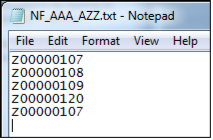
- You can either scan the barcodes directly into Notepad or transfer the barcodes into Notepad from your portable barcode reader.
Note: If you are using a portable barcode reader you will need to consult your scanner manual for details on how to transfer the barcodes. Remember to clear the barcode scanner’s memory before starting the next section so existing barcodes are not transferred a second time.
- Barcodes should be listed one per line
- Ensure there is one blank line after the last barcode
- Save the file
Is there a maximum number of items that can be scanned into a text file?
While a Notepad text document may have a limit to the number of lines the document can contain, this far exceeds the size of a large library collection. However, for optimal performance, it is strongly recommended that each text file contains no more than around 2,000 barcodes. Larger amounts should be split into separate files and processed in batches.
Was this article helpful?
That’s Great!
Thank you for your feedback
Sorry! We couldn't be helpful
Thank you for your feedback
Feedback sent
We appreciate your effort and will try to fix the article