Summary
Resource Boxes are physical items to which one or more title items are tied. The box can contain copies of the title, on which the Resource Box is created, or include copies of different titles and material types. Resource Boxes are issued, and returned, in the same manner as other items. Generally, the box, with all its contents, would be returned in one process. However, items contained within the box can be issued and returned separately if required. Access the Resource Box Edit screen, to view all titles tied to the box and identify whether any of those titles are not currently contained in the box, is via Cataloging.
This guide provides an overview of the Resource Box Edit screen. Separate guides provide the steps required to create a Resource Box and circulate a Resource Box.
View a Resource Box Edit Screen
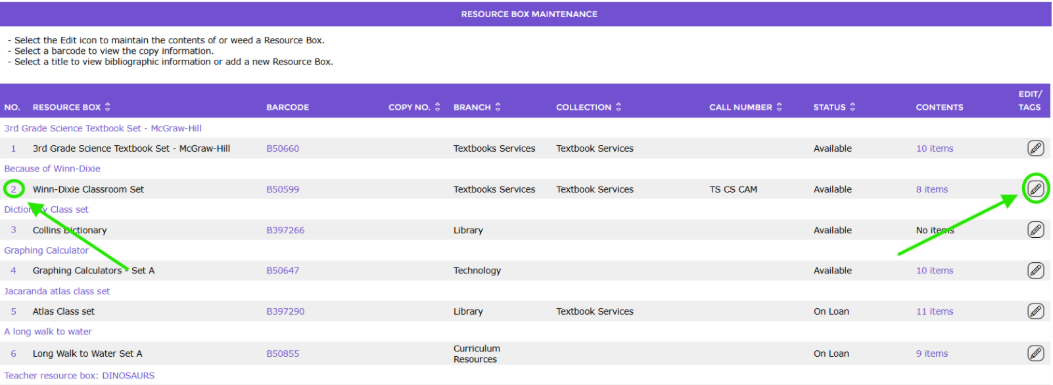
1. Navigate to Cataloging > Resource Boxes. A list of resource titles, which include a Resource Box, will display. The applicable Resource Box (or boxes) displays under each title.
2. Click on the number, or Edit icon, applicable to the Resource Box that is to be viewed.
3. The Resource Box Details screen will display.
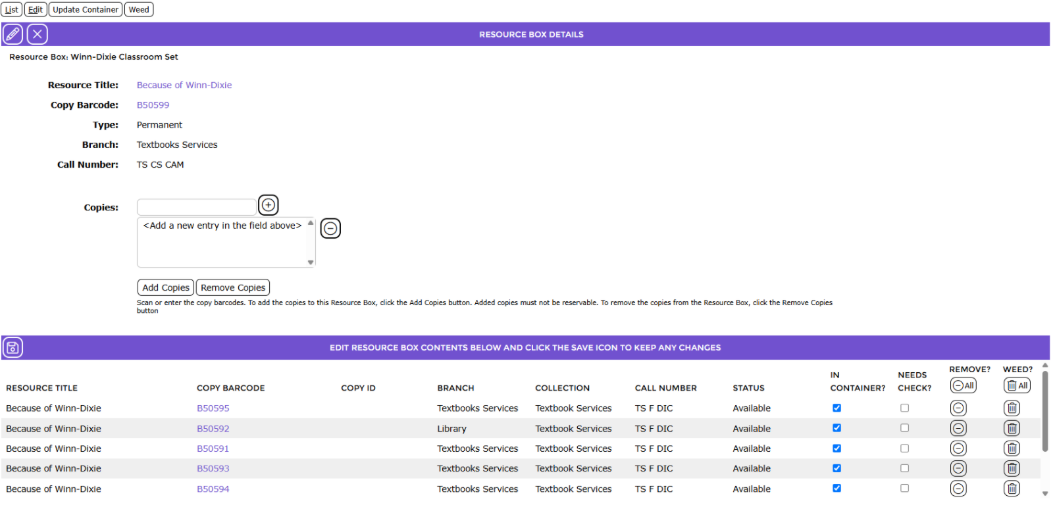
All items “tied” to the box will display in the grid in the bottom half of the screen.
Information in the Status and In Container columns identify if the resource box and its contents are available or whether one or more of the copies in the box is, for example, on checkout.
One (or more) of the copies may not be in the container because either it was not returned with the resource box and all the other contents or a Patron has been permitted to checkout an item belonging to the box separately.
The Status of the item will be “On Loan/Checkout” irrespective of the reason why the item is not available.

When the item is subsequently scanned into the Returns Desk, a message will display. It identifies the Resource Box to which the item belongs, and asks whether the item should be flagged as not being in its container.
If the item has not been physically returned to the box, staff should click on the Check icon. If the item has already been physically returned to the box, staff should click on the X icon.
If the item is to remain as part of the Resource Box, the item will need to be physically put back into the box.
The User should then access the Resource Box Edit screen to confirm the Status of the item has changed to Available and ensure the checkbox in the In Container column of the box’s Edit screen displays a check.
Was this article helpful?
That’s Great!
Thank you for your feedback
Sorry! We couldn't be helpful
Thank you for your feedback
Feedback sent
We appreciate your effort and will try to fix the article