Summary
A report on resources that have been weeded (deleted) can be run. This may be useful to identify all weeded resources before deciding to purge those records.
This guide provides the steps required to run a report on a list of weeded resources. A separate guide provides the steps required to run a report on weeded copies.
Run the Weeded Resources Report
- Navigate to Cataloging > Weeded and search for the weeded resources on which you want to run a report.
- In the resulting List, screen click on the Reports icon.

- The Reports screen will display. There is only one Weed Resources report. It is highlighted by default.
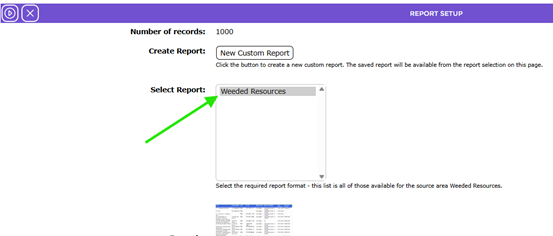
- The option of EXCEL is the only format available for this report.
- This report includes an Example field with a report preview image. You can click on the image to enlarge it.
- Click on the Go icon.

- The Reports screen will refresh and when ready, the Download Catalog Archive Report link will display.
- Click on the link and the File Download popup screen or the Do you want to open…panel will display. Both options include the Open, Save, and Cancel buttons.
- To display the report details on the screen click the Open button or to save the report as a file to your computer click the Save button. Click Cancel if you do not want to run or save the report.
- Click on the Return to Weeded Resource List icon to return to the resources List screen.

- This report can be scheduled. See the How to Schedule a Report guide on how to do so.
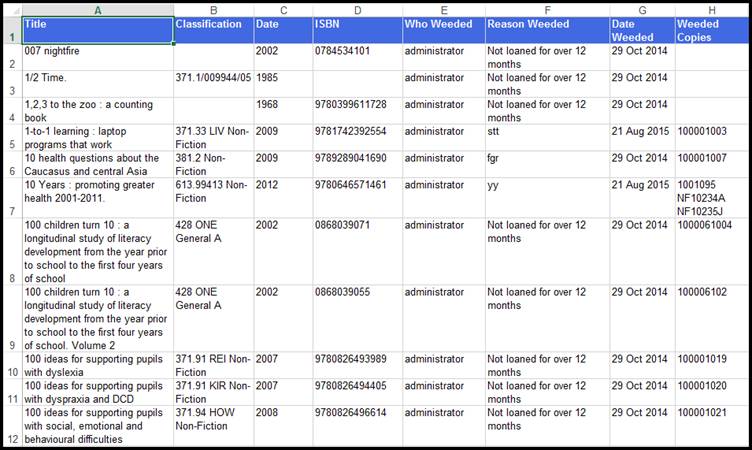
Example of the Report Screen
The information on the report includes:
- Title
- Classification
- Date
- ISBN
- Who Weeded
- Reason Weeded
- Date Weeded
- Weeded Copies – if the resource had associated copies that were weeded as well
Was this article helpful?
That’s Great!
Thank you for your feedback
Sorry! We couldn't be helpful
Thank you for your feedback
Feedback sent
We appreciate your effort and will try to fix the article