Summary
A report that includes the title and publication details among other information can be run once a search for the applicable resources has been completed.
This guide will provide the steps required to complete a simple search for the resources required then run the Full Resources report.
How to Complete a Search for Required Resources
A search for the records on which you want to produce a report must first be located by completing a search. The following simple search example will produce a list of titles on the subject of pedagogy.
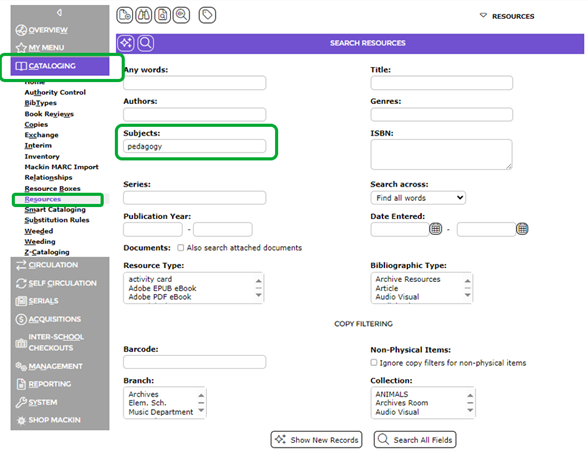
- Navigate to Cataloging > Resources > Search.
- Enter pedagogy in the Subjects field.
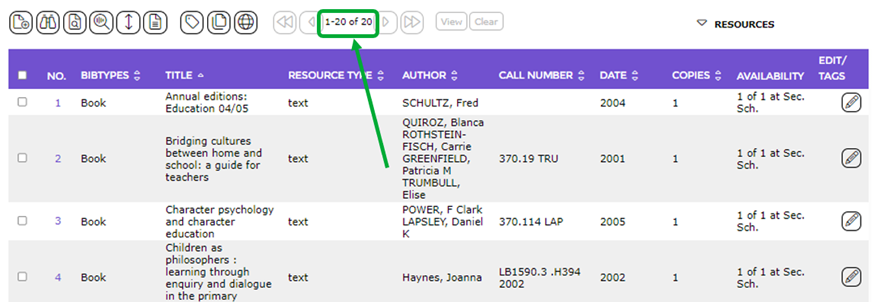
- The List screen will display with all titles matching the search criteria.
- Click on the Search icon.
- A list of titles on the subject of pedagogy will display.
How to Print the Full Resources Report
- In the Resources > List screen click on the Generate Report icon or under the functions drop down menu.
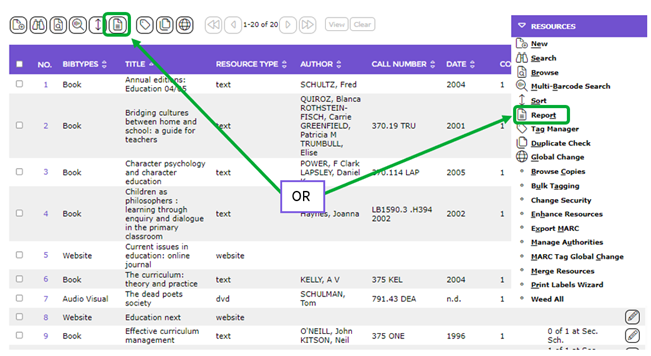
- The Report Setup screen will display.
- Click on the Full Resources report from the Select report list-box.
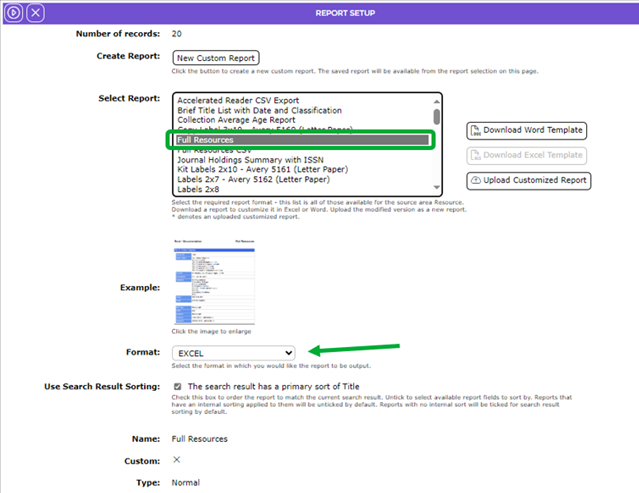
- This report includes a report preview image. The image will display in the Example field. To confirm the report includes the data you want, click on the image to enlarge it then click on the Cross, in the top right hand corner of the popup, to close it.
- If the format displayed in the Format field is not the one you want drag that format from “Sort by” and drop in “Available fields”.
- To sort the report data by any of the fields in the Available Fields list-box in the Parameters section, for example Edition, drag it and drop it.
- The field will be transferred to the Sort by list-box.
- Repeat step 6 if there are other fields you want to sort the titles by in the report.
- To reposition the fields in the Sort by list-box click on a field and either the Drag it Up or Drag it Down.
- To sort in descending order click on the Descending link located under the Sort by list box. By default the report will sort in ascending order as identified by ‘ASC’ that is located after each field in the Sort by list-box.
- When all options have been completed, click the Go icon.

- The Report screen will display and when ready the Download Full Resources report link will display. Click on the report link.
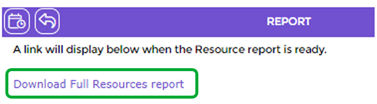
- The File Download popup screen or Do you want to open… panel will display. Both options include the Open, Save, and Cancel buttons.
- Click on Open and the report will open on the screen. You can then go to File > Print and print the report. Alternatively, click on Save to save the report to a location on your computer so it can be printed out, later.
- To return the List screen click on the Return to Resource List icon.

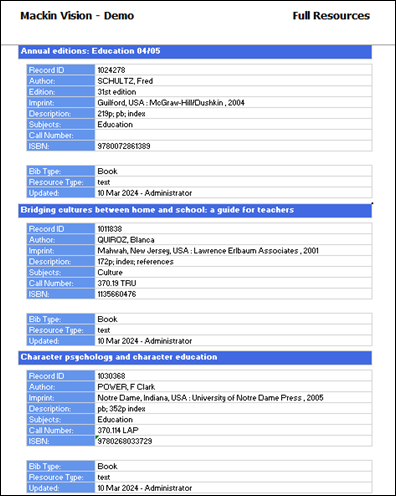
Example View of a Full Resources Report
The report data includes:
- Title
- Record ID
- Author
- Edition
- Imprint
- Description
- Subjects
- Call Number
- ISBN
- BibType
- Resource Type
- Summary
- Entered
- Updated
In the example screen below, note that the report data is sorted in alphabetical title order.
Was this article helpful?
That’s Great!
Thank you for your feedback
Sorry! We couldn't be helpful
Thank you for your feedback
Feedback sent
We appreciate your effort and will try to fix the article