Summary
A large number of reports, provided with the system, apply to copy records. A significant number of the reports are for spine labels, due different information and formatting requirements. There are also barcode, item, shelf check and copy availability reports.
This guide will provide the steps required to run a copy report.
Run a Copy Report
A copy report may be required to identify copies as part of your collection management processes to:
- Identify all types of copies and their current availability
- Identify missing copies or copies marked for disposal
- Identify gaps in collections
- Identify collections that need to be modified or
- Identify new materials required if changes are made to the organization, demographics, or curriculums, courses or projects.
The following example explains how to run a Copy Availability Report on a specific branch with a status of Missing.
- Navigate to Cataloging > Copies > Search.
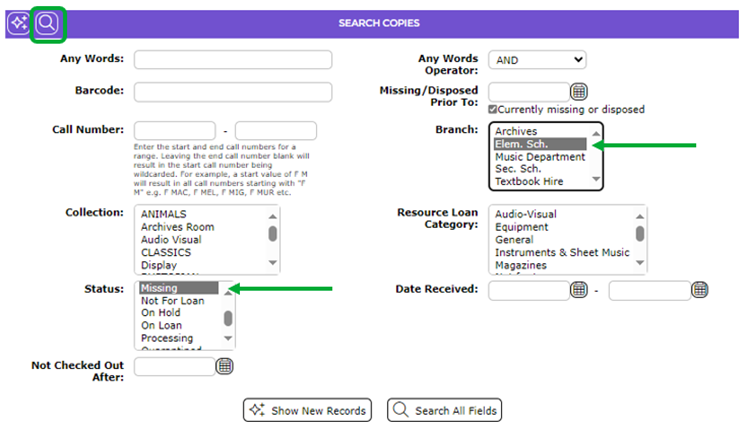
- In the Search screen select the branch from the Branch list-box and the Missing in the Status list-box then click the Search icon.
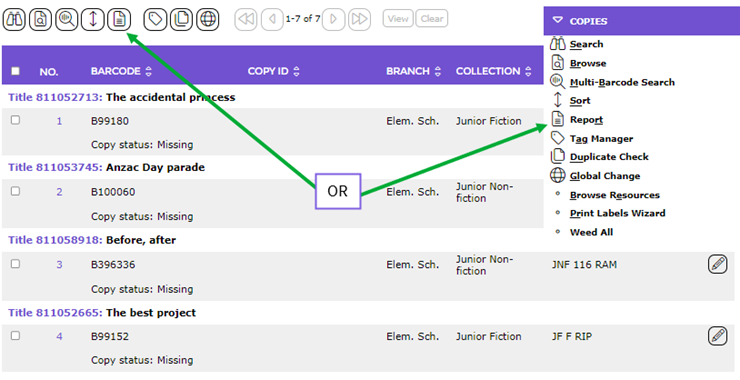
- The List screen will display. Click on the Report icon (or select Report from the Function menu or type rt).
- The Report Setup screen will display.
- From the Select report list-box, click on the report you require; in this example the Copy Availability Report is clicked on.
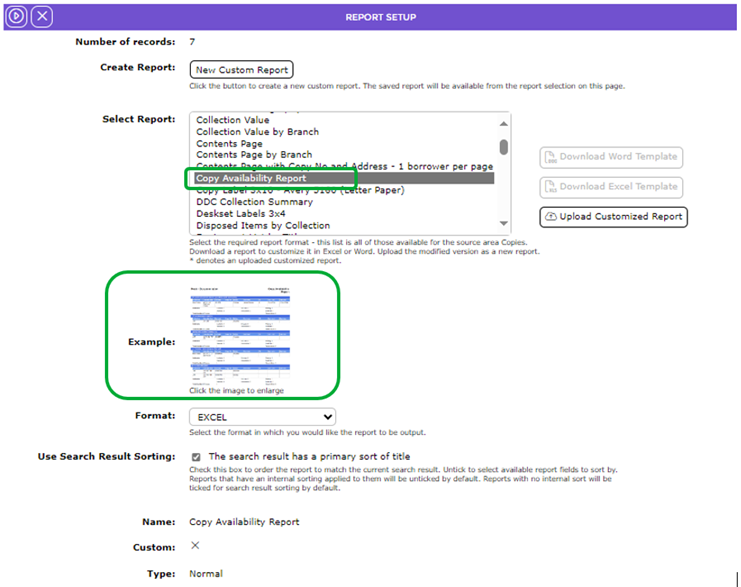
This report includes a preview image so you can check the data and format of the report. Click on it to enlarge the image. Click on the cross in the right hand corner of the popup preview image to re-activate the Report Setup screen.
- Select the preferred format, for example, EXCEL, from the drop down list in the Format field.
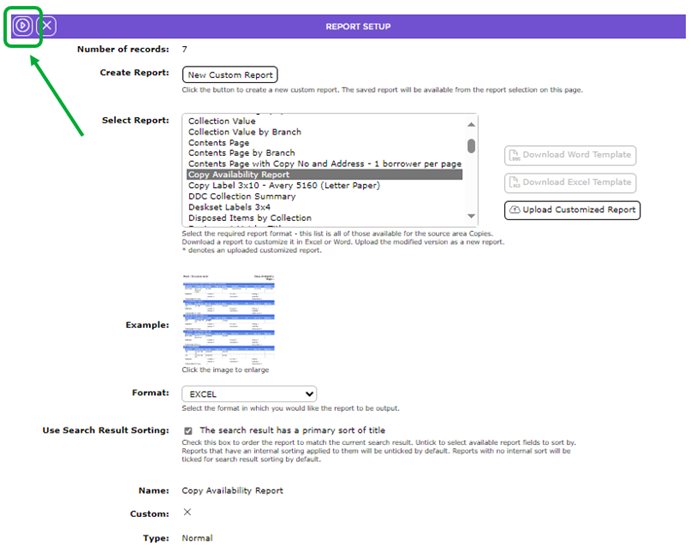
- When all selections have been completed, click the Go icon.
- The Reports screen will refresh and when ready, the report link will display.
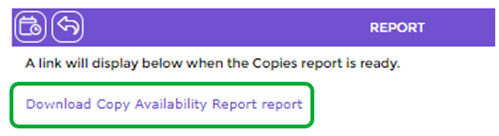
- Click on the Download Copy Availability Report link.
- The File Download popup screen or Do you want to open…panel will display. Both include the Open, Save and Cancel buttons.
- Click on the Open button to display the report on the screen or click the Save button to save the report to a location on the computer. The User can navigate to the location on the computer to open and print the report when required.
The steps required to run other copy reports are the same. The list of copies returned from the search, completed before running the report, determines which copies are included on any report.
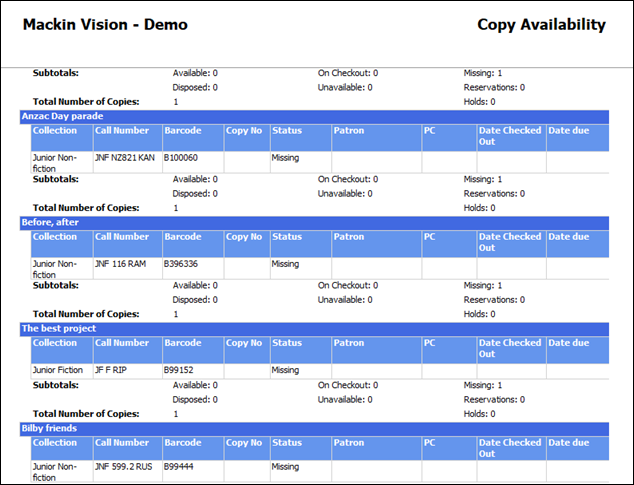
The copy information in the report includes:
- Title
- Collection
- Barcode
- Copy number (if the Copy ID field was completed)
- Call Number
- Availability status of each copy
- Any on checkout copies
- Other applicable Statuses, for example, Missing or On Checkout
- Patron (if on checkout)
- Date Lent and
- Date Due
- Total number of copies on each title
- Any Holds and Reservations (if applicable)
To return to the List screen click on the Return to Copies List  icon in the Report screen.
Example Report Screen
Was this article helpful?
That’s Great!
Thank you for your feedback
Sorry! We couldn't be helpful
Thank you for your feedback
Feedback sent
We appreciate your effort and will try to fix the article