Summary
There are three Equipment reports, an Equipment List by Title, the Equipment Maintenance and the Full Equipment Report by Title report which can be accessed and run via the Copy > Detail or Copy Maintenance Detail screen.
This guide provides example steps for how to run an equipment report.
Equipment Maintenance Report
There are three reports available to assist staff in managing equipment copies held in the library. The process to run the reports is the same. The Equipment Maintenance report will be used to provide an example of how to run an equipment report.
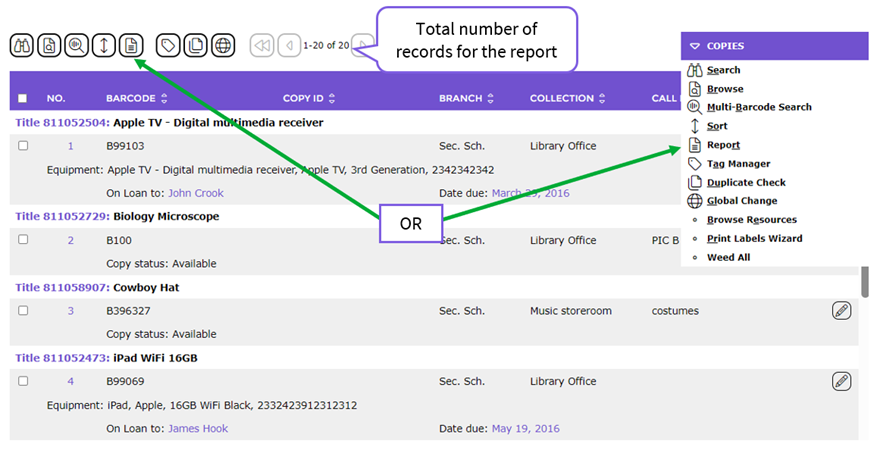
- Navigate to Cataloging > Copies > Search to locate a list of Equipment copies which include maintenance (or access a Copy Detail screen).
- Click on the Report icon (or type ‘rt’ or select Reports from the Function menu).
- In the Report Setup screen, highlight the Equipment Maintenance Report in the Select report list-box.
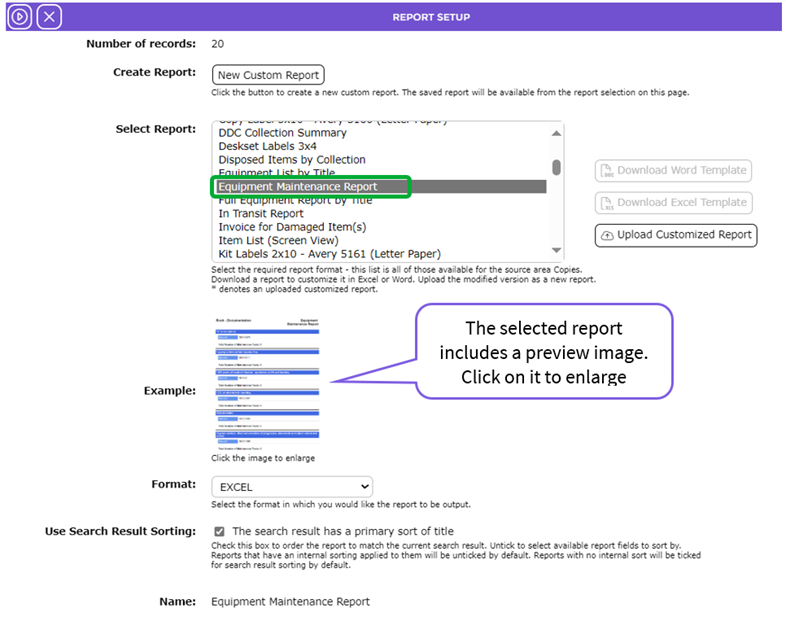
- Select either WORD, EXCEL or PDF from the Format field drop-down list.
- The default sort is set to a primary sort by title. The Barcode field can be added as a Sort By option. To do so, uncheck the box in the Use Search Result Sorting field, then ensure Barcode in the Fields list-box is dragged to the top of the Sort by list-box. It is not mandatory to add further Sort By options. It is not mandatory to include other sort fields.
- The details can also be sorted by ascending or descending order. By default, the sort is Ascending as indicated by the ASC appended to the field in the Sort By list-box. You can click on the Descending link if preferred.
- Click the Go icon.

- In the resulting Report screen click on the Download Equipment Maintenance Report link.
- The message “You can open your report once it finishes downloading” will display.
10. The File Download popup screen or Do you want to open… panel will display. Both options include the Open, Save, and Cancel buttons.
- Click on the option to either Open the report or Save to your computer to view later. Click the Cancel button if you do not want to proceed.
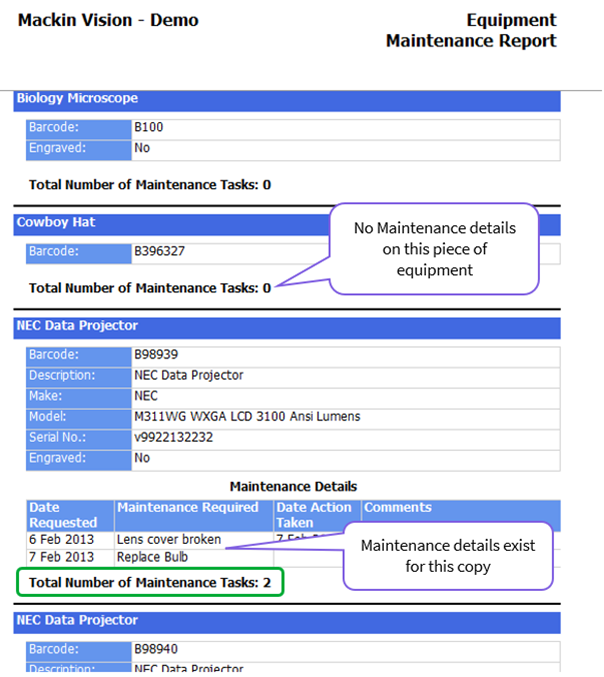
- The report includes the details of each piece of equipment and the applicable maintenance details. It also includes the total of items included on the report. Note that if your initial search was not designed to only list copies with maintenance details added, all equipment copy records will list on the report as you can see from the example report screen below.
Was this article helpful?
That’s Great!
Thank you for your feedback
Sorry! We couldn't be helpful
Thank you for your feedback
Feedback sent
We appreciate your effort and will try to fix the article