Summary
There are several Holds reports that are available to Users.
This guide will provide the steps required to produce a list of all current holds by title. Separate guides provide the steps required to complete a Search, place a hold, and schedule a report.
Produce a Holds by Title Report with All Current Holds
In this example, a report on all current holds in the system will be run. This means that a search is not necessary. If, for example, you only want to report on holds made by students in a specified Homeroom or Year, or patrons from a specific department, you would first need to complete a search.
1. Navigate to the Circulation > Holds screen. You can report on all current holds or complete a search for specific holds.
TIP:
The value set on Parameter No. 1200 Maximum List Size will determine the number of items returned in any List screen including Holds. For example, if 500 is the value entered against the parameter, a maximum of 500 holds are included in the Holds List screen.
2. The List screen will include all current holds.


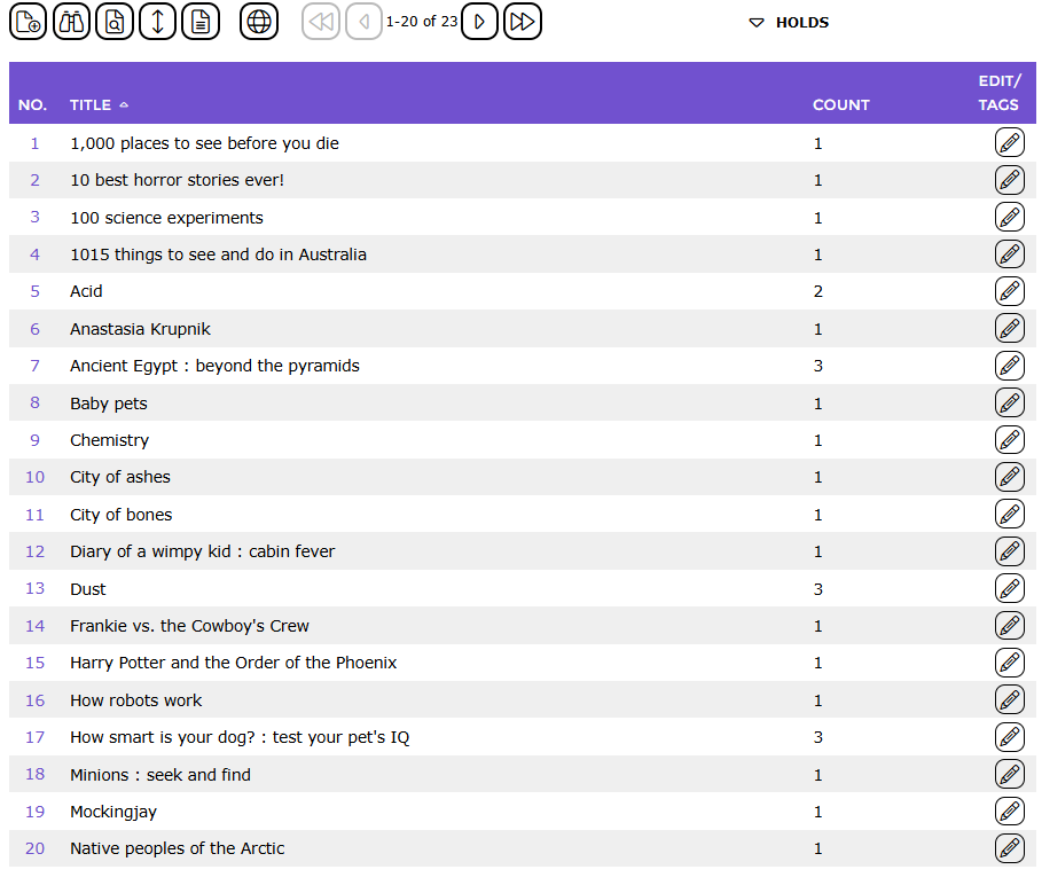
3. Click on the Report icon.
4. The Reports Setup screen will display.

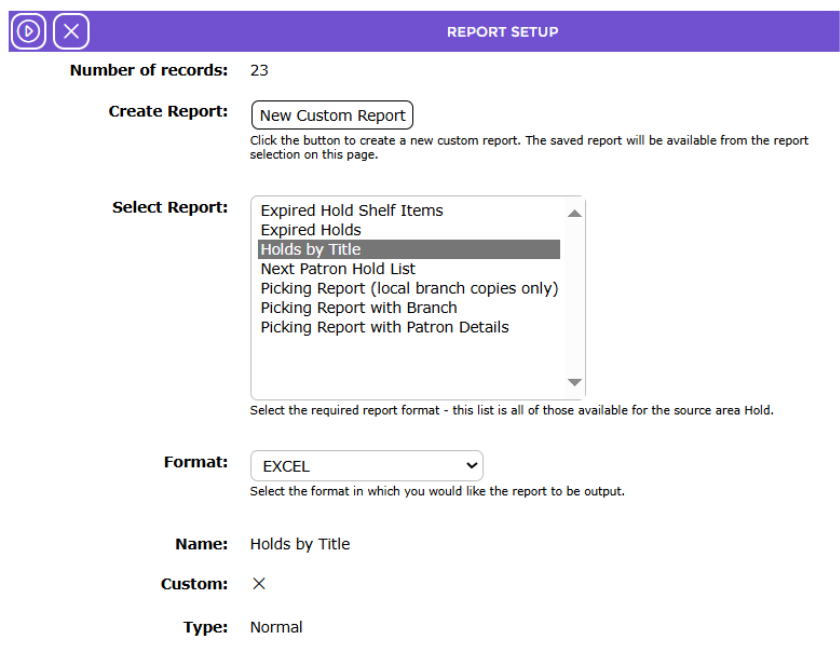
5. A list of all available Holds reports will display in the Select report list-box in the this screen.
6. The Holds by Title report is selected for this example.
Note: This report does not include a preview example.
7. Click on the Format field down arrow and click on your preferred option if the default selection is not the one required.
8. Click the Go icon.

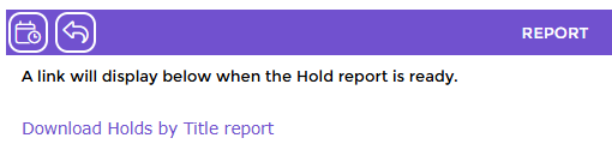
9. The Report screen will refresh and when ready the report link will display.
10. Click on the report link.

11. The File Download popup screen or the Do you want to open…panel will display. Both options include the Open, Save, and Cancel buttons
12. Click on Open to view the report on the screen or click the Save button to save the report to a location on your machine. Click the Cancel button to cancel the process.
13. Click on the Return to Holds List icon to return to the holds List.

Note: This report can be scheduled if required. To do so, see the How to Schedule a Report guide.
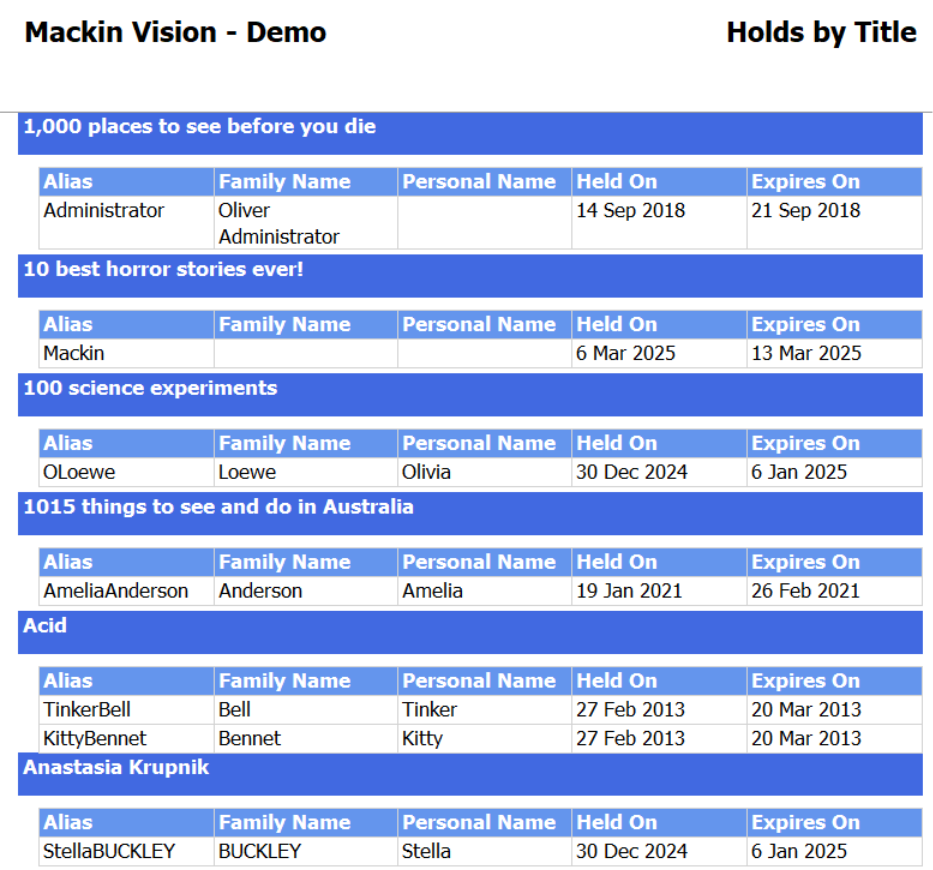
Example screen of the Holds by Title Report
The report includes the following information:
- Title
- Reserving Patron
- Reserved on, and
- Expires on date
- The number of pages included in the report, who ran the report and the date and time stamp display at the bottom of the report pages.
Was this article helpful?
That’s Great!
Thank you for your feedback
Sorry! We couldn't be helpful
Thank you for your feedback
Feedback sent
We appreciate your effort and will try to fix the article