Summary
The Electronic Usage report is available for selection in the Search Statistics screen.
This guide will provide the steps required to run the Electronic Usage report.
Run the Electronic Usage – Detailed Report
- Navigate to Circulation > Reports and click on the Search Statistics option.
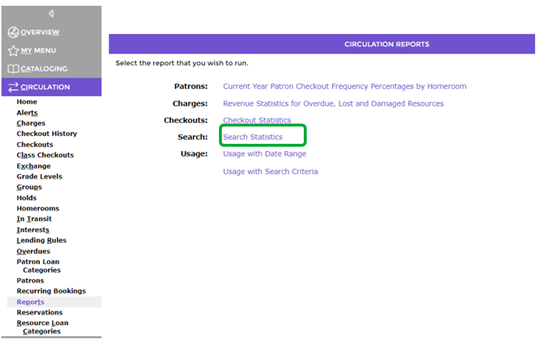
- The Search Statistics screen will display.
- By default, “today’s” date displays in the Start Date and End Date fields. Enter the dates you require either manually or by clicking on the Calendar icon and selecting the date elements required.
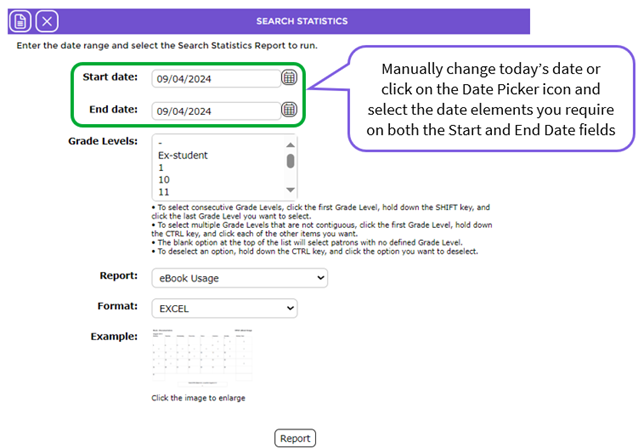

- If applicable, click on the Grade Level required in the Grade Level list-box. You can select more than one by holding the Ctrl key on your keyboard down and clicking on each year.
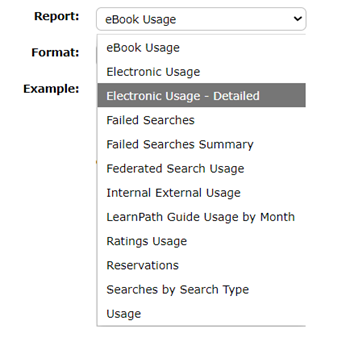
- Click on the down arrow at the end of the Report field and click on Electronic Usage – Detailed report.
- If the format displayed in the Format field is not the one you want, click on the down arrow at the end of the field and click on the preferred format. There are three options: WORD, EXCEL and PDF.
- When all selections are completed click the Run Report icon
 or the Report button.
- The Report screen with the Download Electronic Usage – Detailed report link will display. Click on the report link.
- The Upload File or Do you want to…panel will display. Each includes an Open, Save and Cancel button.
- To open the report to the screen click the Open button. To save the report to a location on your computer click the Save button. If you do not want to proceed, click the Cancel button.
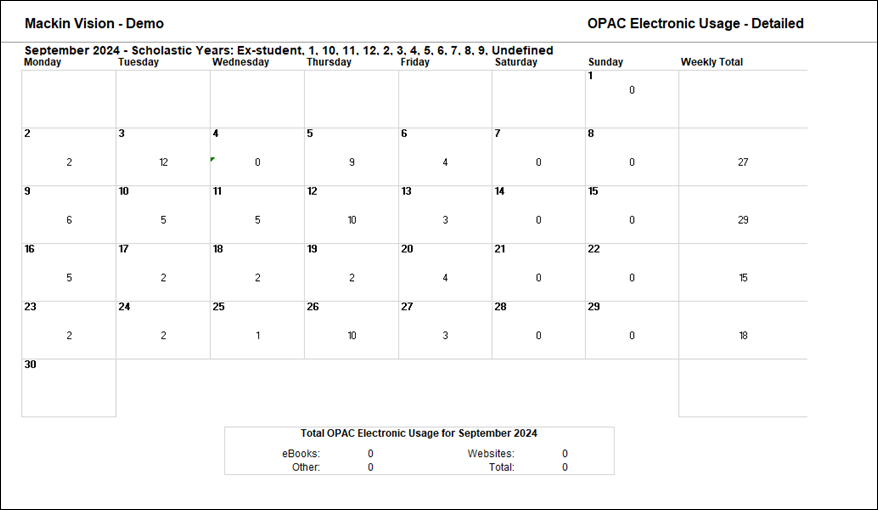
Example of the Electronic Usage – Detailed Report
A calendar view is shown on the report. Any use of eBooks, Websites etc. will display in the report in the applicable day. The logged in patron details, date and time and page number display at the bottom of the report page/s.
Was this article helpful?
That’s Great!
Thank you for your feedback
Sorry! We couldn't be helpful
Thank you for your feedback
Feedback sent
We appreciate your effort and will try to fix the article