Summary
Library staff can run reports identifying current checkouts according to particular criteria, for example all items at a specified Branch currently overdue, or current checkouts for Patrons with a particular Checkout Category.
This guide will provide steps on how to run a report on all current checkouts for a group of Patrons. A separate guide provides a fuller explanation of how to use the Search screen.
Search for a List of Applicable Patrons
- Navigate to Circulation > Patrons > Search.
- In the Search screen select from the search options available to return a list of applicable Patrons. The example screen below has selected a Checkout Category of Student and a Patron Type of Student.
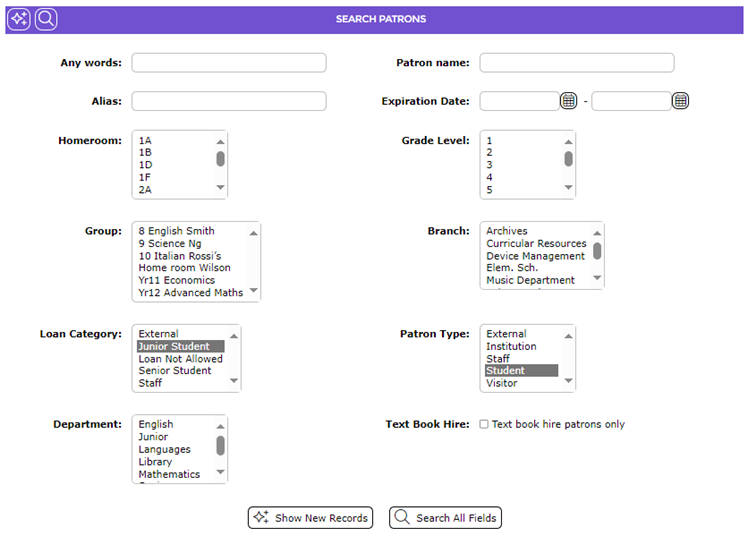
- When all criteria have been selected click the Go icon, Search All Fields button or hit the Enter key on the keyboard.
- From the resulting Patrons > List screen click on the Reports icon (or select Reports from the Function menu or type re).
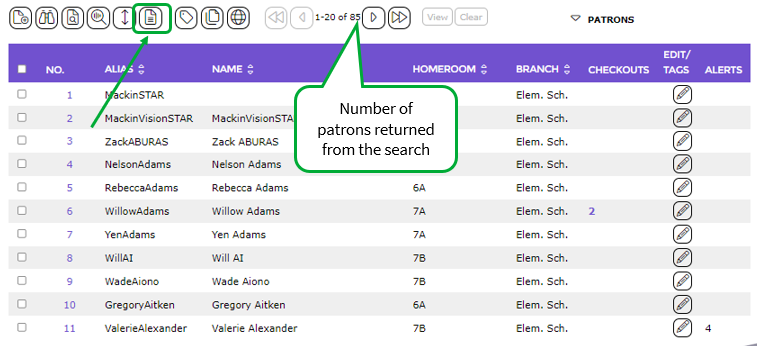
- The Report screen will display.
Select and Run the Required Report
There are several different reports available that will provide a list of all checkouts currently issued to Patrons. The report run will depend on the information required. The Patron Checkout reports available are:
- Patron Checkouts
- Patron Checkouts (Title, Due Date)
- Patron Checkouts (with Barcode)
- Patron Checkouts with Cost
- Patron Checkouts with Cost (Title, Barcode, Due Date)
- Patron Checkouts with Cost (Title, Due Date)
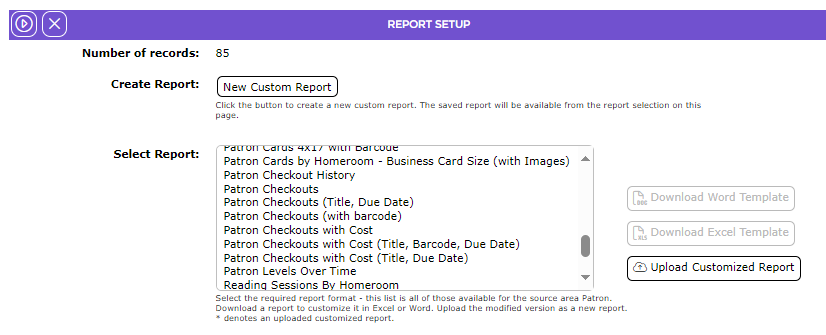
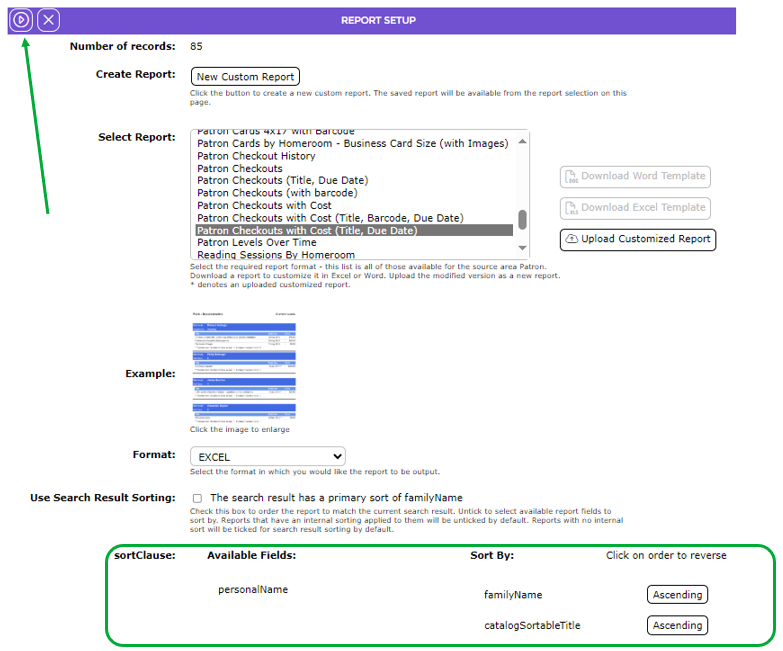
- Click on the Report you wish to run. For this example, the Patron Checkouts (Title, Due Date) report will be selected.
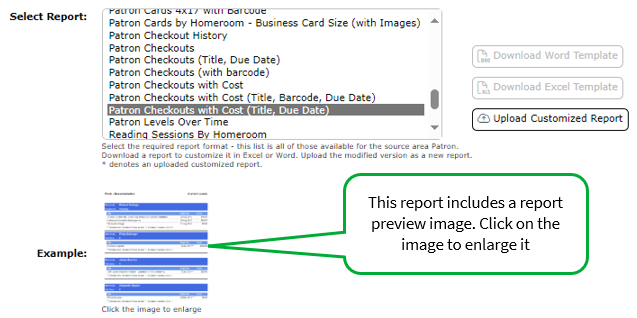
- A report preview image displays in the Example field. You can click on the image to enlarge it.
- From the Format field’s drop down list, select the required format. The formats available are Word and PDF. For this example, WORD is used.
- If the field included in the Fields list-box, is one you also wish to use to sort the report data, click on it then click the left facing Arrow icon button to transfer the field into the Sort by list-box. The field will not be selected in this example.
Note: Any field added from the Fields list-box will display at the bottom of the fields already listed in the Sort by list-box. Click the Move Up button to place the field in the order you want if applicable.
- By default, Ascending order is used. This is indicated by ASC added to the end of the name field in the Sort By list-box. Click the Descending link if preferred and ASC is replaced by DESC at the end of the field name.
- Click the Go button.
- The Processing screen will display with the report in link form.
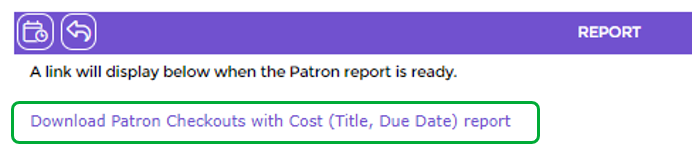
- Click the Report link.
- The File Download screen or the Do you want to open…panel will display. Both options include the Open, Save, and Cancel buttons.
- Click Open and the report will display on the screen or click Save to save the report to an accessible location on the computer. Click Cancel if the report is not to be run.
- Click the Return to Patron List icon to return to the list.

- Click the Schedule icon to schedule the report. See the How to Schedule a Report guide for information on completing that process.

- Click the Open button to display the report to the screen.
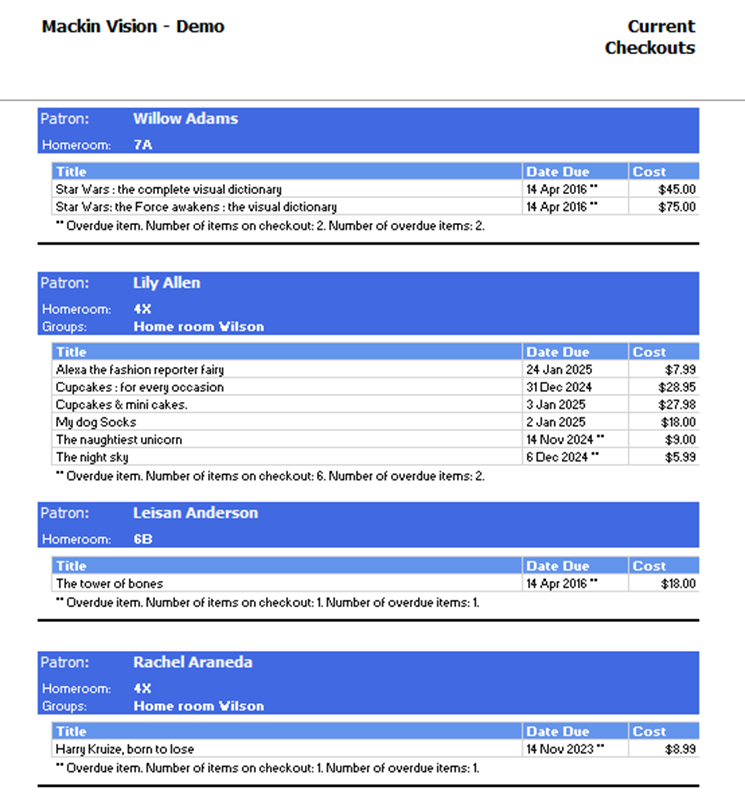
The report includes:
- Patron name
- Homeroom
- Title
- Date Due
- Cost
- Number of items on checkout
- Number of overdue items
Report Screen Example
Was this article helpful?
That’s Great!
Thank you for your feedback
Sorry! We couldn't be helpful
Thank you for your feedback
Feedback sent
We appreciate your effort and will try to fix the article