Summary
This guide will walk you through the steps to print out Patron barcodes.
Printing Patron Barcodes
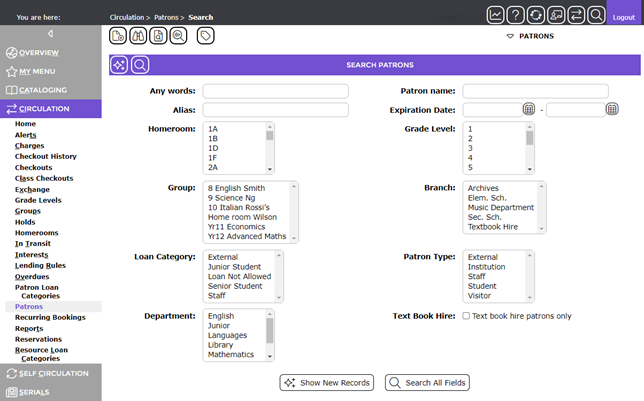
1. Navigate to Circulation > Patrons
2. From here you can do a search for an individual patron, search for students by Homeroom, Group, etc., or you can pull up all patrons by clicking the Browse All Library Users icon at the top. Once you have made your selection, click on the Search All Fields button.
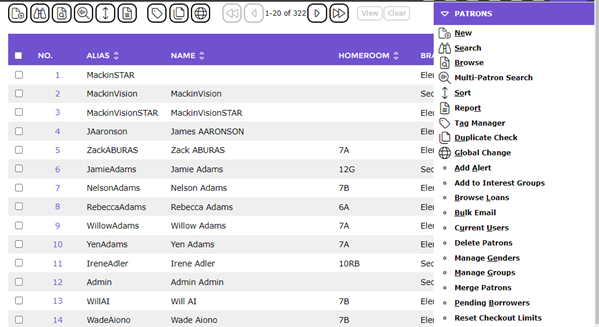
3. When you have your list of patrons, select the Generate Report  icon or click on Report in the drop-down menu on the right.
4. This brings you to the Report Setup screen where you can choose your barcode printing option.
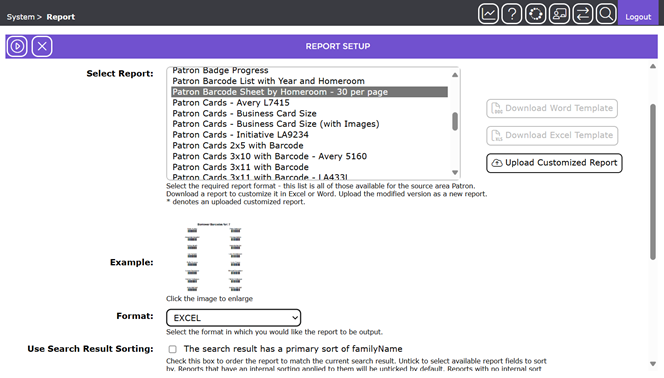
5. Select your Format (Excel, PDF, or Word).
6. If you are printing to a label sheet that has been used before and you need to skip labels, choose how many labels to skip (this option only shows for certain report types).
Labels or lists can be printed in order by patron last name (family name). To change how the labels are sorted, uncheck the box next to “The search result has a primary sort of familyName” and a list of options will appear.
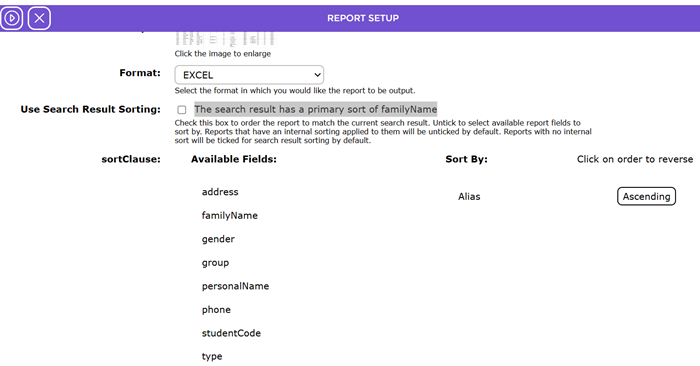
7. When you have your Sort preference selected, click the Go  button in the upper left corner.
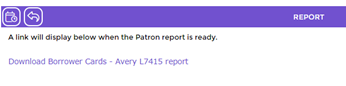
8. Click the link to download your report to your device and print.
If you are unable to find a report that fits your needs, please contact us at MackinVisionsupport@mackin.com for assistance.
Was this article helpful?
That’s Great!
Thank you for your feedback
Sorry! We couldn't be helpful
Thank you for your feedback
Feedback sent
We appreciate your effort and will try to fix the article