Summary
The Circulation Desk allows you to:
• Checkout and return items
• Change the Due Date
• Renew and recall checkouts
• Place holds
• Create reservations
• Print lists of current and overdue checkouts
• Browse Homerooms, view patron groups, and print Class Overdues
It also provides links to other areas such as Patron, Resource and Copy records.
Accessing Circulation Desk
Click the Circulation Desk icon  in the top right corner of the screen to access the Circulation Desk.

in the top right corner of the screen to access the Circulation Desk.Circulation Desk
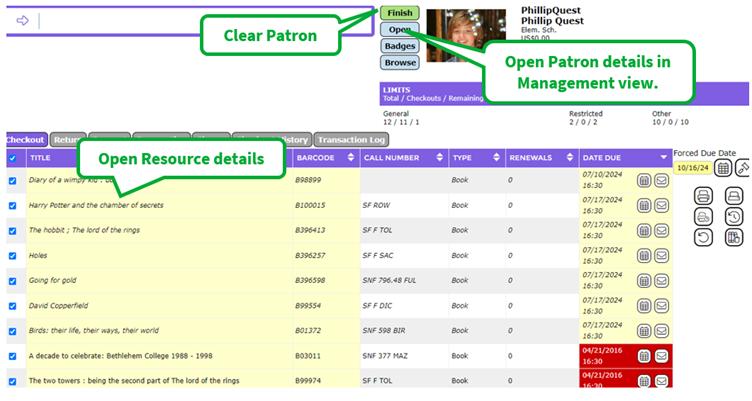
- The Circulation Desk screen contains two main sections. At the top left is a data entry field into which barcodes can be scanned or a patron's name or title of an item typed. In the middle of the screen is a row of tabs which allow you to select each of the main functions of the Circulation desk.
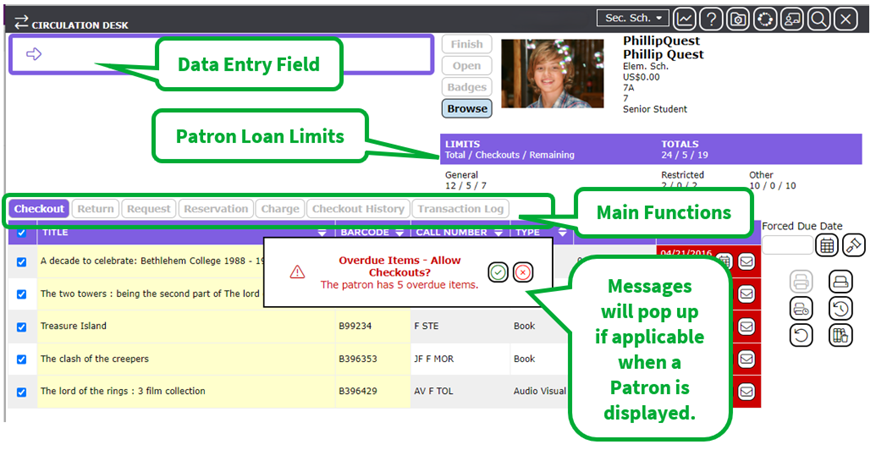
- Once a patron has been selected, their details and checkout limit information will display in the top right section of the window. A photo of the patron will display on the screen if an image has been attached to the patron record. Once a patron has been identified, the entry window is where the barcodes of items being loaned can be scanned.
- A window will display any messages such as overdue checkouts, checkout limit exceeded, unauthorized checkout, or other messages.
Tabs

The tabs allow access to specific information or function options:
- Select to display the resources checked out to the patron by Title, Barcode, Call Number, Type and Date Due columns.
- Columns can be sorted in ascending or descending order by using the
 arrow that is included in the column heading. If the patron has more items on checkout, you can click the
  icon.
icon.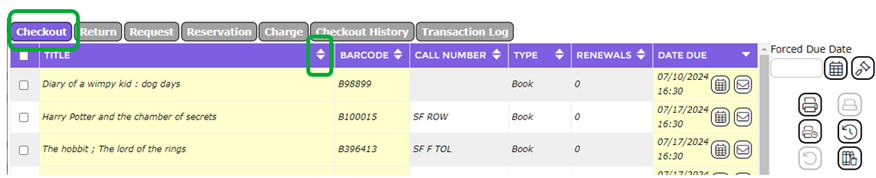
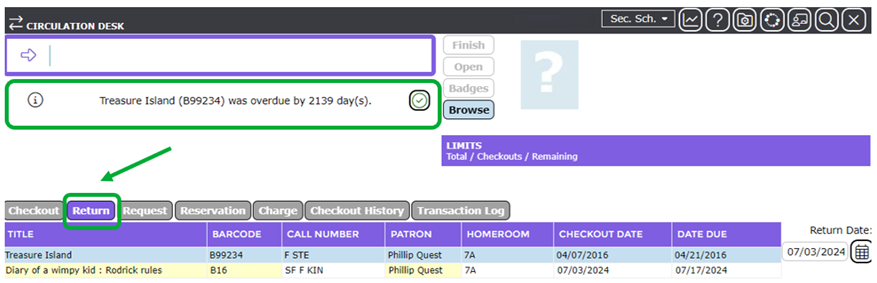
- The Return tab must be selected to process returns. As items are scanned, they will be listed. It is strongly recommended that while returning items, staff view the screen as messages will appear if items are Overdue, Reserved, etc. and MackinVision will not return the next item until an action has been taken on the message.
- The Hold tab displays existing holds for the patron and allows new holds to be made.
- The Reservation tab displays existing holds for the patron and allows new holds to be made.
- The Charge tab is where you assign charges to Patrons, such as Replacement fees.
- The Checkout History tab displays items that have been previously borrowed by this patron.
- The Transaction Log tab displays current transactions processed in this session of the Circulation desk.
Functions
These are located on the right side of the screen and allow you to:
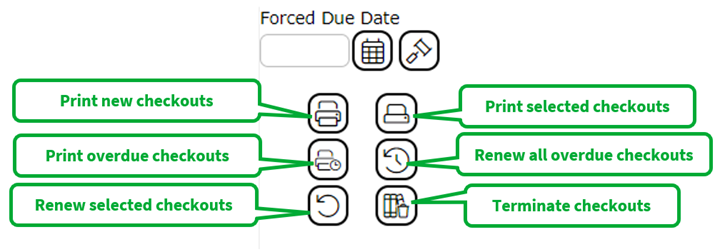
- Print hold notices, checkout renewals, and current checkouts
- Change the date due of items being loaned
- Recall checkouts
- Renew overdue checkouts
- Terminate checkouts in bulk
Forced Due Date
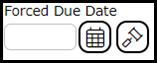
- A Forced Due Date can also be entered to override any lending rules for a checkout. This can be set by clicking on the calendar icon in the Forced Due Date field and selecting the day, month, and year for the checkout.
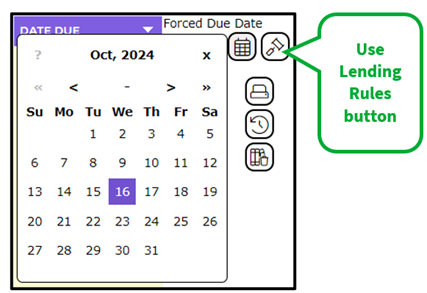
- Please ensure the Use Lending Rules button
 is pressed after you have finished with the forced due date, otherwise any further checkouts will be incorrectly processed.
Links and Buttons
- The title and barcode of an item displayed in the
 tab are links which enable you to access the resource and copy details pages in the management interface.
 - The
 button will allow access to the Patron details if you are logged in with the correct access rights.
 - The
 button clears the current patron’s details from the Circulation Desk screen.
 - The
 button allows you to select a homeroom (or other customized group) to browse its patrons, highlight groups of patrons within the selection, and print overdue notices.
Was this article helpful?
That’s Great!
Thank you for your feedback
Sorry! We couldn't be helpful
Thank you for your feedback
Feedback sent
We appreciate your effort and will try to fix the article