Summary
Analytics are a resource record in their own right. Analytics are a resource that is linked to a “parent” resource.
This guide will provide an overview of analytics and the steps required to add an analytic to a resource record. Separate guides provide the steps required to create different resource types such as serials, monographs and network files.
Overview
Analytics are used to catalog parts of a resource, for example, attached CDs or maps included with a monograph. When an analytic is added via the “parent” resource, a new resource record is created, and it automatically links to the “parent”. Searching for either the parent or analytic resource record via the Search screen will display both records.
While analytics can have copy records attached, its copies are not issued when one of the parent’s copy records are issued. In the case of Articles, the BibType of Article is used to store the text of an electronic document such as conference papers or internal documentation, in the Text field. The entire contents of an article can be searched on. Articles can be cataloged either independently or as an analytic.
Adding an Analytic
The following example steps are those used to add an analytic to a resource record.
- Complete a search for an applicable resource record and access the Detail screen in the usual manner.
- Scroll, if necessary, to locate the Analytics field and click on the Add link.
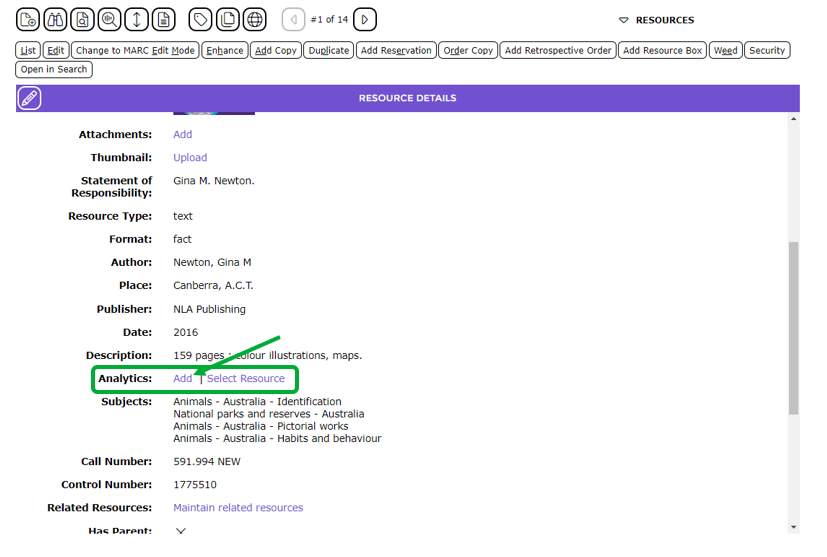
- The Add a new resource popup screen will display.
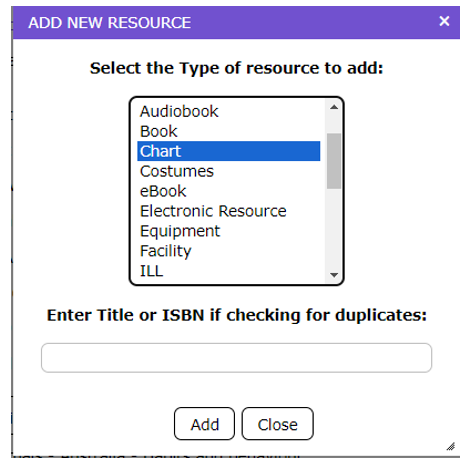
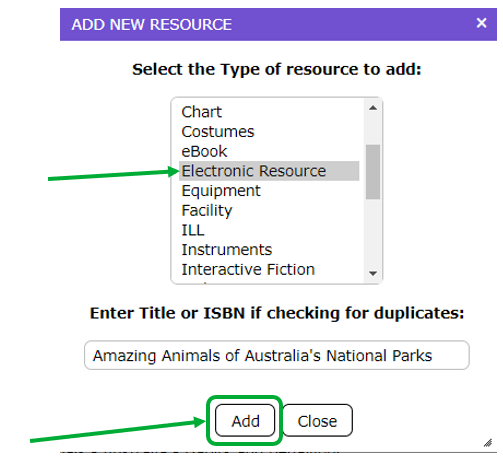
- Click on the applicable BibType from the list-box, enter the title (or ISBN) in the text field provided, and click the Add button.
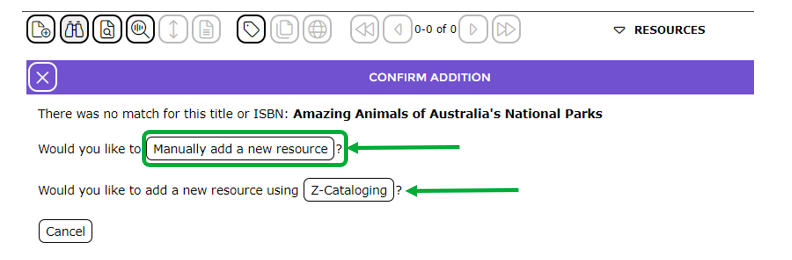
- In the resulting screen, click on the manually add a new resource link if you do not require a MARC record or click on Z-Cataloging if you wish to search for, and import, a matching MARC record.
- In the Resource > Add screen, enter the applicable details in the usual manner then click the Save button.
- The analytic resource’s Detail screen displays.
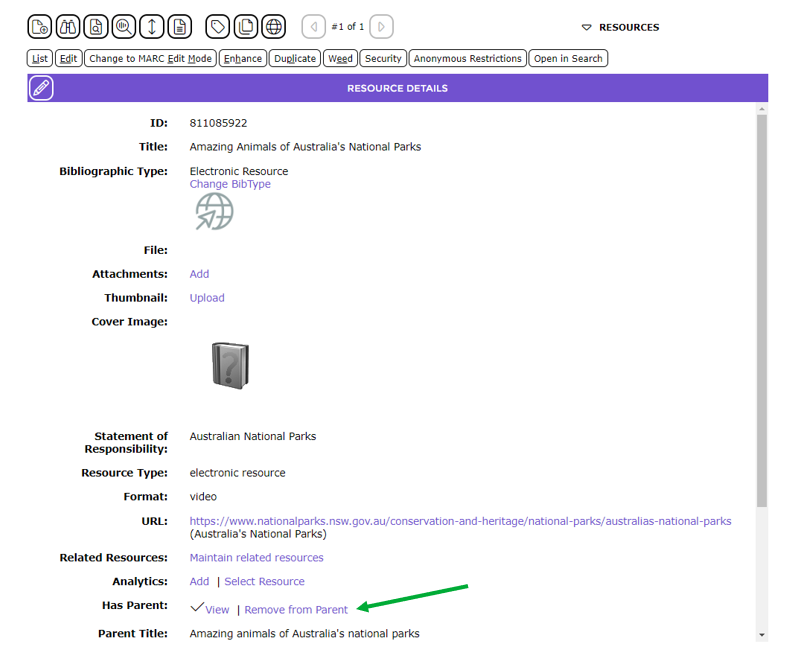
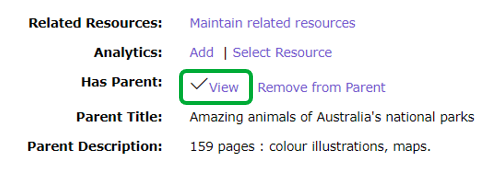
- A check mark is included in the Has Parent field to the left of the View link.
- Click the View link.
- The “parent” resource Detail screen will display.
- The analytic record displays in the Analytics field. It includes a View link.
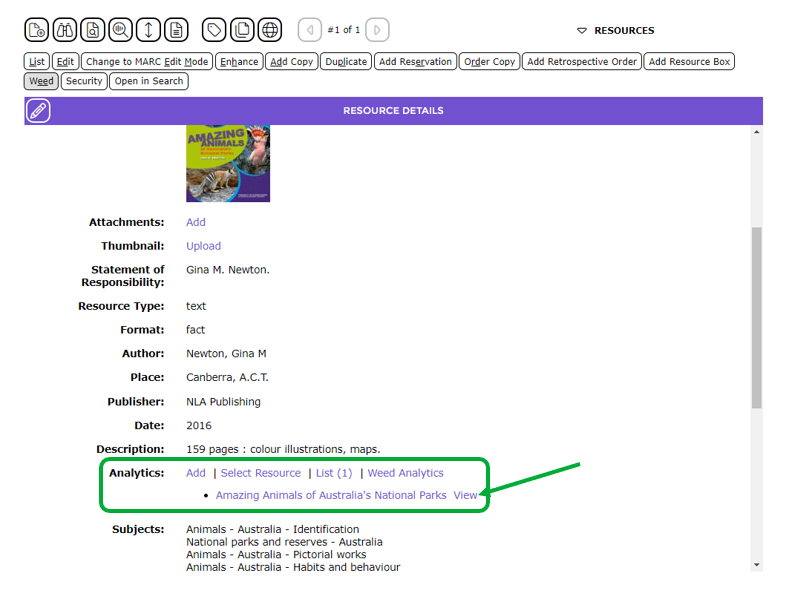
Note: Clicking the View link will display the analytics’ Detail screen.
Was this article helpful?
That’s Great!
Thank you for your feedback
Sorry! We couldn't be helpful
Thank you for your feedback
Feedback sent
We appreciate your effort and will try to fix the article