Summary
This report will provide the steps required to run a Checkout Statistics by Branch Report. Separate guides provide the steps required to run other reports available from the Checkouts Statistics Report screen.
Run a Checkout Statistics by Branch Report
1. Navigate to Circulation > Reports.
2. Click on the Checkout Statistics option.
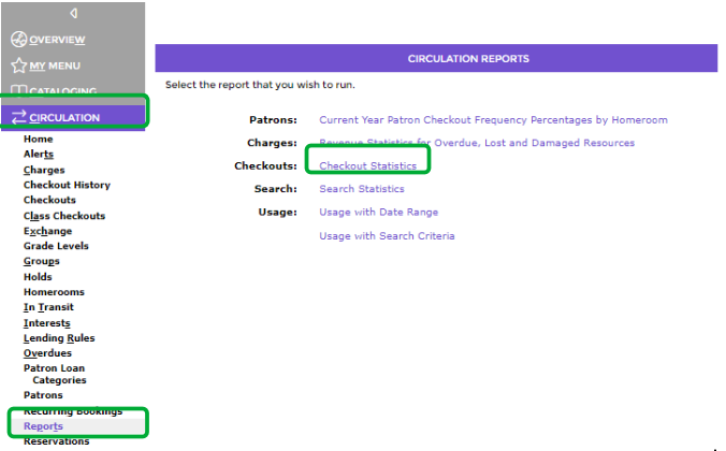
The Checkout Statistics Report screen will display.
3. In the Start date field, enter the applicable date, for example, 03/23/2026. You can click on the Calendar icon and select the date elements required if you prefer.
4. In the End date field, enter the applicable date, for example, 03/27/2026. You can click on the Calendar icon and select the date elements required if you prefer.
5. Click on the down arrow at the end of the Group by field if the default selection is not the one you want. Click on the grouping option you prefer, for example, Patron Type.

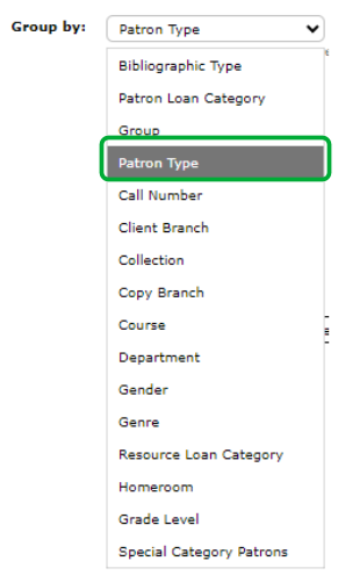
6. Click on the down arrow at the end of the Report field and click on Checkout Statistics by Branch report.
7. A default format is selected in the Format field. Click on the down arrow at the end of the field to choose from EXCEL, PDF, or WORD.
8. Click on the image in the Example field if you would like a preview of the report and data before clicking the Report icon.
9. When all details have been completed, click on the Report icon (or button
 ).
).
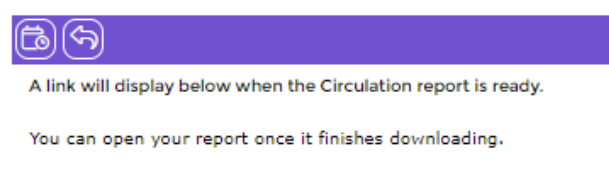
10. In the Report screen click on the Download Checkout Statistics by Branch report link.
11. The File Download screen will display and your report should go to your downloads where you can click to view your report.
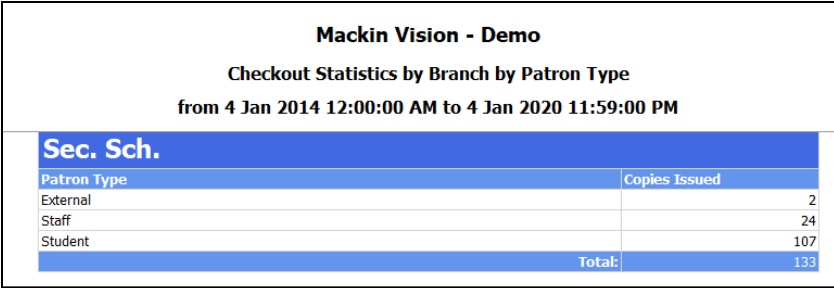
Example Screen of the Checkout Statistics by Branch Report
Was this article helpful?
That’s Great!
Thank you for your feedback
Sorry! We couldn't be helpful
Thank you for your feedback
Feedback sent
We appreciate your effort and will try to fix the article