Summary
A list identifying the number of renewed checkouts can be obtained by running the Renewal Count Statistics report. The report includes renewals completed by staff via the Circulation Desk and renewals completed by logged in patrons in the Checkouts section of their My Portal area.
This guide provides the steps to running a Renewal Count Statistics report.
Run a Renewal Count Statistics Report
The example report will list all renewals made between the dates of 01/09/2015 and 08/09/2015.
- Navigate to Circulation > Reports.
- Click on Checkout Statistics.
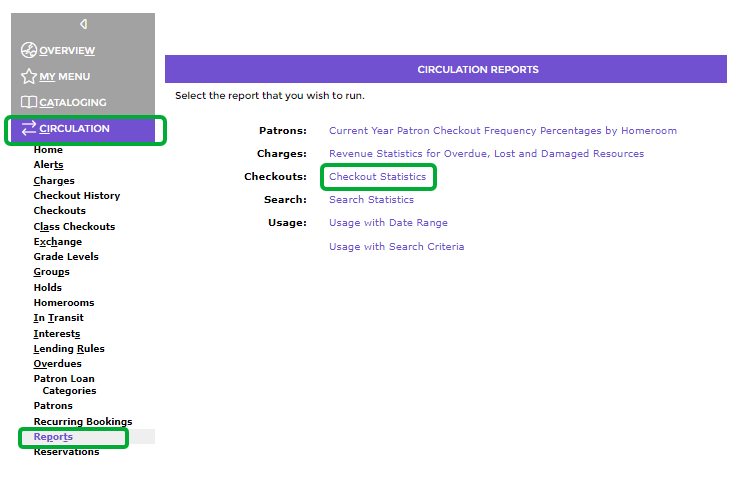
- The Checkout Statistics Report popup screen will display.
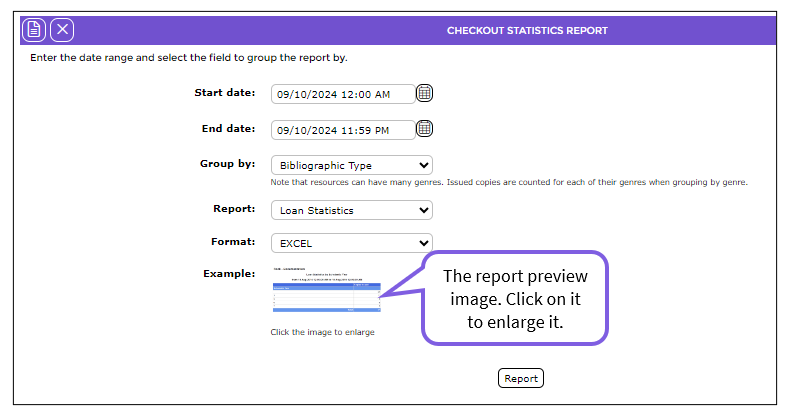
Note: The default date in both the Start and End date fields is “today’s”.
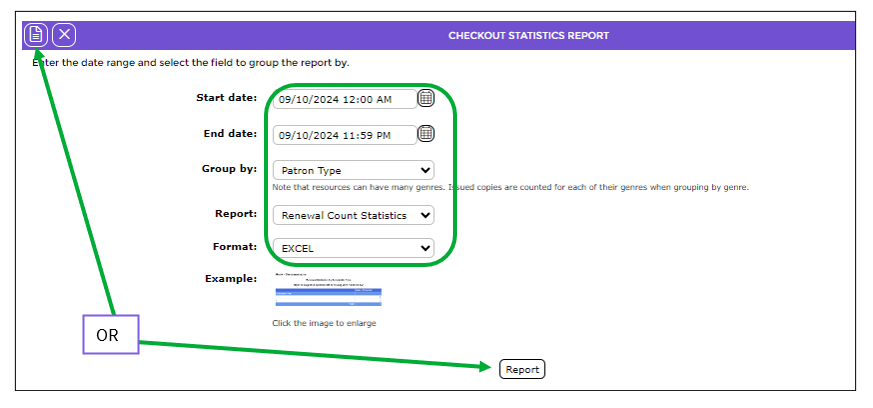
- In the Start date field enter the applicable date, for example, 01/09/2015.
- In the End date field enter the applicable date, for example, 08/09/2015.
- If you want to group the information, for example by Bibliographic Type or Patron Type click on the down arrow at the end of the Group by field and click on the required option. Patron Type will be selected for this example report.
- Click on the down arrow at the end of the Report field and click on Renewal CountStatistics.
- There are two options from which to select in the Format field. The example report will used the default selection of EXCEL.
- When all the details have been completed click the Report button or Report icon.
- The Report screen will display and when ready the Download Checkout Statistics Report link will display.
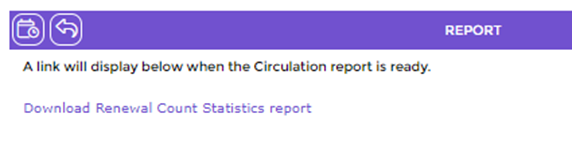
- Click on the link and a File Download popup screen or a Do you want to open…panel will display.
- Click on the Open button to open the report directly to the screen. To save the report to a location on the computer immediately, click on the Save button. Click the Cancel button if you do not want to proceed with printing the report.
To return to the List screen click the Return to list icon.

This report can be scheduled. See the How to Schedule a Report guide on how to do so.
Screen Example of Report with Data
Information on the report includes the Patron Types applicable, how many copies have been renewed by patrons of that type and the total number of renewals.
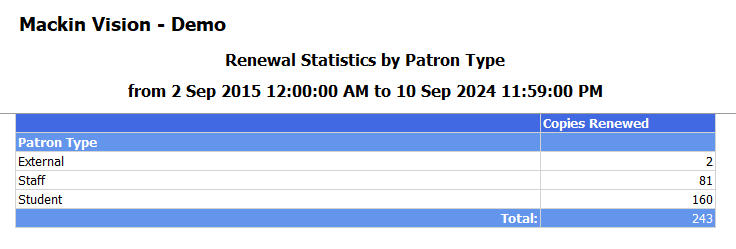
At the bottom of the report the logged in user who ran the report, the date and time and the number of pages.
Was this article helpful?
That’s Great!
Thank you for your feedback
Sorry! We couldn't be helpful
Thank you for your feedback
Feedback sent
We appreciate your effort and will try to fix the article