Summary
Staff can confirm where and how many times the branch is selected (among other usage information) on records in the system via the branch Detail screen.
This guide will provide the steps required to quickly identify branch usage.
Identifying Branch Usage
1. Navigate to System > Branches > List.
2. Click on the number link corresponding to the Branch whose Detail screen you want to access.
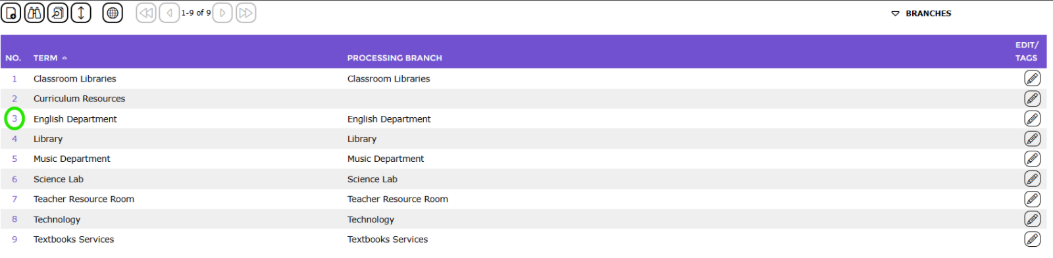
3. In the Detail screen click on the Usage button.
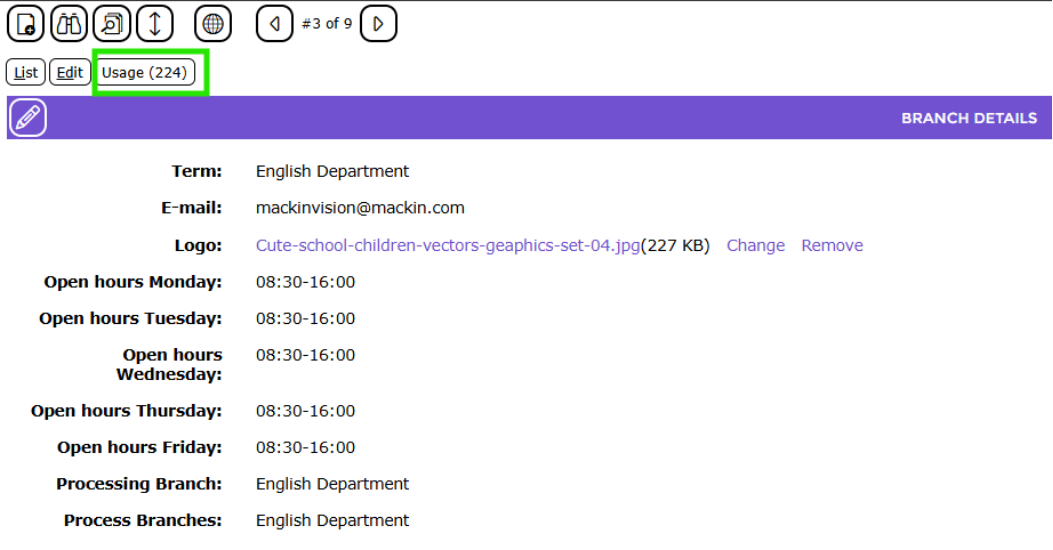
4. The List File Usage popup screen will display. It identifies on what records the branch is selected, for example, patrons, holds, copies. checkouts etc.
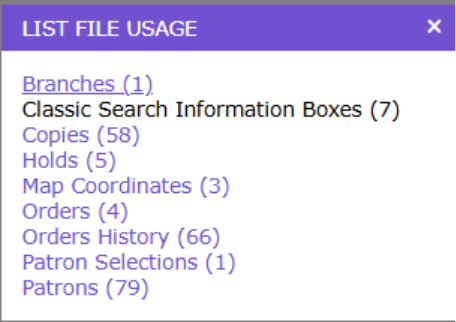
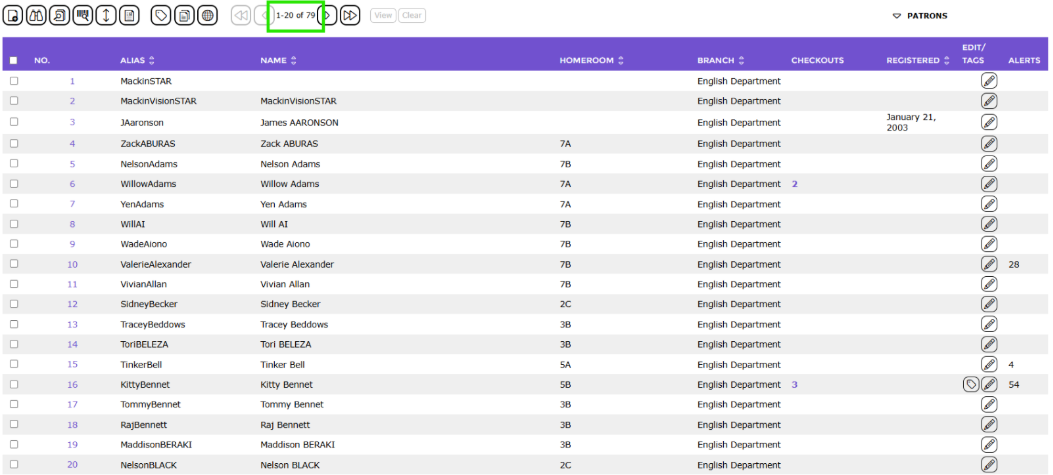
5. Each usage listed identifies how many records on which the branch is selected or related. Each usage is a clickable link. If it is black and not clickable, make sure those options are turned on in parameters. Click on one of the links, for example Patrons.
6. The Patrons > List screen, containing only those patron records on which the branch is selected, will display.
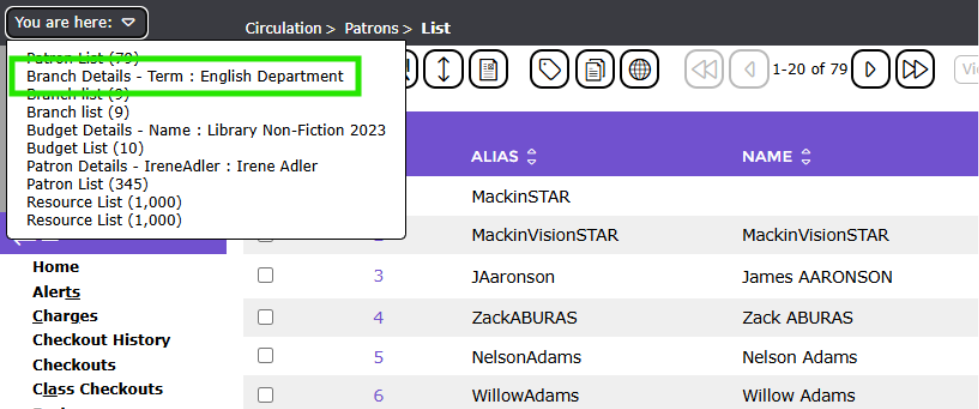
7. If you want to return to the Branch’s Detail screen click on the down arrow at the end of the You are here field and click on Branch Details – Term : xxxx.
Was this article helpful?
That’s Great!
Thank you for your feedback
Sorry! We couldn't be helpful
Thank you for your feedback
Feedback sent
We appreciate your effort and will try to fix the article