Summary
To report on copies that are currently on checkout, a notice can be created via Overdues with settings established to cover a period that incorporates all current checkouts.
This guide will provide the steps to creating a notice to report on all items currently on checkout.
Create a Current Checkouts Notice
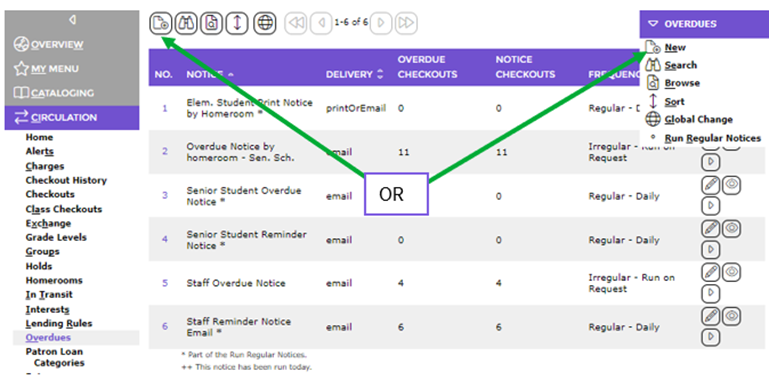
- Navigate to Circulation > Overdues.
- Click the New icon or select New from the Function menu.
- Enter the name for the notice in the Notice field, for example, Current Checkouts Notice.
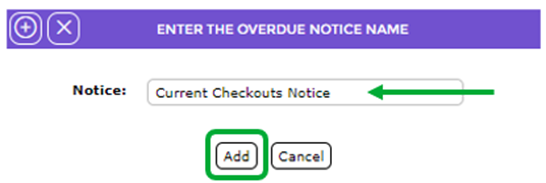
- Click the Add button and the Overdues > Add screen will display.
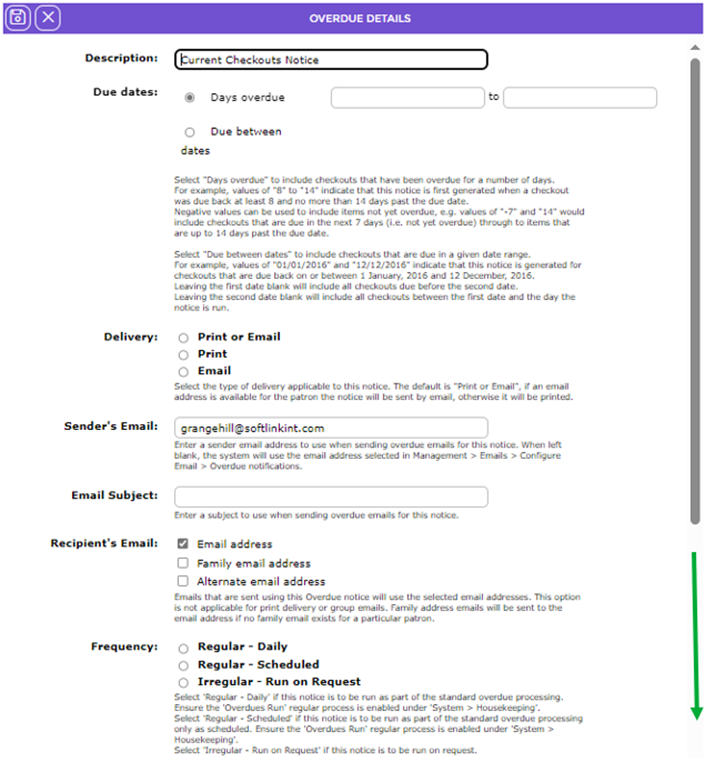
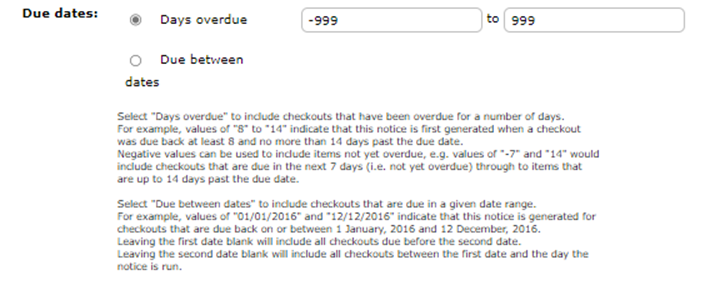
- To ensure the report includes all items on checkout, a negative value should be entered in the Days Due Back (from) field. In the example above, a value of -999 is used, the assumption being that there are no checkout periods of 999 days, set in Lending Rules.
- The Days Due Back (to) field in the example screen above uses 999 the assumption being that there are no checkouts over 999 days overdue. If it is likely some items are overdue by more than that, adjust the value to suit.
As the number of checkouts will automatically adjust when the Overdue Days Update Housekeeping process is run, there is no need to include the notice in the Overdues Run Housekeeping process if the report is one that is run on demand.
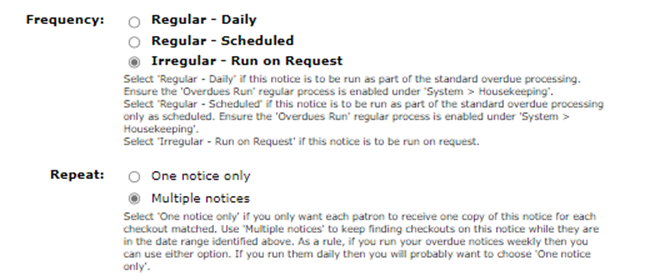
- If the report is only run on demand, select the radio button next to Irregular in the Regular section and ensure that radio button next to Multiple Notices is selected in the Repeat section.
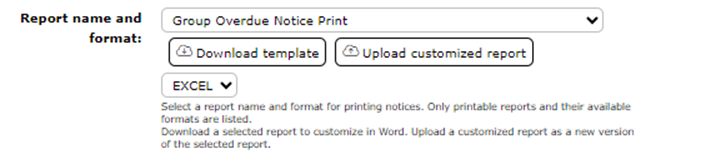
- Click on the down arrow at the end of the Report name and format field and click on the report you want. If, for example, you want the cost of the items included ensure a report that includes cost is selected.
- Ensure the radio button next to Irregular is selected in the Regular field.
- Ensure the radio button next to Multiple notices is selected in the Repeat field.
- When all other fields have been completed as required click the Save button.

- The Detail screen for the Current Checkouts Notice will display

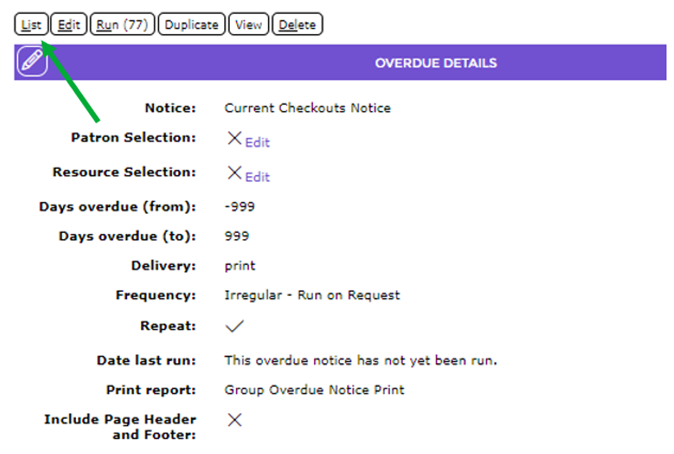
- The new notice will list in the Overdues > List screen.

- The value in the # of checkouts column will adjust accordingly when the Overdue Days Update Housekeeping process is run each day. This number should always match that which appears in brackets on the Run button on the Detail screen of the notice.
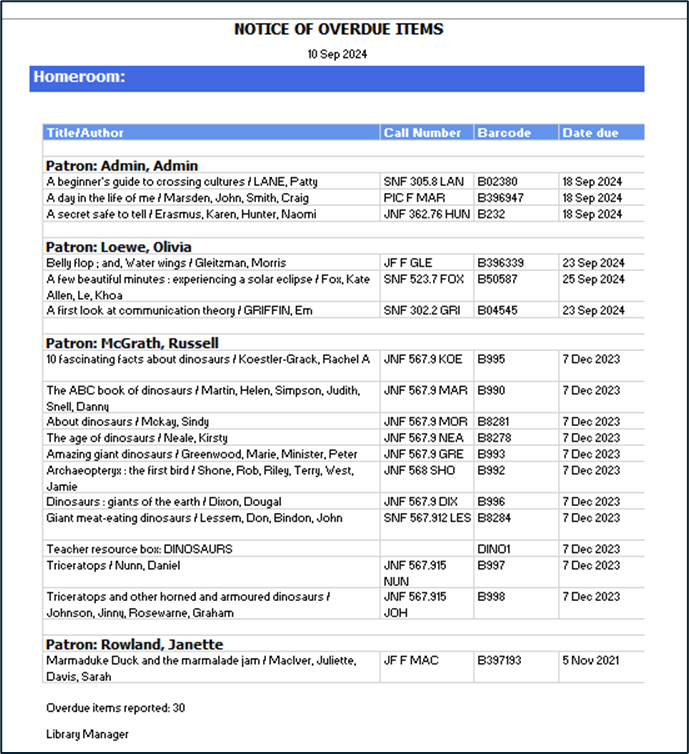
- Run the report when required by clicking the corresponding Run icon. The report can also be run by clicking the Run link on the Overdues > Detail screen of the notice.
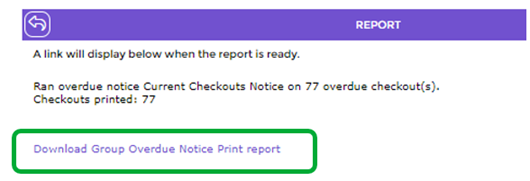
- Depending on the report selected, information will include Title, Patron, Branch, Due Date, and Cost.
Was this article helpful?
That’s Great!
Thank you for your feedback
Sorry! We couldn't be helpful
Thank you for your feedback
Feedback sent
We appreciate your effort and will try to fix the article