MackinVision enables you to import patron images in bulk. Once loaded, the images are viewable from the Patron Details page Circulation Desk.
There are two different ways to add Patron images in bulk:
- Upload the image files to the server in bulk from System > Housekeeping.
- Upload the image files to MackinVision using an import job from Management > Import
Preparation
There are a few checks that need to be made prior to uploading Patron images to ensure the images load correctly.
File name
The patron image files need a name that can link the image to the correct Patron.
MackinVision will read and match files with the Patrons’ Alias, Student Code or Username as the file name. For example, a jpg image for a student with an alias of P245 is also named P245. If using a student code or username, the same rule applies.
Note: The easiest way to source suitable photos is to ask your school’s photographer to supply them. Give them these specifications before they take the photos so they can name the photographs correctly and make sure they are the right size.
File size
The Patron image default size is 144 (width) x 192 (height) pixels. Images that are larger or smaller than the default pixel size are scaled to fit. Large file sizes can slow down the performance of the Circulation Desk. If Patron records are taking too long to appear it may be necessary to reduce the size of the images. If possible, images larger than 50,000 bytes (48.828 kb) should be avoided.
Parameter 3357 (borrowerImageMaxSize) specifies the maximum size (in bytes) allowed for Patron images.
Create a Compressed (Zipped) folder containing all the photos
The file containing the patron images needs to be compressed (zipped) before a bulk import of them can be done. Make sure the folder containing the photos is zipped, rather than the photos themselves. See the steps below:
- Navigate to the folder containing the photos.
- Open the folder.
- Select all photos (Ctrl + A).
- Right-click and choose "Compress to..." or "Send to..." and select ZIP file.

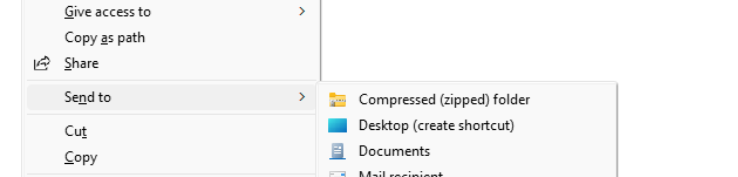
A zipped file is now created containing all the photos. Rename the file and make a note of the location of the file so that you can find it in the next step.
Note: The zip file containing the Patron images must not contain any folders, only Patron images.
Upload Your Compressed (Zipped) Folder to MackinVision
Make sure you logged into MackinVision as an Administrator.
Specifying the folder
Patron images will be uploaded to the MackinVision server folder specified in parameter 3304 (Patron Image File Path). The default path used to store external files is [Installation Folder]\Softlink International\library server\UserDefinedLocations
The destination path used will be specific to your network environment. A suitable location needs to be established before continuing with these steps.

Loading the images
1. Log into MackinVision with an Administrator account (or an account with access to the Housekeeping function).
2. Navigate to System > Housekeeping and click the Upload Files to Server button at the top of the screen.

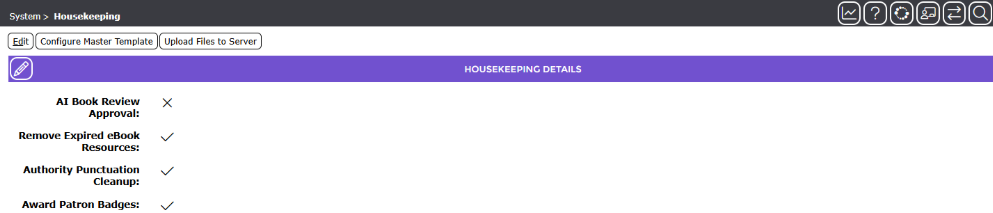
Set File Type to Patron Image and click the Choose File button.



Find the Zip file containing the Patron images and click Open.

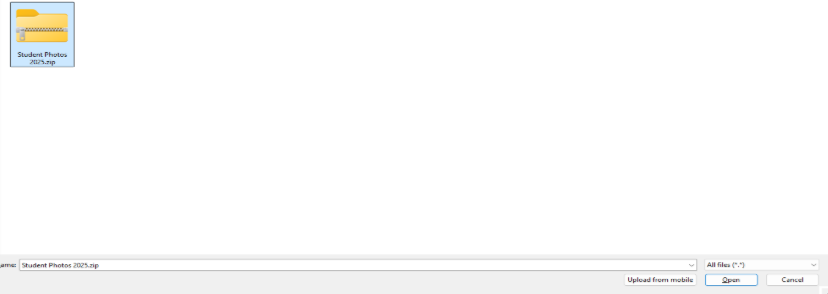
The File Destination as set in parameter 3304 (Patron Image File Path) is displayed on the screen.

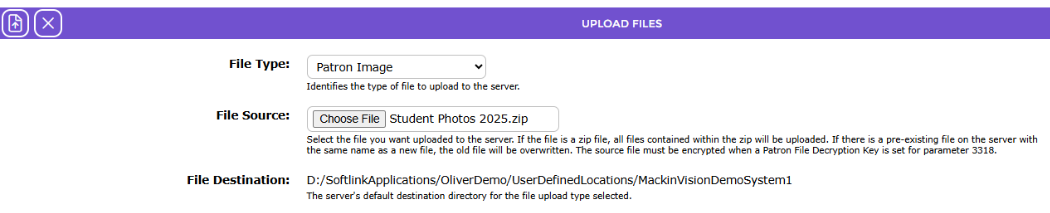
Click the Upload  button to begin loading the files.
Was this article helpful?
That’s Great!
Thank you for your feedback
Sorry! We couldn't be helpful
Thank you for your feedback
Feedback sent
We appreciate your effort and will try to fix the article