Summary
This guide describes how to delete patron accounts from your MackinVision system. Patrons may be deleted either individually, in bulk, or automatically during the scheduled Housekeeping process.
Note: That in all cases, patrons may not be deleted if they still have items on checkout, or fines or charges owing.
Deleting Individual Patrons
Patrons may be deleted individually by displaying the patron detail record. To do this, perform the following steps:
Navigate to Circulation > Patrons
Search for the patron by typing either their name or their alias in the relevant fields
Click the Search button
Click to display the patron’s record from the search result
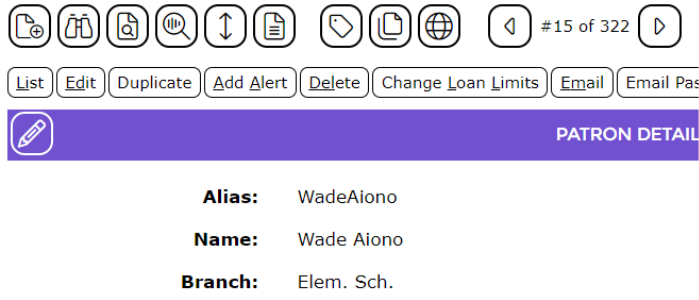
Above the patron’s record is a series of buttons. MackinVision will normally only display the ‘Delete’ option when all the pre-requisites to delete a record have been met. So that this will only display if there are no outstanding checkouts or charges against the account. Otherwise, you will see a Current Checkouts, and/or Current Charges option.
If the patron has no checkouts due or charges owing, then you will see a Delete button. To delete the patron account, simply click the Delete button and confirm the deletion when prompted.

Otherwise, all current checkouts and charges will need to be cleared from the patron’s record before the patron can be deleted. (See the How to Remove Fines or Credits from a Patron Record, and the How to Use Terminate Checkouts guides.)
Bulk Deletion of Patrons
There are two methods of selecting multiple patron records to be deleted. The first method is to search for the patrons to be deleted. This method of deletion is most suited to instances where the patrons all belong to the same Patron Loan Category, Patron Type, Homeroom or Grade Level. An example of this may be the deleting of year 12 students for the previous year. The second method of deleting patron records in bulk is to delete patrons who were tagged for removal during a patron's import.
Deleting Patrons Retrieved in a Search
To search for and delete patron records, perform the following steps:
Navigate to Circulation > Patrons
Make the necessary selections to return the patron records to be deleted (e.g., grade level)

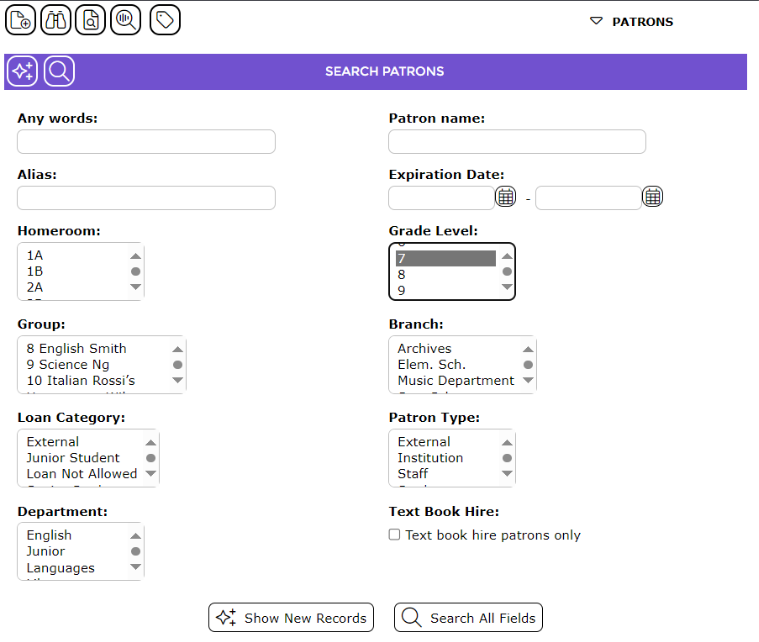
Click the Search button

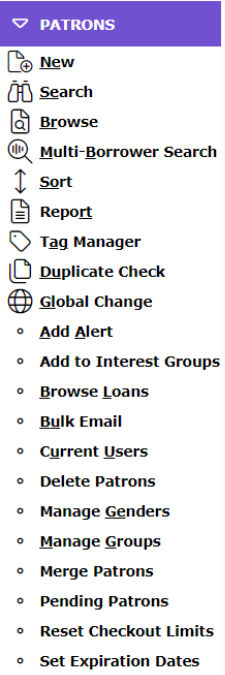
Click the Patrons drop-down menu from the top-right corner of the screen and select Delete Patrons.

In the confirmation screen that follows, click Delete to delete the patron records.

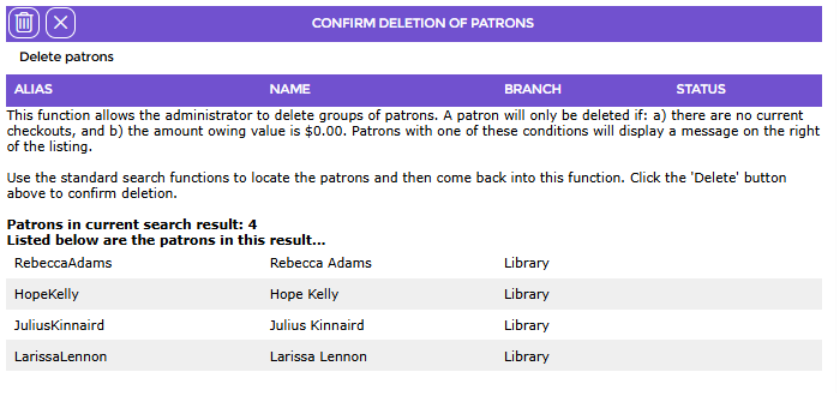
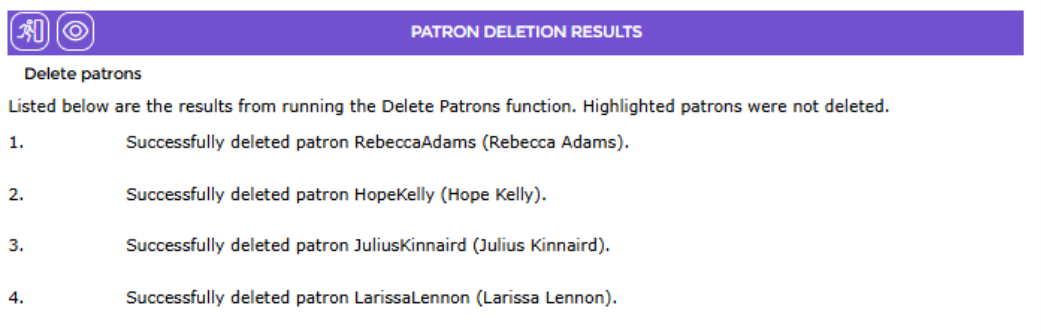
If there are any accounts in the returned records that have checkouts due or charges owning, then a list of these patrons will appear with a message notifying you that the listed patrons will not be deleted due to their checkouts due or their charges owing. To continue with the deletion of all other patron records, click Proceed.
Deleting Patrons Tagged for Removal after a Patron Import
When importing patron records into MackinVision, it is possible to tag the accounts of students and staff who are no longer at the school and should eventually be removed from your system. Records tagged in this way can be found using the Management > Tag Manager Functionality.
Tagging Patrons for Removal during an Import
Note: The full Patron Import Guide on how to import patrons into MackinVision including how to tag redundant accounts can be found in the MackinVision Community Portal or MackinVision Help.
The last option in the CSV import screen is Removal marking. There are two fields here to configure: Search and Tag.
The Search field specifies how to identify the patron accounts to tag. Any patron captured by the search string, who is not found in the patron's import, will be tagged for removal. For example, if the search string is Type=Student, then any patron with the Patron Type of Student, who is not included in the patron import, will be tagged for removal. Staff, on the other hand, would not be tagged for removal, regardless of whether they are in the patron import file as they would not be captured by the above search string.
The Tag field is where the label for the tag is to be entered (by default, this will be To be deleted).
Deleting Patrons Tagged for Removal
To delete patron records for accounts tagged for removal, perform the following steps:
Navigate to Circulation > Patrons
Click the Patrons drop-down menu from the top-right corner of the screen and select Tag Manager
Run the query for the tag specified during the patron import (by default, this will be To be deleted)
Click the Patrons drop-down menu from the top-right corner of the screen and select Delete Records
In the confirmation screen that follows, click Save to delete the patron records.
If there are any patrons with checkouts due or charges owing, then a list of these patrons will appear with a message notifying you that the listed patrons will not be deleted due to their checkouts due or their charges owing. To continue with the deletion of all other patron records, click Proceed.
Automatic Scheduled Deletion of Expired Patrons
MackinVision’s Housekeeping process can use the patrons’ expiration dates to determine which patrons no longer need to be in the system and remove them. To set up the scheduled deletion of expired patrons during the Housekeeping, three settings must be configured:
The Delete Expired Patron Records option in System > Housekeeping must be checked.
Parameter 1653 ‘borrowerRegularProcessDeletionLagTime‘ in Management > Parameters must have a value of at least 1. If parameter 1653 is left blank or set to zero, the process will not run. Parameter 1653 sets the number of days after a patron’s expiration before they will be queued for deletion during the next Housekeeping run. For example, if an expiration date is 10 April and parameter 1653 is set to 7 days, the patron record will not be deleted until the process is run on 17 April.
The Expiration Date field on the patron account(s) to be deleted must have a value. For instance, this value may be set for all year 12’s at the start of the year so that they expire at the end of the year. Then any year 12 account that does not have an outstanding checkout or charge will be deleted by the overnight housekeeping process.
Was this article helpful?
That’s Great!
Thank you for your feedback
Sorry! We couldn't be helpful
Thank you for your feedback
Feedback sent
We appreciate your effort and will try to fix the article