Reporting Capabilities
MackinVision’s reporting capabilities can be accessed from four main areas depending on the type of information that you require.
Reporting information on specific records that have been returned via a standard management “Search”. These may be catalog records or patron records or order records etc. Once the records have been returned in the form of a list then the reports option is accessible by hovering your mouse over the selected function drop down list Copies in the top right-hand corner.
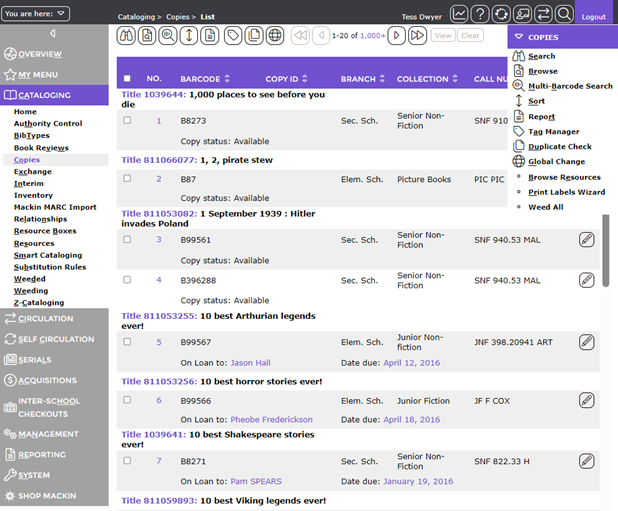
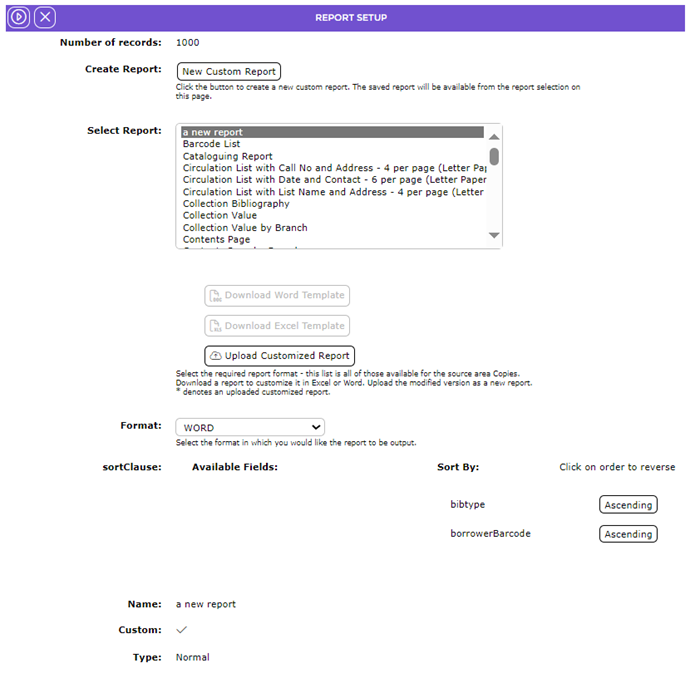
Clicking Report will display Report Setup. Use the Select Report to choose which report you are looking for. Ex. Barcode List.
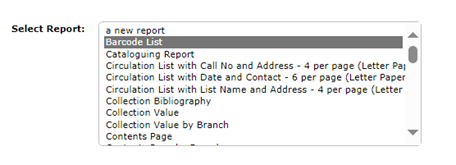
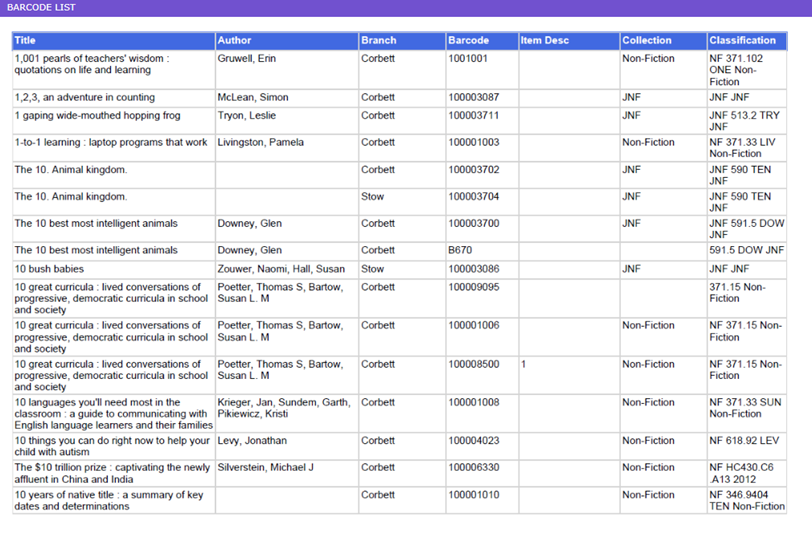
A simple Barcode List report from a list of copies would look like (as seen from the preview option):
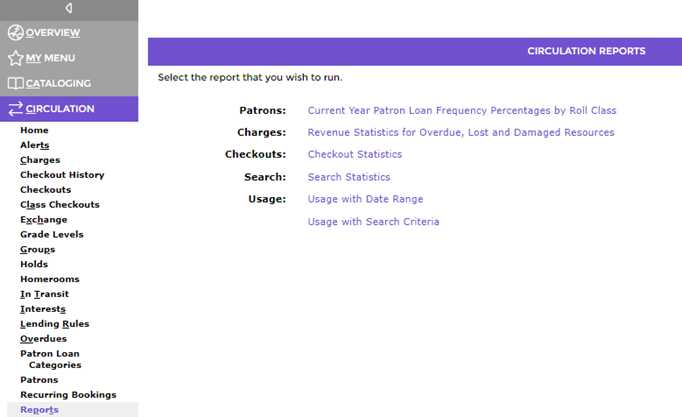
This type of reporting is typically broken down to the individual record level, whether this be titles or copies or account details such as current checkouts. Reporting information over a specified “Transaction Period”. Default reports include Patron Frequency, Lost and Damaged Resources and Checkout Statistics. These reports are accessed via Circulation > Reports.
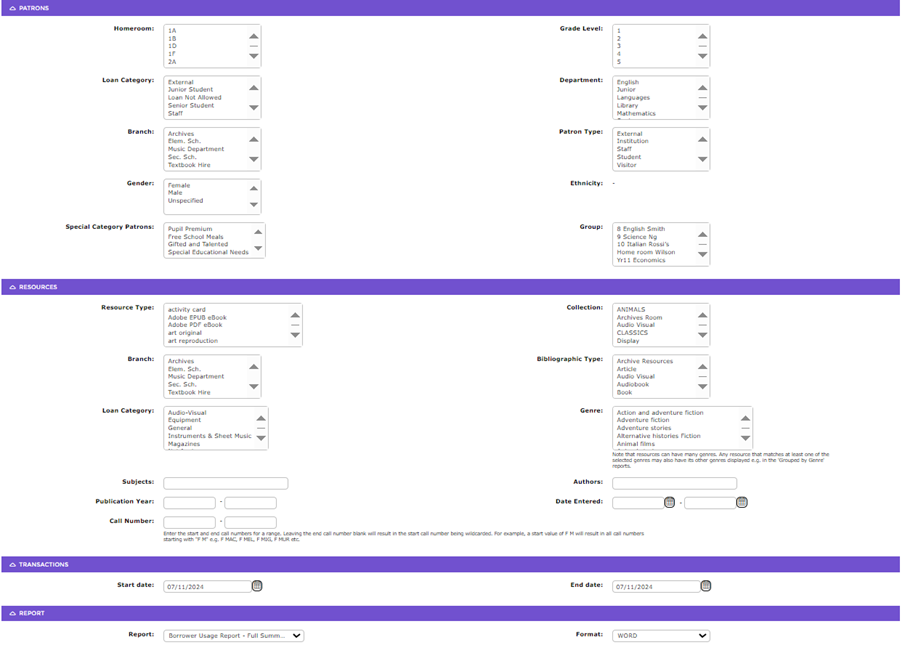
Usage with Search Criteria options can be any combination of patron, resource and transaction date range option.
A Most Frequent Patrons report might look like:
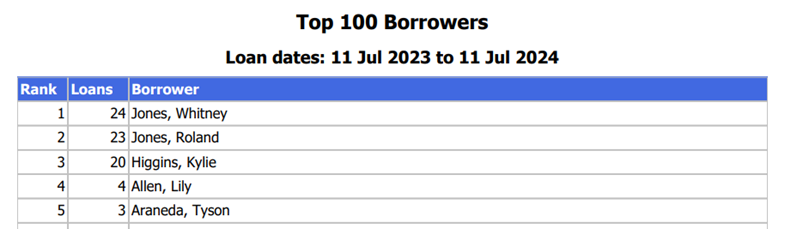
These types of reports allow for higher level totaling.
Reporting information on additions and deletions to the library over a specified date range, including Accounts, Resources and Copies. You can access this information via Management > Statistics. Note that there is no actual reporting facility here, but it is possible to simply copy and paste the displayed results into an Excel spread sheet.
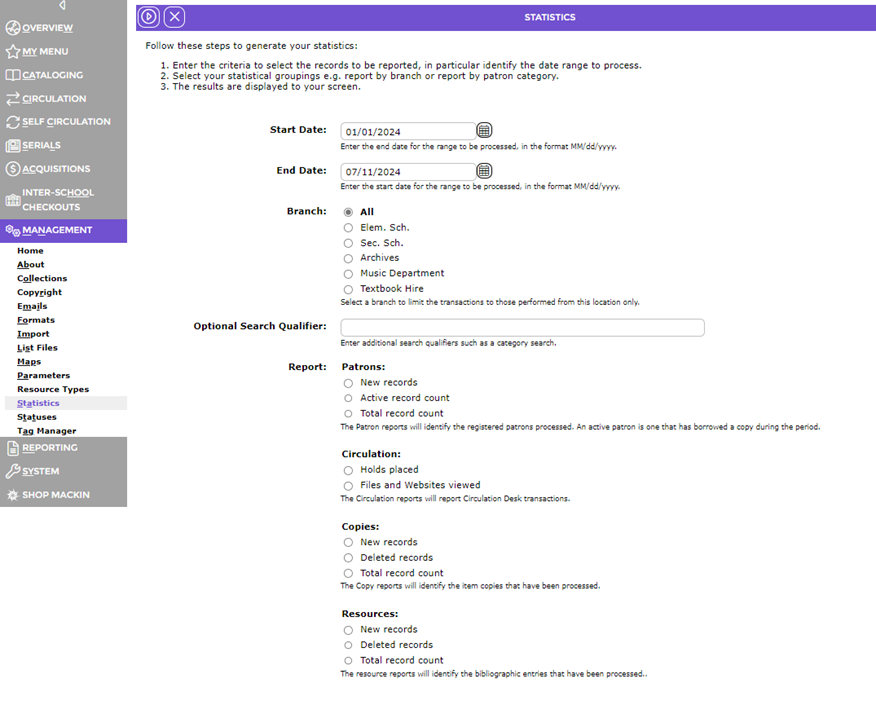
Click on any of the round radio buttons under REPORT in the categories of Patrons, Circulation, Copies, and Resources. Then click the NEXT icon. 
The Statistical Grouping will be displayed for that report category. In this case, “Total Record Count” under COPIES. You can select Group and Total options such as Collection and Cost to give total copies in, and the values of, your collections:
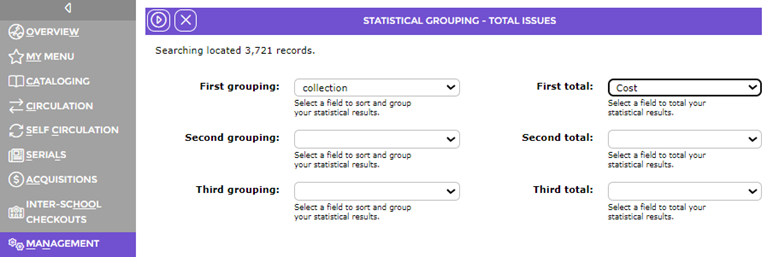
Then click the NEXT icon.  The Statistical Reporting will be displayed.
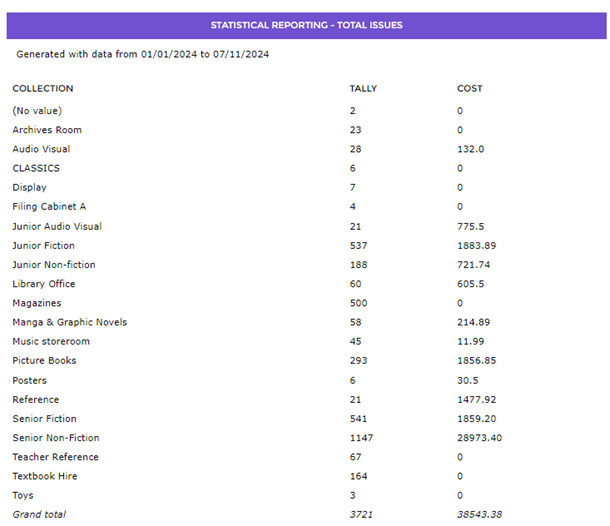
This report facility should be used for information regarding your library catalog and the accounts that access it. Although you can break down the result to individual record level, you may want to consider Circulation > Reports for that level of granularity.
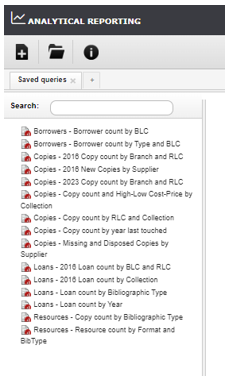
Reporting Analytical information provides high level table snapshots of Checkouts, Resources, Copies and Patron information. Analytical Reporting is accessed via the icon.
There are several pre-defined reports available to you:
A Resources by Format and Bibtype report would give:
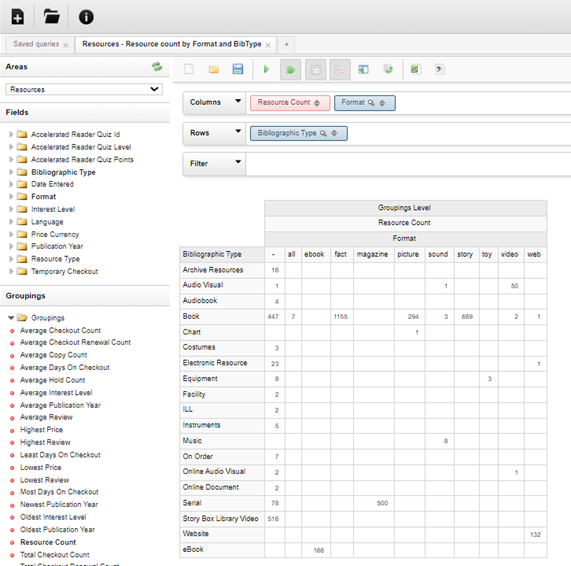
Or you can design your own. Creating and running Analytical Reports is covered in a separate Help guide.
Was this article helpful?
That’s Great!
Thank you for your feedback
Sorry! We couldn't be helpful
Thank you for your feedback
Feedback sent
We appreciate your effort and will try to fix the article