The Search Other Sources view of the Search Page combines the features of:
- Federated Search;
- Search Other Sources, and;
- Search Another (MackinVision) Library
in the one convenient search option. All sources are searched at the same time and the results are listed by source to allow you select the relevant results.
How to access the Search other Sources page.
Click the Search option on the MackinVision interface Search menu bar and then select Search other sources from the drop down menu.

The Search other sources page will be displayed.
Features of the Search Other Sources Page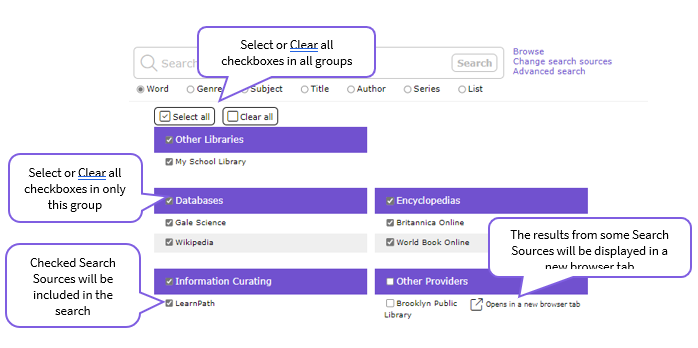
Search other sources allows you to search a variety of external sources as well as your own MackinVision v5 library at the same time.
You can select which of the configured Search Sources should be included in a search by ticking or clearing the ticks for All Groups of Search Sources or Individual Search Sources.
The results from compatible Search Sources will be displayed in tabs underneath the search.
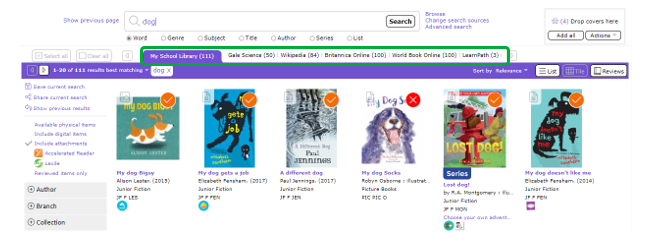
Search Sources without a Federated Search connector will be displayed in a new browser tab.
Note: Library staff will need to configure access to Search Sources before they will be listed and some require payment of a subscription. MackinVision supports a wide range of connectors to Other Search Sources and more are being added all the time.
Example of using Search Other Sources
For this example, a search will be performed using the search term ‘gold’ on the four Search Sources Local library, Wikipedia, Britannica Online and World Book Online.
- From the MackinVision Search screen, select Search > Search Other Sources from the menu bar.
- Because only a few Search Sources are required, click the Clear All link to unselect all Search Sources.
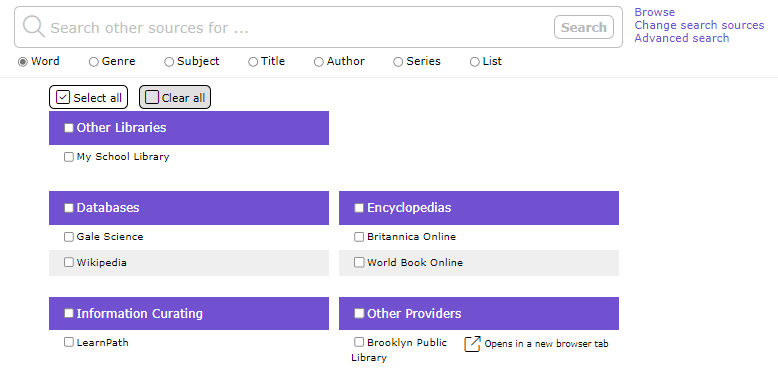
3. Click the check boxes for:
- Other Libraries > My School Library;
- Databases > Wikipedia.
- Encyclopedia > Britannica Online and;
- Encyclopedia > World Book Online.
4. Enter the search term 'gold' in the Search other Sources for... bar at the top of the screen and then click the Search button.
5. All four Search Sources will be searched concurrently for items related to the search term ‘gold’.
6. Results for My School Library, Wikipedia Britannica Online and World Book Online will be displayed within MackinVision. 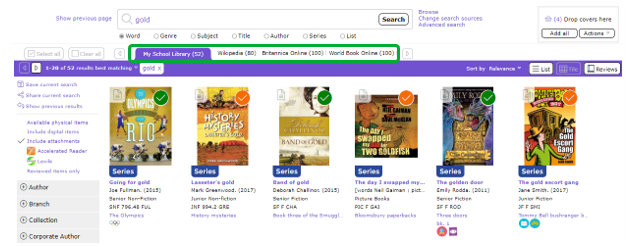
Local Library – My School library
- Click the “My School Library” tab to expand the results list for each of the Search Sources, for example, Grange Hill Library. A list of the resources found in your own library catalog will be displayed.
- Click on the thumbnail image or the title link to show more details in a popup window. You can also click the more… link to show more details within the list itself.
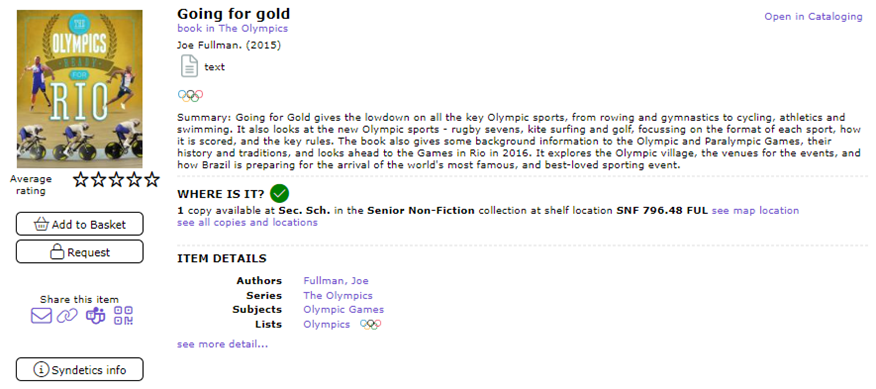
3. Click the Back to Previous Screen link to collapse the results list for Grange Hill Library.
Wikipedia
- Click the Wikipedia (xx) tab at the top of the screen.
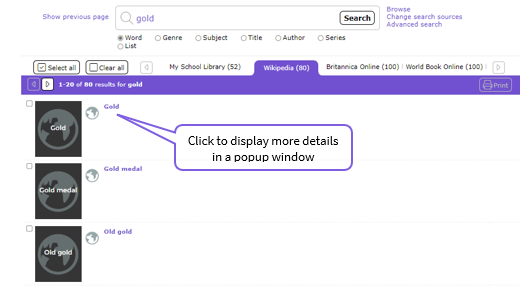
Brief details of each item will be displayed.
2. Click the icon or the title link to display a synopsis of the Wikipedia article and a link to the original Wikipedia article in a popup window.
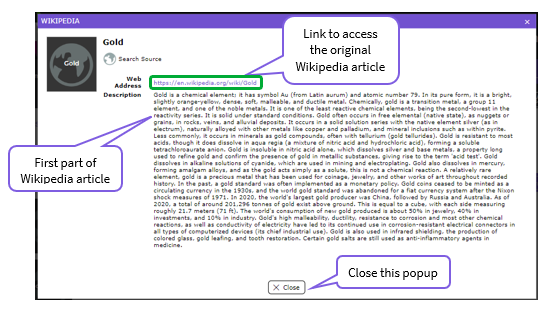
3. Click the Wikipedia link to view the article in Wikipedia in a separate browser window.
4. Close the Wikipedia browser window when finished.
Britannica Online
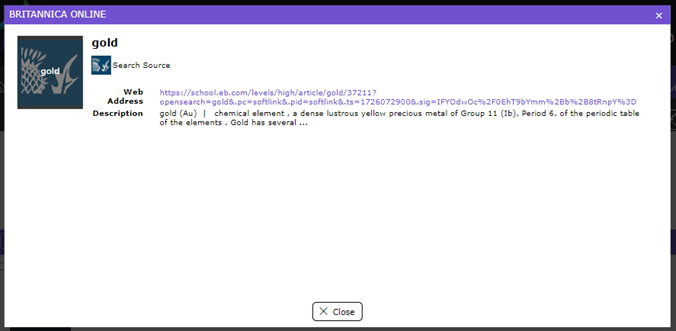
- Click the Britannica Online (xx) tab at the top of the screen to expand the results list for Britannica Online.
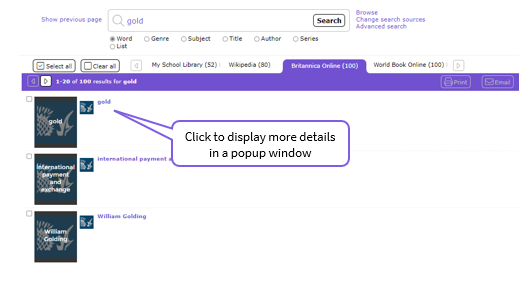
2. Click the icon or title link to view full details.
Was this article helpful?
That’s Great!
Thank you for your feedback
Sorry! We couldn't be helpful
Thank you for your feedback
Feedback sent
We appreciate your effort and will try to fix the article