Summary
The option to control whether Circulation Desk staff are permitted to automatically return an item, currently flagged as on checkout to another patron, and checkout it to the currently scanned in patron is available.
This guide will identify the applicable user privilege operation for Smart Circulation Desk. The Overview of User Roles and User Privileges guide provides fuller information on all User Roles and User Privileges.
Smart Circulation Function Privilege
User Privileges should only be accessed by the Administrator user, or a high level staff member, with Add/Edit privilege operations activated. The user privilege operation for Smart Circulation Desk should be activated for any Circulation Desk staff member who is permitted to checkout a copy, flagged as on checkout to another, to the currently scanned in patron. By default it is activated for the Administrator User. The following steps will show you how to activate the applicable operation for staff whose User Role includes the User Privilege of Circulation Desk.
- Navigate to System > User Privileges.
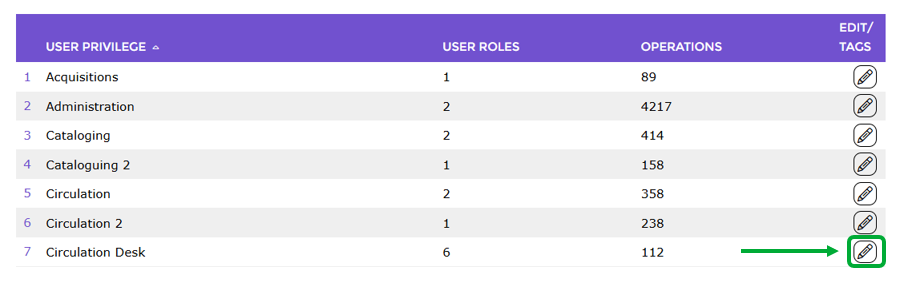
- Click on the Edit icon corresponding to the Circulation Desk User Privilege.
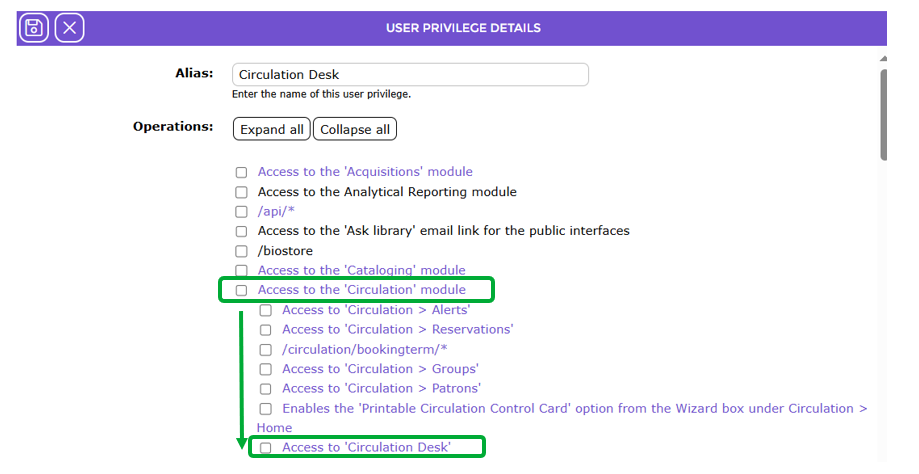
- Click on Access to Circulation module link – this is a top-level User Privilege which will include related sub-level operation links with their own related sub-levels and individual operations. Note that if the corresponding checkbox includes a check then ALL user privilege operations for Circulation Desk are activated already.
- Click on the Access to ‘Circulation Desk’ sub-level.
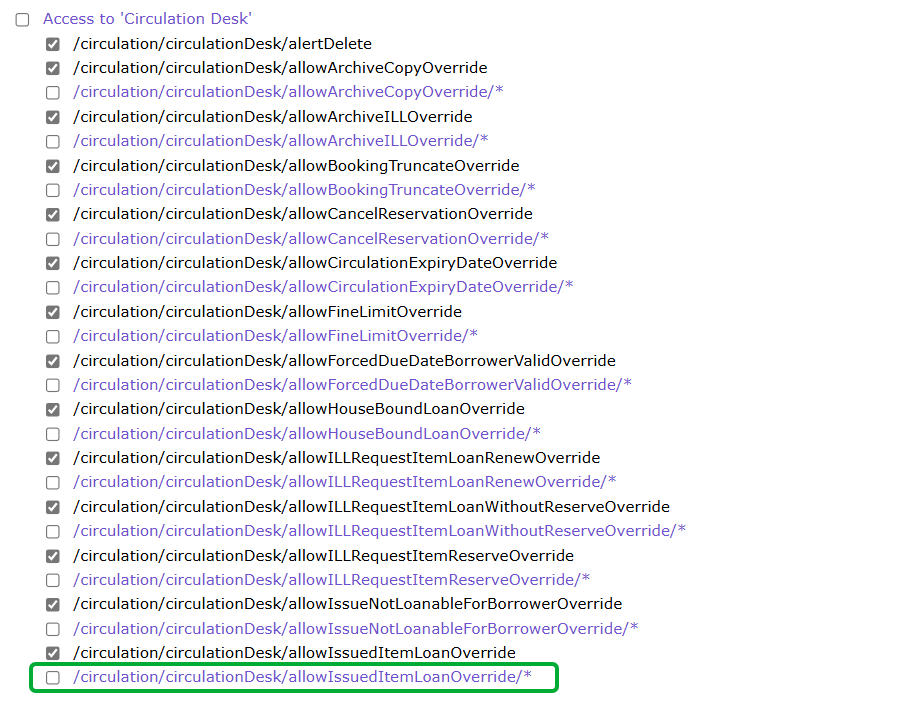
- All related sub-level and single operations will display.
- Locate then click on the /circulation/circulationDesk/allowIssuedItemLoanOverride/* sub-level link to display the /circulation/circulationDesk/allowIssuedItemLoanOverride/automatic.
- Click in the corresponding checkbox and click the Save button in the top right hand corner of the screen.
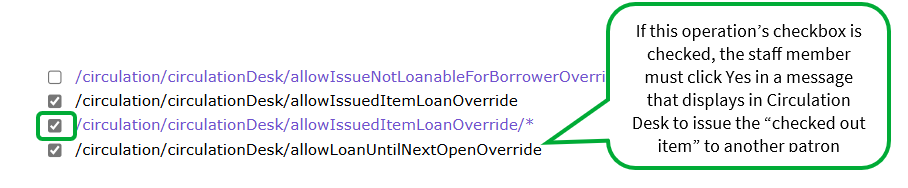
- The next time applicable staff members log in, an item flagged by the system as on checkout to another patron, will automatically be issued to the currently scanned in patron without a message displaying requiring the staff member to click Yes to do so.
Was this article helpful?
That’s Great!
Thank you for your feedback
Sorry! We couldn't be helpful
Thank you for your feedback
Feedback sent
We appreciate your effort and will try to fix the article