Summary
Staff can recall items, currently on checkout to the Patron, from the Current Checkouts screen accessed from the Current Checkouts button on the Detail screen of the applicable patron record.
This guide will provide the steps required to recall checkouts. Separate guides provide information on links on a Patron record and how to search for Patrons.
How to Recall a Checkout
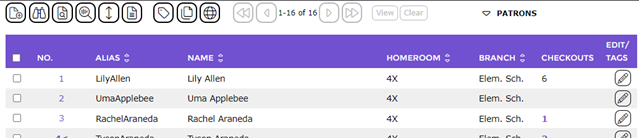
- Complete a search and in the resulting List screen click on the number link corresponding to the applicable patron to access their record Detail screen.
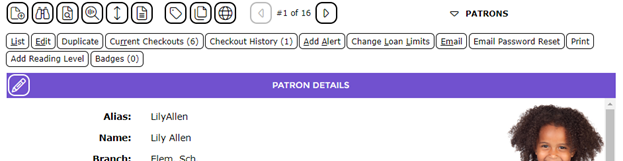
- Click on the Current Checkouts (x) button.
- The Current Checkouts > List screen will display.
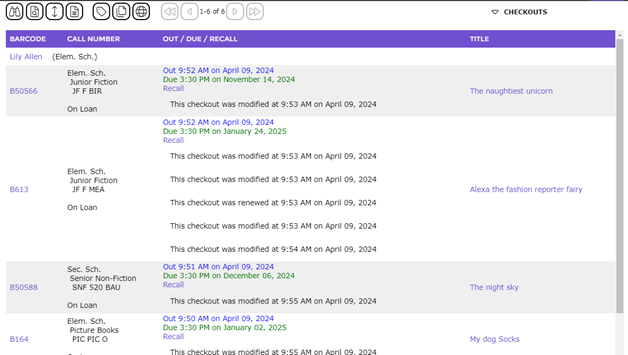
- Each checkout detail line includes a link to the copy and resource record as well as a Recall link.
Note: In some instances, the checkout may have been subject to an earlier recall notice. If that is the case, the details of when the previous recall process occurred will display below the Recall link.
- To recall a checkout, click on the Recall link corresponding to the copy. If all copies are to be recalled, click on each corresponding Recall link.
- The Recall Checkout popup screen will display.
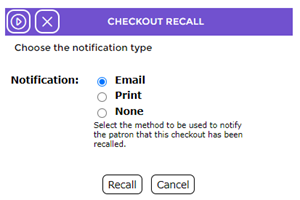
- Ensure the radio button next to the applicable Notification option is clicked in, for example, Email. By default, the radio button next to None is active. Note that the Email option will not be an available option if the patron’s record does not include an email address.
- Click the Recall button.
- The resulting screen will identify the notice has been successfully sent and the email address to which the recall notice has been sent.
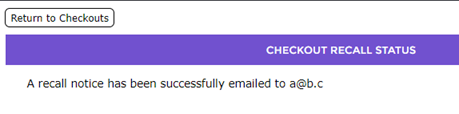
- Click the Return to Checkouts button to return to the List screen.
- The applicable checkout will now include a message line identifying it has been subject to a recall and the date and time of the recall process.
- Repeat Steps 5-10 for any other checkouts that are to be recalled.
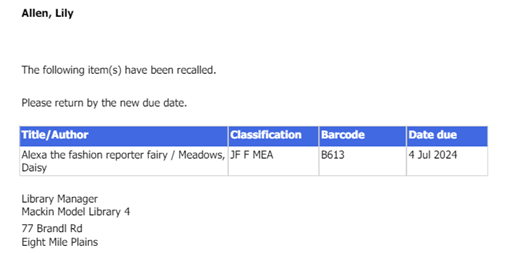
Example of the Message Section of Recall Email
Was this article helpful?
That’s Great!
Thank you for your feedback
Sorry! We couldn't be helpful
Thank you for your feedback
Feedback sent
We appreciate your effort and will try to fix the article