Summary
Patron checkouts are issued and returned via Circulation Desk.
This guide provides information on how to return items. Separate guides provide information on other Circulation Desk functionality such as issuing checkouts, placing holds or reservations, adding and paying charges, removing charges and renewing checkouts.
Returning Items
1. On Circulation Desk screen, click on the Return tab.
The copy’s details will display on the Return tab.
Item information is displayed, including the Title, Barcode, Call Number, Patron and Date Returned.
Any messages relating to the returned item will display below the barcode entry field.
The example message below is an informational message (indicating that the item was returned past its due date). There is no need to click the green check to continue.
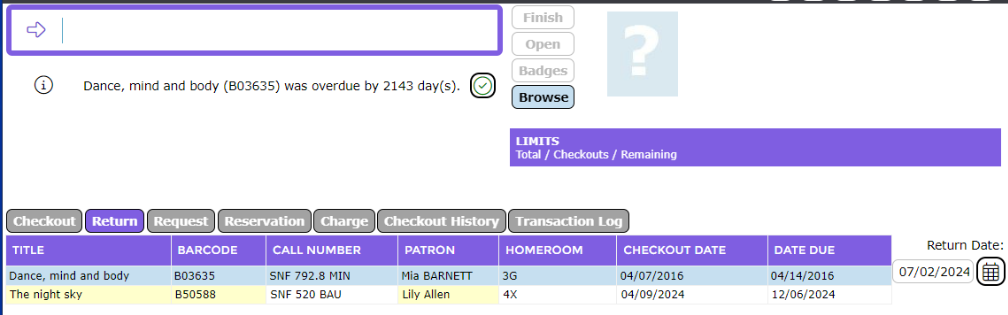
3. To return additional items, ensure the cursor is positioned in the barcode entry box at the top of the screen and repeat the process of scanning or typing barcodes. Details of the most recently returned item will be displayed at the top of the Return tab.
Related Parameters
The number of transactions displayed in the Return tab is determined by the following Support Parameters in Management > Parameters :
Parameter No. 3073 – circDeskReturnsSizeLess. The value entered in this parameter determines the number of items displayed in the Returns tab when the Show Less button is clicked.
Parameter No. 3074 – circDeskReturnsSizeMore. The value entered in this parameter determines the number of items displayed in the Returns tab when the Show More button is clicked.
Note: It is strongly advised that any changes made to Support parameters is done in consultation with a MackinVision Support Representative.
Was this article helpful?
That’s Great!
Thank you for your feedback
Sorry! We couldn't be helpful
Thank you for your feedback
Feedback sent
We appreciate your effort and will try to fix the article